July 2026 Updates
New feature: more location fields in Import Excel
Section titled “New feature: more location fields in Import Excel”The Map fields step of Import Excel now has 11 more location fields that you can map to columns of your spreadsheet. With them, the BAPLIE file can carry more locations for each container: the original port of loading, optional and next ports of discharge, the transhipment port, the terminals of loading and discharge, and up to five onward ports of discharge. (How to import optional fields from Excel)
The new fields
Section titled “The new fields”| Field | What it writes in the BAPLIE file |
|---|---|
| POL Terminal | Terminal code at the port of loading (added to the LOC+9 line) |
| POD Terminal | Terminal code at the port of discharge (added to the LOC+11 line) |
| Original POL | Original port of loading (LOC+76) |
| Optional POD | Optional port of discharge (LOC+97) |
| Next POD | Next port of discharge (LOC+152) |
| Transhipment Port | Place of transhipment (LOC+13) |
| 1st POD | First onward port of discharge (LOC+64) |
| 2nd POD | Second onward port of discharge (LOC+68) |
| 3rd POD | Third onward port of discharge (LOC+70) |
| 4th POD | Fourth onward port of discharge (LOC+71) |
| 5th POD | Fifth onward port of discharge (LOC+74) |
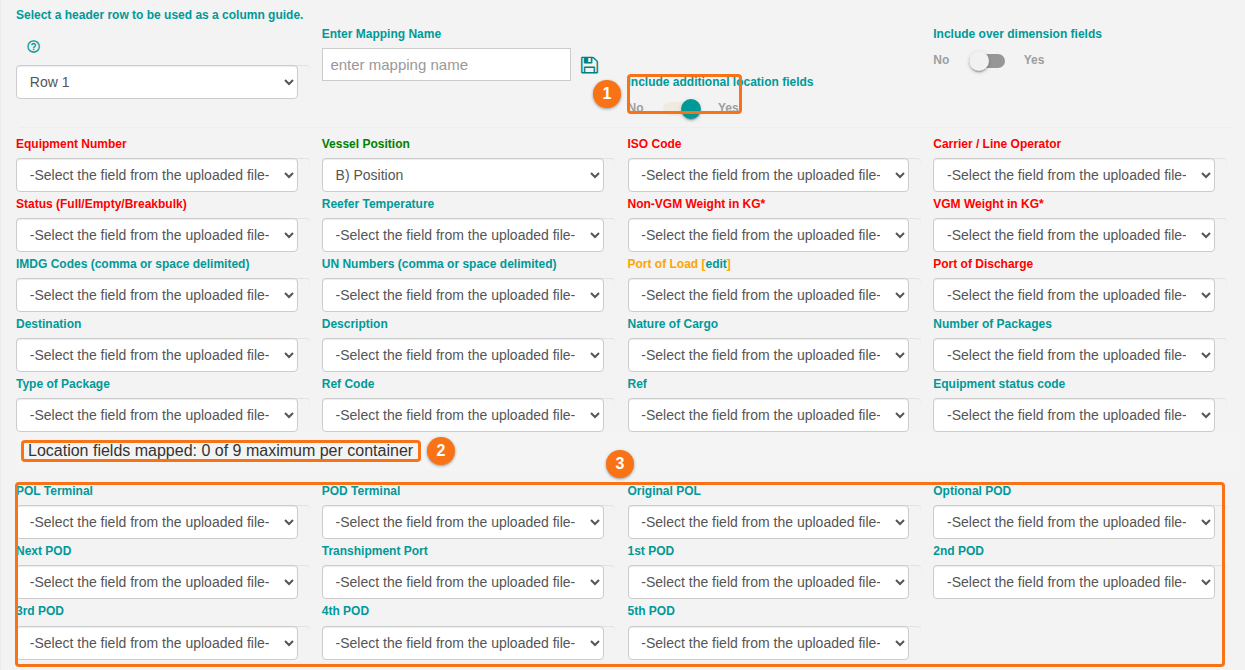
All the fields are optional. They are hidden until you switch them on. In the picture, the counter shows how many location fields are mapped (1), above the 11 new lists (2).

How to use them
Section titled “How to use them”- Click Import Excel in the Function Menu on the left and upload your spreadsheet as usual.
- In the Map fields step, find the new switch Include additional location fields, near Include over dimension fields (1 in the picture).
- Set it to Yes. The counter (2) and the 11 new lists (3) show.
- For each field that you want in the BAPLIE file, choose the matching column of your spreadsheet. Leave a list at -Select the field from the uploaded file- if you do not want that LOC line.
- Go on with the import as usual. The fields that you mapped are written to the BAPLIE file, and you can see them in Main Content.
How the terminals are written
Section titled “How the terminals are written”POL Terminal and POD Terminal do not get their own LOC line. The terminal code is added to the LOC+9 line (port of loading) or the LOC+11 line (port of discharge), for example:
LOC+9+USNYC:139:6+ABC:TER:306': the port of loading is New York, the terminal code isABCLOC+11+NLRTM:139:6+XYZ:TER:306': the port of discharge is Rotterdam, the terminal code isXYZ
Nine LOC lines per container at most
Section titled “Nine LOC lines per container at most”BAPLIE 2.2 allows at most nine LOC lines per container. The counter above the new lists shows how many location fields you have mapped:
Location fields mapped: X of 9 maximum per container
The counter changes as soon as you change a location list. It counts Port of Load, Port of Discharge and Destination, and each of the nine new LOC fields. POL Terminal and POD Terminal are not counted, because they do not add a LOC line.
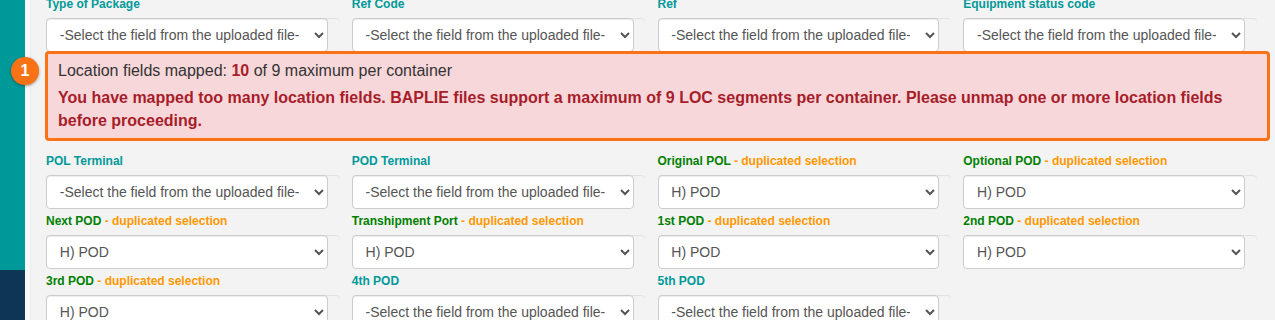
If you map more than nine, the counter turns red and a message asks you to unmap one or more location fields (1 in the picture). You cannot go to the next step until the count is nine or less.
Saved mappings
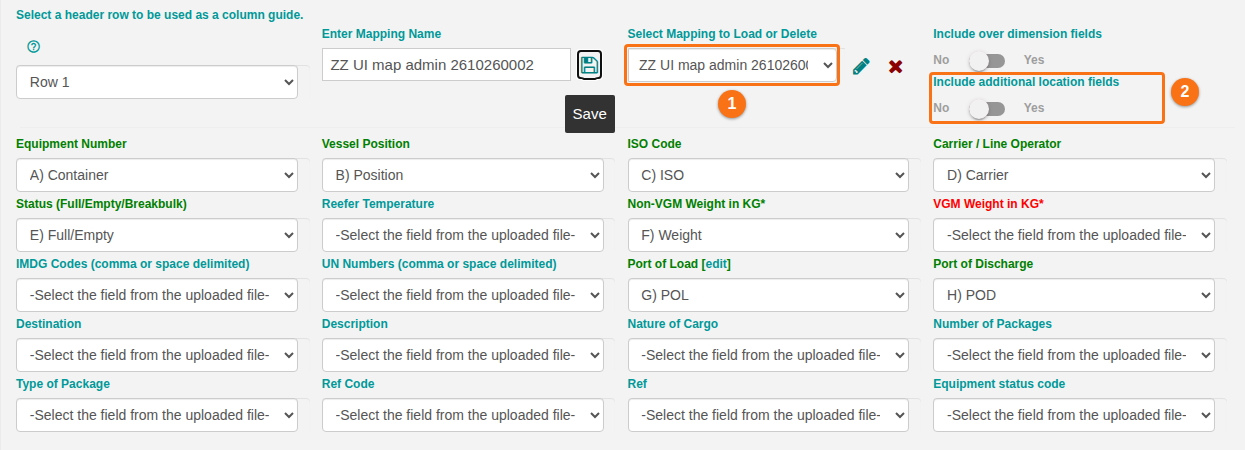
Section titled “Saved mappings”Saved column mappings can hold the new fields. A mapping that you saved before this update loads as it was (1 in the picture), with Include additional location fields set to No (2). Switch it to Yes, map the new fields that you want and save the mapping again.
Bug fixes
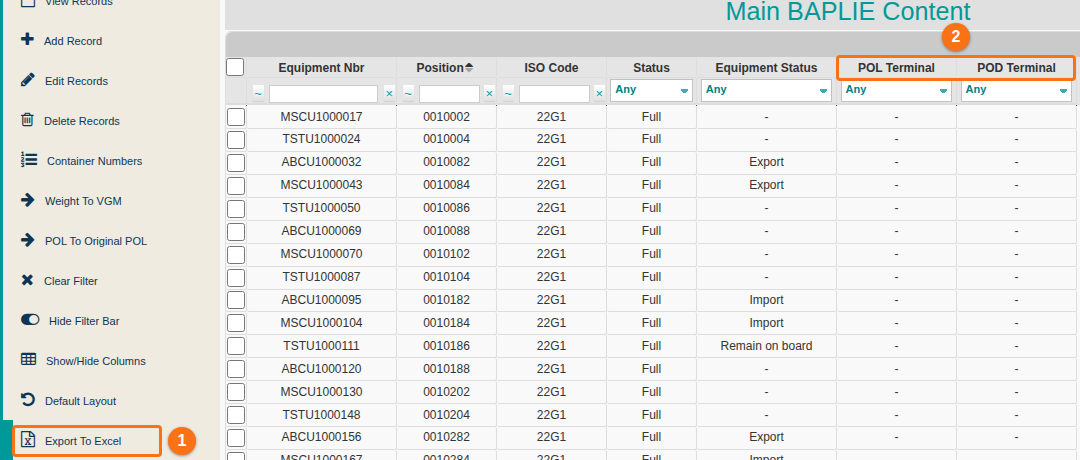
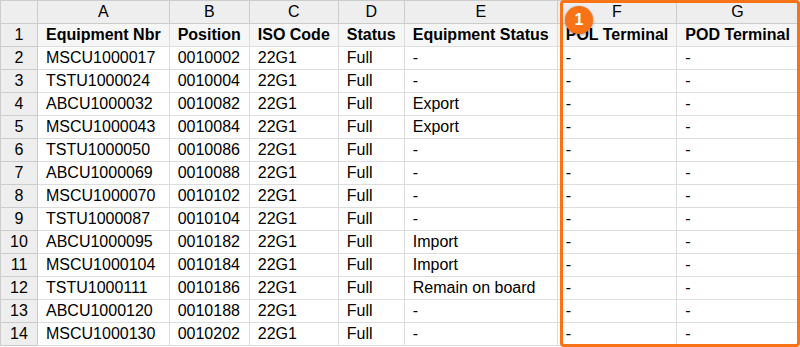
Section titled “Bug fixes”- Export To Excel in Main Content now writes the POL Terminal and POD Terminal columns. Before, these columns were missing from the spreadsheet, even when they were shown in Main Content. In the first picture, Export To Excel is marked 1 and the two columns 2. In the second picture, the exported spreadsheet has both columns (1).