How to print or download the full bay plan in 3D Vessel View
Use this guide to print the whole vessel, or download it as a PDF. You use Mini View PDF in the Print PDFs menu of the 3D Vessel View.
Before you start: open your file. Make all your changes to the BAPLIE data first.
-
After you upload a file on baplieviewer.com, open Visualization in the Function Menu on the left. Click 3D Vessel View. The screen shows a 3D model of the vessel.
-
Look at the menu bar at the top. The 3D view is open and Mode is View. To see the whole vessel, click Ship in the 3D bar.
-
In the 3D bar, click Print PDFs. Then click Mini View PDF. A window opens where you set the document options.
-
Choose the options in the lists: paper orientation (for example Landscape), the number of bays per row (Bays per row, from 1 to 8), paper size (for example Letter), the legend (Add Legend) and whether to group the bays vertically (Don’t Group Bays Vertically).
-
Click GENERATE PDF. To close the window without a PDF, click CANCEL.
-
Wait while the system makes the PDF. A window shows the text Generating pages, please wait… and the percentage done.

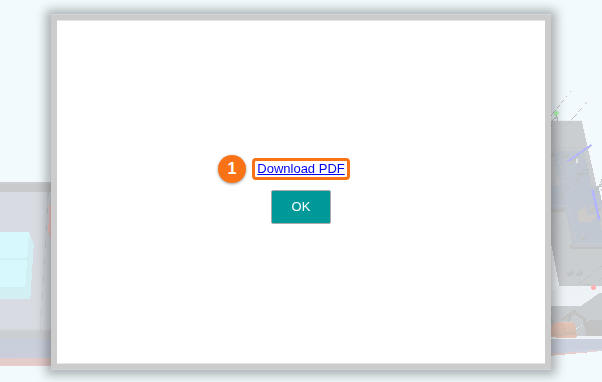
- When the PDF is ready, the window shows the link Download PDF (1 in the picture). Click it. Then click OK to close the window.
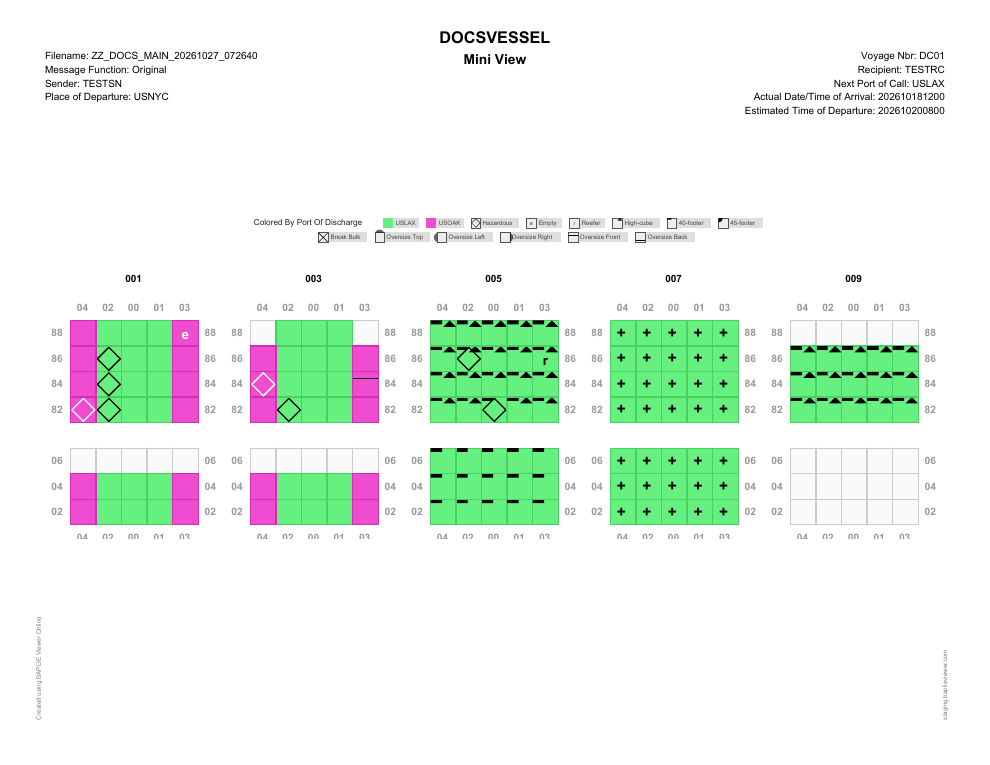
- Open the PDF that you downloaded. It is a Mini View page with the vessel name, the voyage details, the legend and the bays. It looks like this picture.