

How to use the Deck view
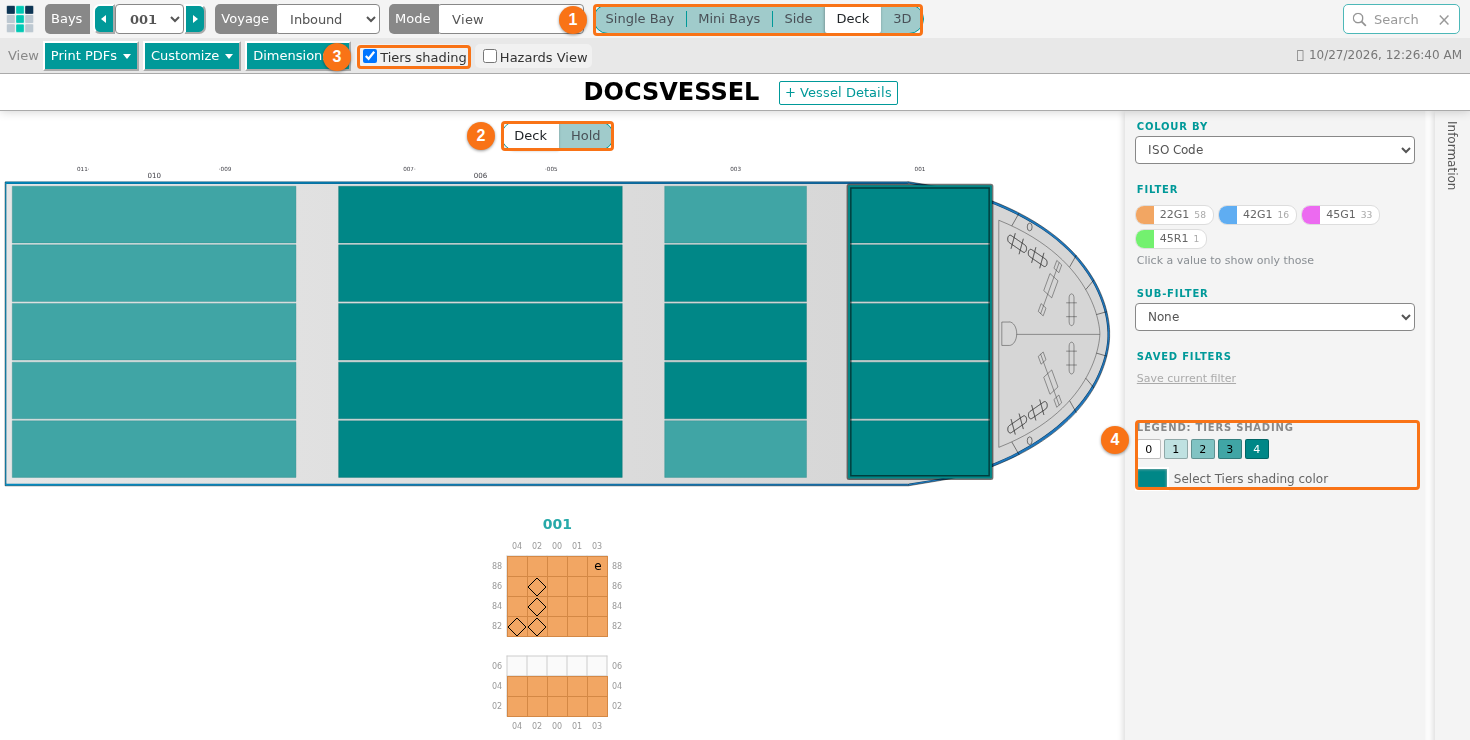
Use this guide to see the whole vessel from above, bay by bay. The Deck view shows one drawing at a time: the cargo above deck, the cargo below deck, or the hatch covers. Click a bay to see that bay in detail below the drawing. You can also shade each stack by its number of tiers.
Before you start: open your file in the 2D Bay View. The Deck view needs no extra permission. It is a read-only overview. You cannot select containers in it.
Open the Deck view
Section titled “Open the Deck view”- In the Function Menu on the left, open Visualization and click 2D Bay View.
- In the view control in the top bar, click Deck. The vessel shows from above.
- Above the drawing, in the centre, choose the drawing you want:
- Deck shows the cargo above deck.
- Hold shows the cargo below deck.
- Hatch Covers shows the hatch covers and the full capacity of the holds. See “Hatch Covers” below.
The drawing is Deck each time you open the page. The application does not save this choice.
Look at one bay
Section titled “Look at one bay”- Click a container, the bay number at the top, or an empty space in a bay. The bay gets an outline.
- The bay shows below the drawing as a small bay drawing. Before you click a bay, the text “Select a bay in the side view to show it here” shows in this place. The text says “side view” also in the Deck view.
- Point at a container in the bay drawing to see its details in the panel Information. Click the container to open the container window. See How to use Color by, filters and the information panels.
The Bays list in the top bar follows the bay that you click. You can also choose the bay in the Bays list.
A 40 ft container uses two bays. If you choose one bay of a 40 ft pair, the application outlines both bays and shows them side by side. The aft bay is on the left.
Tiers shading
Section titled “Tiers shading”Tiers shading colors each stack by its tier count, the number of tiers in the stack. An empty stack is white. The tallest stack of the vessel has the color that you choose. Use it to see the height of the stacks at a glance. On the Deck and Hold drawings, it replaces the colors of Colour by.
- In the view control, click Deck. Above the drawing, choose Deck or Hold.
- In the bar View, tick Tiers shading. It is ticked at the start. To go back to the colors of Colour by, clear the check box.
- Read the legend in the panel Color & Filter, under Saved filters. Its title is Legend: tiers shading. It has a row of boxes numbered from 0 to the highest tier count. Point at a box to see “N tiers”. 0 is white. The highest number has the full color.
- To change the color, click the color box Select Tiers shading color in the legend and choose another color. The application saves the color.
Good to know:
- Deck counts the stacks above deck. Hold counts the stacks below deck. The scale from 0 to the highest number is the same for both. It ends at the higher of the two maximums.
- If you use a filter or the search, the drawing uses only the containers that match. The stacks and the scale count only these containers. Stacks with none are white.
- If Tiers shading is not ticked, a filter makes the containers that do not match grey, as in the other views.
- Colour by does not change the shading. The bay drawings below the ship still use the colors of Colour by.
- While Tiers shading is on, selecting a bay does not make the other bays darker. Only the outline marks the bay.
- The legend shows only in the Deck view, with Tiers shading ticked, on the Deck or Hold drawing.
Hatch Covers
Section titled “Hatch Covers”The drawing Hatch Covers shows the hatch covers with their lids. It also shows every possible slot of the holds at its maximum size, in grey. Use it to see the layout of the ship and not the cargo. Tiers shading and its legend are not shown on this drawing. You can still click a bay to select it.
The choice Hatch Covers shows only if the file is linked to a real Open Vessel Definition (OVD). An OVD that the application makes from the container positions does not count. To link an OVD, see How to change the vessel dimensions. If you remove the OVD while this drawing is open, the view goes back to Deck.
Color and filter in the Deck view
Section titled “Color and filter in the Deck view”Colour by, the filters and the search work in the Deck view. The containers that match keep their color. The other containers fade. For the steps, see How to use Color by, filters and the information panels.
Good to know
Section titled “Good to know”- The Deck view works without an OVD. If the file has no OVD, the application makes a definition from the container positions.
- You can use the Deck view in other modes too, for example Edit and Move. But you cannot select containers in it. If you drag a rectangle, a message says “The Side and Deck views cannot select containers. Switch to the Single Bay or Mini Bays view to select them.”
- In the Deck view, a left click opens the container window in every mode.
- The drawing keeps its size when you change between Deck, Hold and Hatch Covers.
- For the profile of the ship, see How to use the Side view. For all views, see How to navigate the 2D Bay View.