

How does BAPLIE Viewer Online work out the cones and lashings I need?
It applies simple rules with the parameters that you set, container by container. The result is an estimate. The application does not check weights or stress, and it does not replace the lashing plan of the ship.
You need a membership that includes these modes, and Admin or Edit permission. If you do not see Cones Usage or Lashing Usage in the Mode list, see Why can’t I use Edit, Multi-Lift, Move or 3D in the 2D view?
- Open your file in 2D Bay View. In the Mode list, choose Cones Usage or Lashing Usage.
- Set the parameters in the window. The pictures show the cone parameters and the lashing parameters.
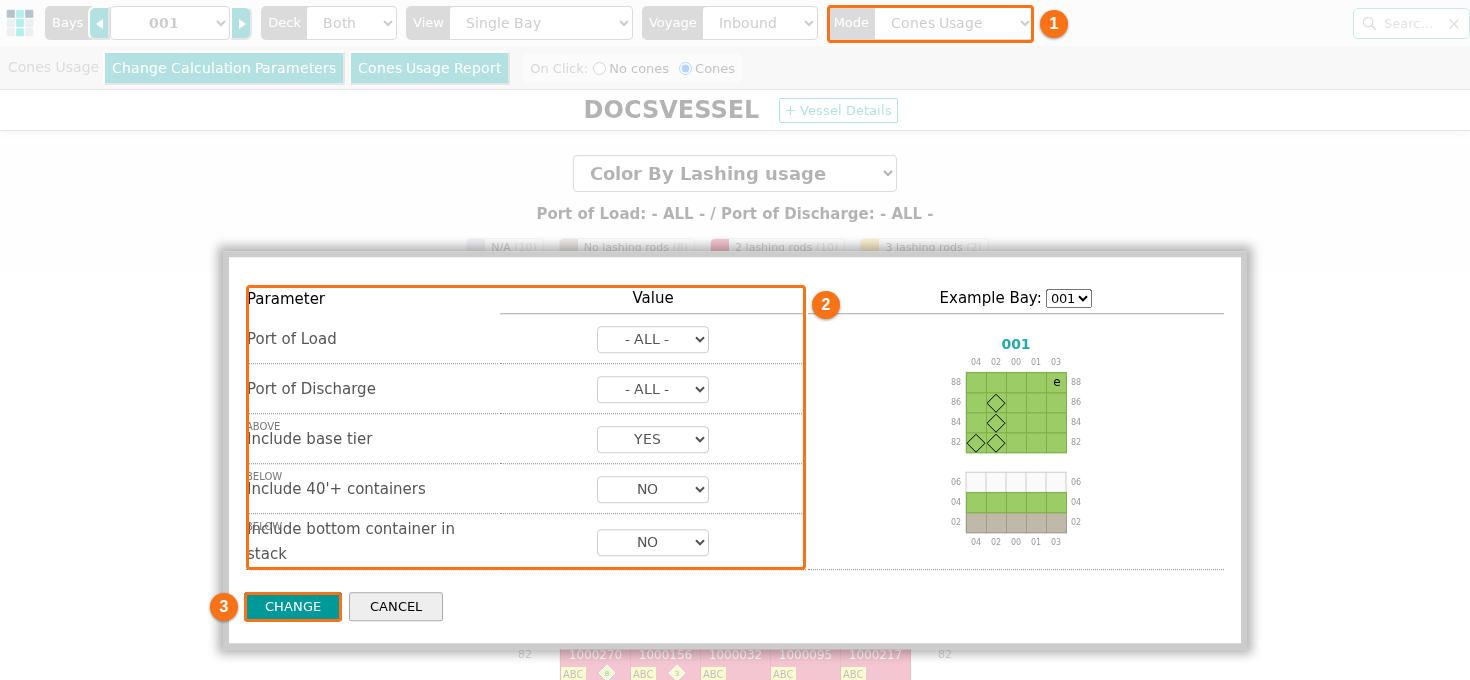
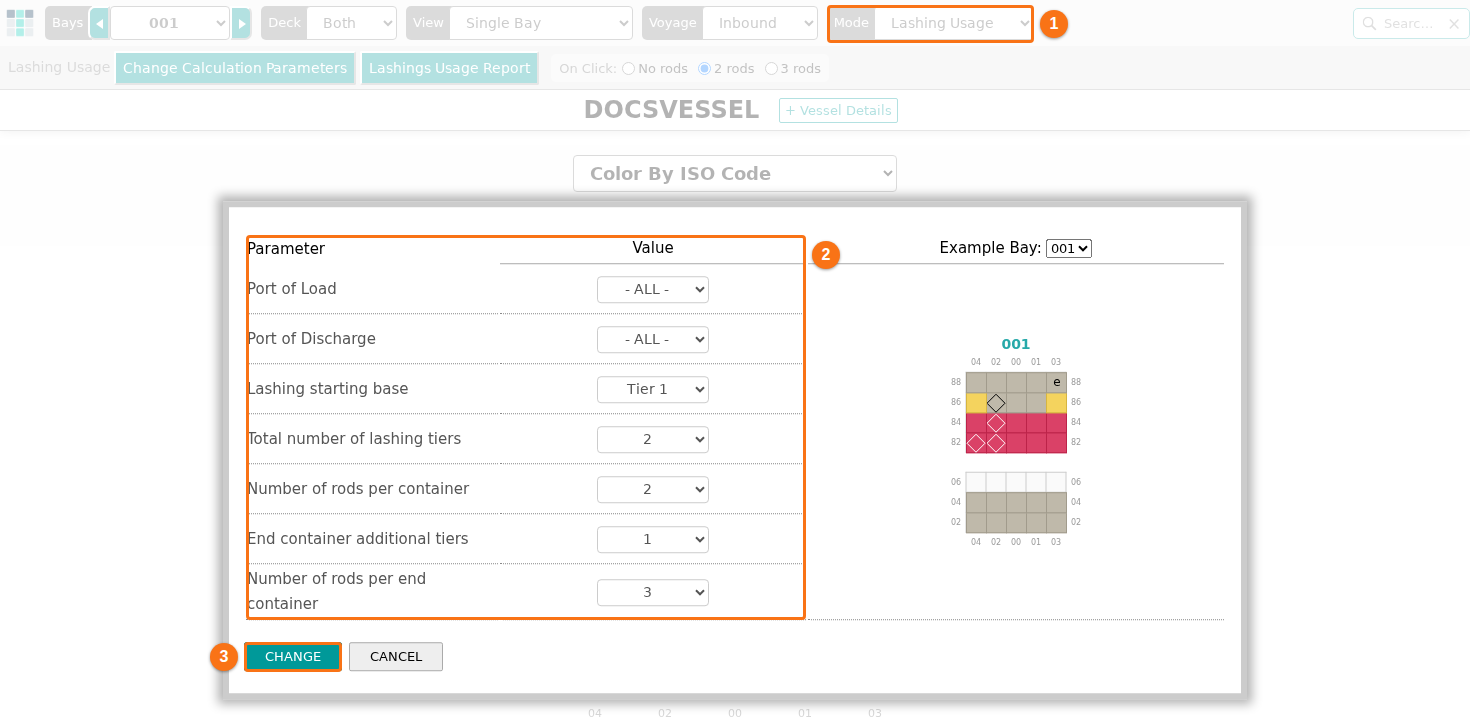
- Click CHANGE. The containers get a color for the result.
The rules for cones
Section titled “The rules for cones”For each container, the application checks these rules in this order:
- Ports. If you chose a port of load or a port of discharge and the container does not match, it is left out (N/A).
- Your own value. If you set the container by hand, your value is used.
- OVD. If the vessel has an Open Vessel Definition that marks the slots that need cones, the application uses it.
- Above deck (tier 68 and higher). Every container gets cones. The exception is the lowest tier of the bay when Include base tier is NO.
- Below deck. The parameters Include 40’+ containers and Include bottom container in stack decide. Both are NO at first.
The rules for lashing rods
Section titled “The rules for lashing rods”Only containers above deck get rods. Tier 1 is the lowest tier above deck that has a container in the bay.
- Tiers from Lashing starting base to Total number of lashing tiers get Number of rods per container.
- In the two outermost stacks, the End container additional tiers above that get Number of rods per end container.
For all parameters, the printed reports and the full rules, see: