

How to use the Home page
Use the Home page to see your BAPLIE files by date and to open them. The page has a calendar and lists of your vessels: the vessels that arrive later, the vessels of this week and the vessels before.
Before you start: log in to BAPLIE Viewer Online. The Home page opens after you log in.
- In the Function Menu on the left, click Home. It is the first entry under the name of your facility. The Home page opens.
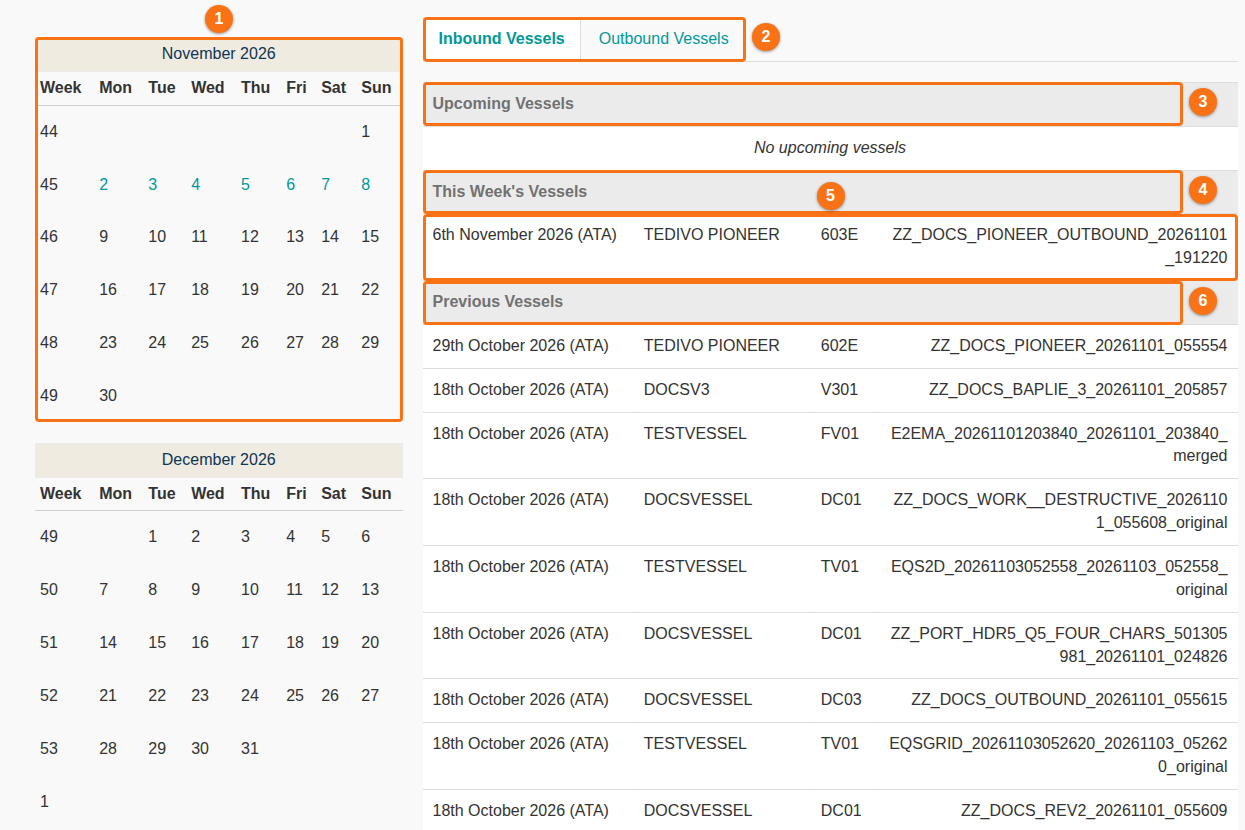
- Look at the page. It has these parts:
- The calendar (1 in the picture). It shows this month and the next month, with the week numbers. The days of the current week are in colour.
- The tabs Inbound Vessels and Outbound Vessels (2 in the picture). They show only when your facility sorts its files by direction. See Inbound, outbound and tag tabs.
- Upcoming Vessels (3 in the picture): the files with a date in a later week.
- This Week’s Vessels (4 in the picture): the files with a date in this week. Each file is one row (5 in the picture).
- Previous Vessels (6 in the picture): the files with a date in an earlier week.
- To open a file, click its row. The file opens in the viewer.
What a row shows
Section titled “What a row shows”Each row is one file. It shows, from left to right:
- The date of the vessel, and in brackets which date it is, for example (ATA). If the file has no usable date, the row says Date Unknown. See How to use the Calendar View functionality for the date that is used.
- The vessel name.
- The voyage.
- The file name. The copy that is made before your first change ends with _original. See How to manage your profile settings.
The lists
Section titled “The lists”| List | Which files | When it is empty |
|---|---|---|
| Upcoming Vessels | The date is in next week or later. | No upcoming vessels |
| This Week’s Vessels | The date is from Monday to Sunday of this week. | No vessels for this week |
| Previous Vessels | The date is in last week or earlier. | No previous vessels |
In each list, the newest date is at the top. The calendar does not change the lists: a click on a day does nothing.
Inbound, outbound and tag tabs
Section titled “Inbound, outbound and tag tabs”The tabs above the lists depend on the Grouping Method in the Facility Settings of your facility:
- No Method Selected: one set of lists, with no tabs.
- Departure Port or Sender ID: the tabs Inbound Vessels and Outbound Vessels. Click a tab to see the files of that direction. Each tab has its own three lists. To set this up, see How to use the Inbound / Outbound file feature.
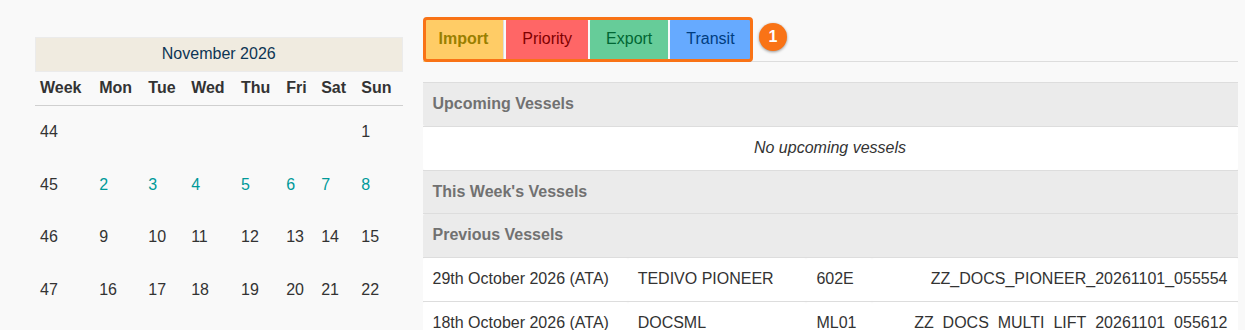
- Group by Tag Name: one tab for each tag (1 in the picture). Click a tab to see the files with that tag. See How to use file tags.
Good to know
Section titled “Good to know”- The lists show your own files and the files shared with your facility. A guest sees only the files that were shared with the guest.
- Need help? See How to contact Support and create a support ticket.