2022-10-21
New Features
- Add Logo to PDF - You can add your own logo to the PDF documents from the 2D Bay View.
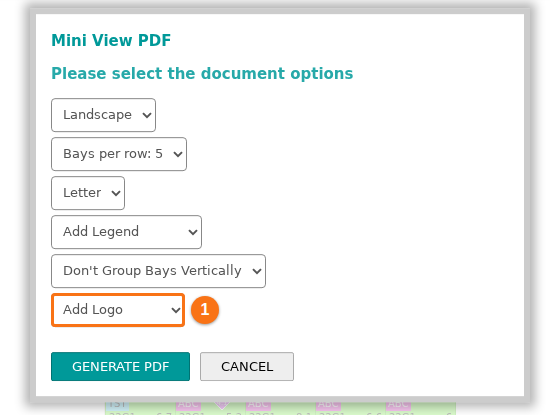
- First, your Facility Administrator adds your company logo to your facility. See how to add a custom logo for your facility. Then the window for a PDF document has a new list, Add Logo (1 in the picture).
-
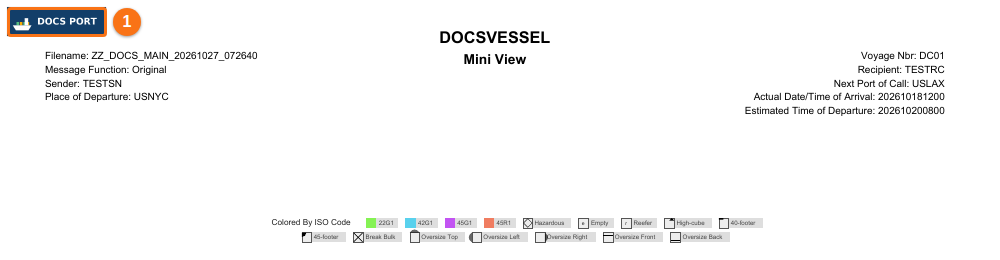
- The logo is in the top left corner of the PDF document (1 in the picture).
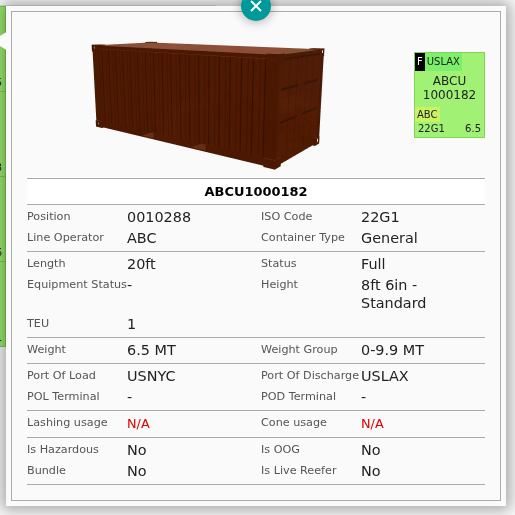
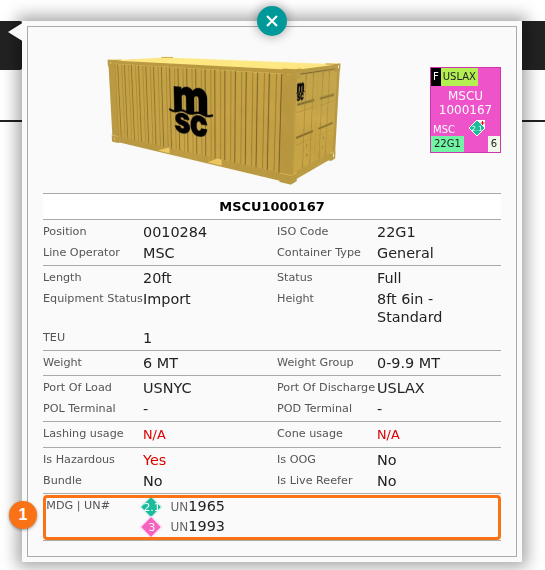
- Container Popup Details - The container information window now has 4 columns, not 2 columns. It needs less height on the screen.
Hazardous Cargo
Section titled “Hazardous Cargo”This release improves how hazardous cargo shows in a BAPLIE file.
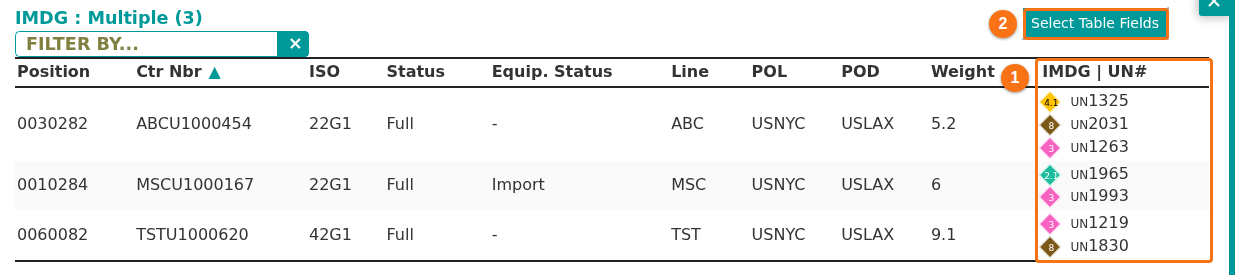
- Better view of the IMDG numbers and the UN numbers - They show in the IMDG | UN# row of the container information window (1 in the first picture). They also show in the IMDG | UN# column of the container list of the Dashboard (1 in the second picture). By default the Dashboard list shows only the IMDG value, for example Multiple. To see the numbers, click Select Table Fields (2 in the second picture), choose IMDG | UN# and click OK.
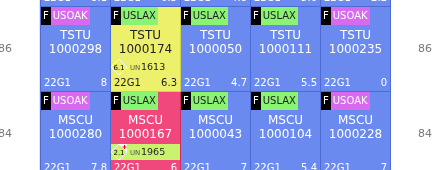
- IMDG value in the icon - When you view a bay in Single Bay mode, the container icon now shows the IMDG value inside a diamond. Before, it was only a red diamond. The picture shows Hazards View, which also adds the UN number (see below). See How to use Hazards View and print hazardous cargo in the 2D Bay View.
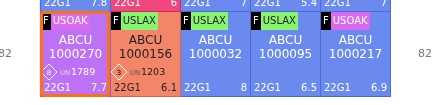
- Multiple hazards - When a container has more than one hazard, its diamond has a red plus sign (+) at the top right. The icon shows only the first IMDG value from the BAPLIE data. The orange box in the picture shows such a container. See How to use Hazards View and print hazardous cargo in the 2D Bay View.
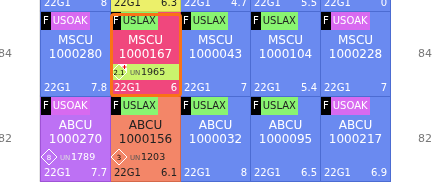
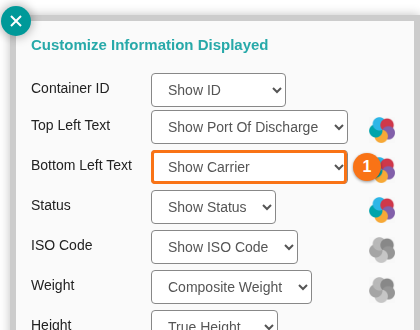
- UN number in the icon - To show the UN number and the IMDG number in the container icon, choose Settings in the Mode list. Click Customize Info. Set Bottom Left Text (1 in the picture) to IMDG | UN. See How to use Hazards View and print hazardous cargo in the 2D Bay View.
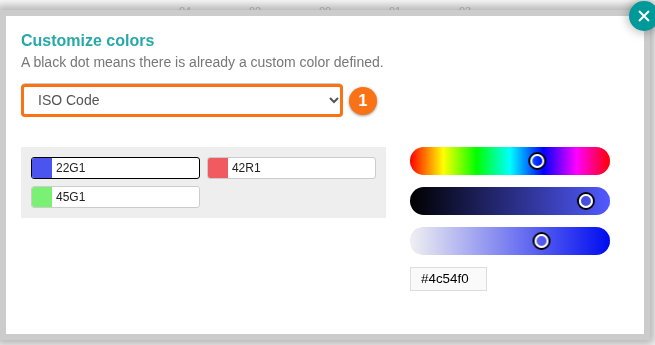
- Hazard colors - You can change the colors of the IMDG classes. Choose Settings in the Mode list. Click Customize Container Colors. Choose IMDG Classes in the list (1 in the picture). Then change the color of each class. See How to use Hazards View and print hazardous cargo in the 2D Bay View.
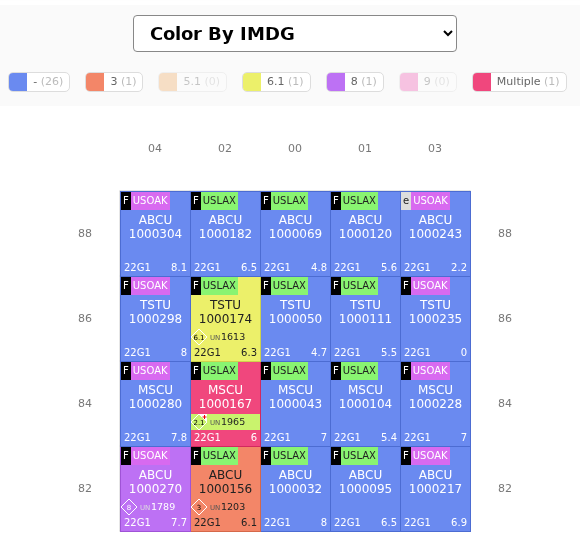
- Hazards View - The View mode has a new check box, Hazards View (1 in the picture). When you tick it, the Color By list changes to Color By IMDG (2 in the picture). The container icon also shows the UN number at the bottom left. See How to use Hazards View and print hazardous cargo in the 2D Bay View.

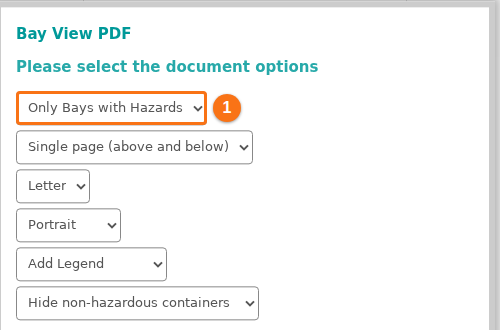
- Print hazardous cargo - When Hazards View is ticked, click Bay View PDF to see new print options. See How to use Hazards View and print hazardous cargo in the 2D Bay View.
- You can choose Only Bays with Hazards (1 in the picture). Then the PDF has only the bays with hazardous cargo.
-
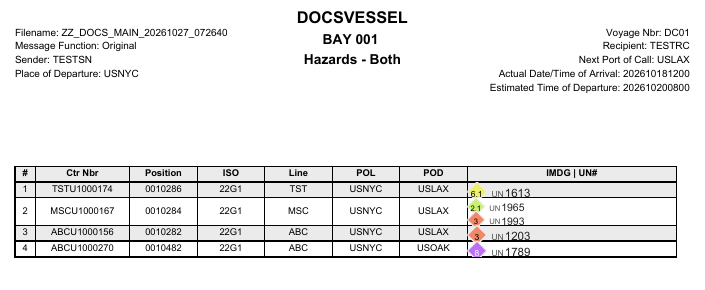
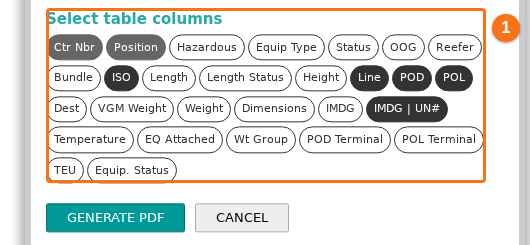
- After each bay, a table lists the hazardous cargo. Under Select table columns, choose which columns the table shows (1 in the picture).
-
- The PDF has a table after each bay with the details of the hazardous cargo.