

How to filter containers in 2D Bay View
Use the Color & Filter panel in 2D Bay View to color the containers by a field, and to show only the containers that have the values you choose. You can narrow the result with a second field, the Sub-filter.
Before you start: open your file in 2D Bay View. The panel is on the right side of the screen.
Color the containers
Section titled “Color the containers”- In the Color & Filter panel, find Colour by. If the panel is folded, click its name Color & Filter to open it.
- Open the list under Colour by and choose a field, for example Port Of Discharge.
- The first choice, - No Color -, removes the colors.
- The fields are in alphabetical order.
- Stowage Errors is in the list only after the stowage errors are calculated.
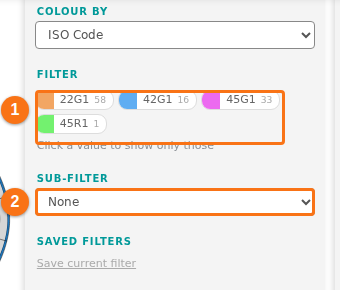
- The containers change color. The list below the field shows each value with its color and the number of containers. The numbers are for the containers in the view.
The application remembers your Colour by choice for the next time. To change the colors of the values, see How to customize colors used for containers in 2D Bay View.
Show only some values
Section titled “Show only some values”- Look at the list of values under Colour by. It has the caption Filter and the hint Click a value to show only those.
- Click a value. The containers with this value keep their color. All other containers fade.
- To add more values, click them one by one. The panel shows how many values are on, for example 2 of 6 shown.
- To remove your clicks, click Clear.
If no container matches, all containers fade.
Narrow the result with a Sub-filter
Section titled “Narrow the result with a Sub-filter”- In the Color & Filter panel, find Sub-filter. It shows None.
- Open the list and choose a second field, for example Carrier. You cannot choose the field you use for Colour by.
- A second list of values appears. The text says Click a value to narrow the selection above.
- Click one or more values. A container stays in color only when it matches a value in both lists.
- To remove your clicks in the second list, click Clear in that list. To stop the Sub-filter, choose None.
The numbers in the Sub-filter list count only the containers that pass the first list.
Use the filter in Edit and Move modes
Section titled “Use the filter in Edit and Move modes”In Edit and Move mode, the same panel helps you select containers.
- Choose a field in Colour by. The caption of the value list is now Select.
- Click a value. The text says Click a value to add its containers to the list.
- A window Add to the selection shows how many containers match, for example 12 containers match the filter and will be added to the selection (3 already selected). Confirm to add them.
- If all the matching containers are already selected, the window says so and adds nothing.
In Single Bay view, only the containers of the bay on the screen are added. The values you clicked clear by themselves after 2 seconds. The panel shows how many values you picked, for example 2 of 6 picked.
Good to know
Section titled “Good to know”- To learn about the panels Color & Filter and Information together, see How to use Color by, filters and the information panels.
- The filter works in every view: Single Bay, Mini Bays, Side and Deck. Colour by and the filter stay when you change the view.
- In Lashing Usage and Cones Usage mode, the filter shows only the containers that were calculated.
- In Multi-Lift and Correct Restows mode, the whole panel is off.
- When you click Hazards View, Colour by changes to IMDG. See How to use Hazards View and print hazardous cargo in the 2D Bay View.
- When you click Stowage Errors in the header, Colour by changes to Stowage Errors.
- When you click a value, the Search box is cleared. When you search, your clicked values are cleared. See How to find containers in 2D Bay View.
- The PDF from Print PDFs follows the color and, in View mode, the values you clicked. See How to print a specific bay in 2D Bay View.
- To save a filter and use it again, see How to save and use filters in 2D Bay View.
- On a narrow window (950 pixels or less), the panel starts folded.