

2022-11-25
Bug Fixes
- In the Main Content, sorting by Weight or VGM weight now follows the number order. Operators such as greater than (>) now also work in the filter of these columns.
New Features
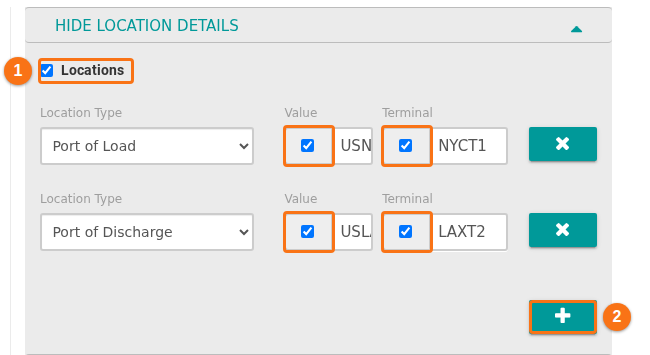
- You can edit several records at once in the Main Content. Open Location Details, tick the check box Locations (1 in the picture) and click the plus button (+) (2 in the picture). Each location line now has a check box next to Value and a check box next to Terminal (orange boxes in the picture). To change only the terminal of the POL or the POD, clear the check box next to Value. The value then stays as it is. With the check box at Terminal ticked, you can enter a different terminal. To make the terminal empty, leave the field empty. See How to edit one or more records.
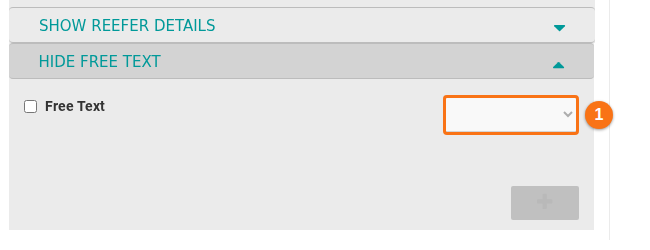
- When you edit the Free Text of several records, a list at the top right of this section (1 in the picture) lets you choose what happens to the existing Free Text. The choices are Replace, Append and Remove. See How to edit one or more records.
Multi Factor Authentication
Section titled “Multi Factor Authentication”BAPLIE Viewer Online now supports Multi-Factor Authentication (MFA). MFA is an extra security check for all account types.
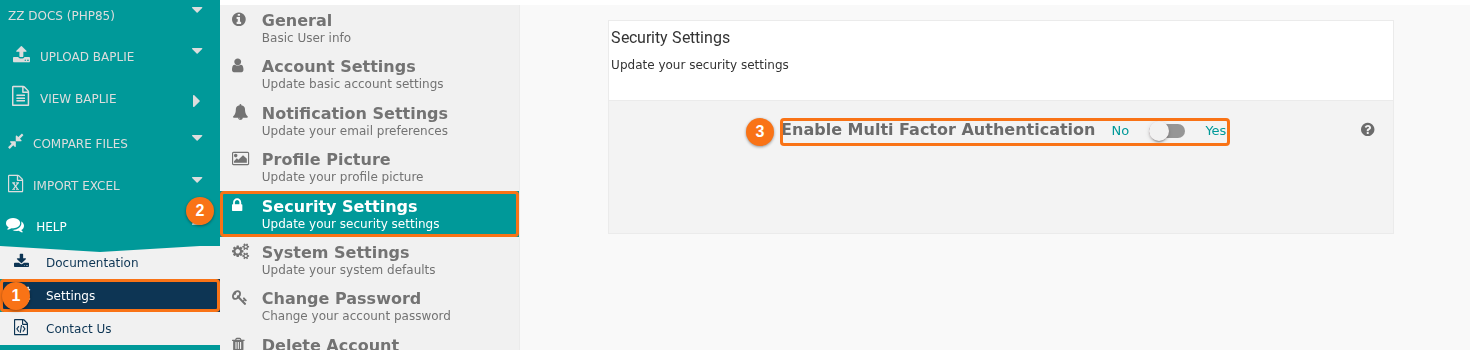
- Users can set up MFA for their own account. Log in, open the Help menu and click Settings (1 in the picture). Click the Security Settings tab (2 in the picture). Then click the switch Enable Multi Factor Authentication (3 in the picture). See How to set up multi-factor authentication.
-
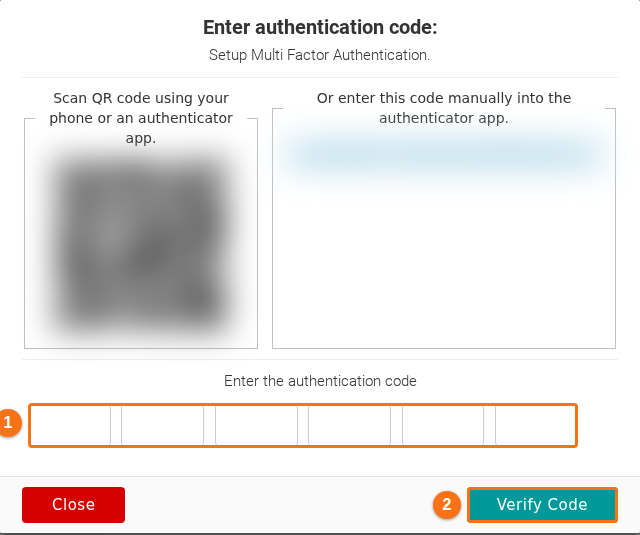
- A window opens with a QR code to scan and a code to type by hand. Use an authenticator app on your phone, for example Google Authenticator or Twilio Authy, or the tool of your iOS or Android phone.
- The app shows a 6-digit code. Type it in the six boxes (1 in the picture). The window checks the code. You can also click Verify Code (2 in the picture).
-
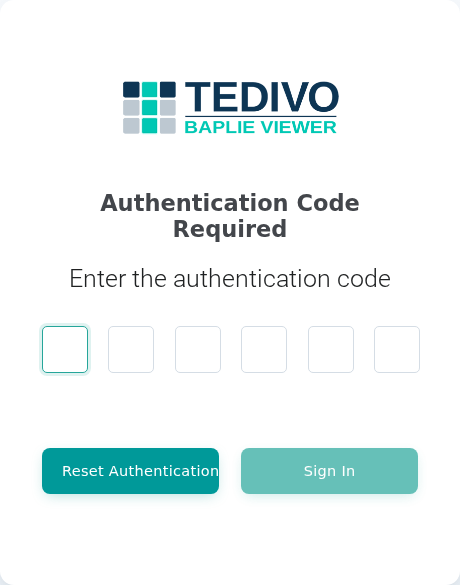
- The next time you sign in, a page asks for the code from your authenticator app.
- Facility Administrators can require MFA for each type of user in the security settings of the facility. See How to manage security settings for your facility and How to set up multi-factor authentication.
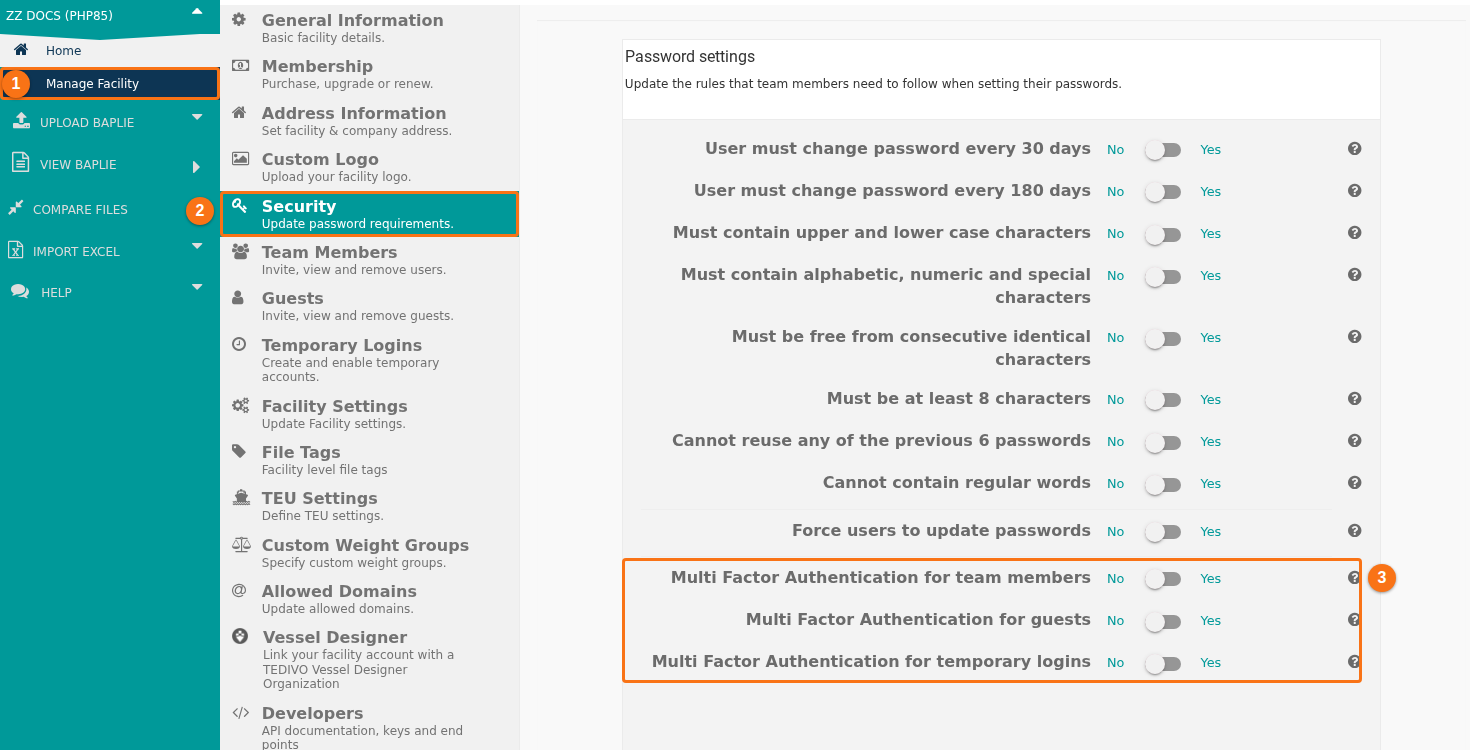
- As a Facility Administrator, click Manage Facility (1 in the picture). Then click Security (2 in the picture).
-
- At the bottom of the page (3 in the picture), switch on Multi Factor Authentication for team members, Multi Factor Authentication for guests or Multi Factor Authentication for temporary logins. The same steps apply to team members, temporary users and guests.
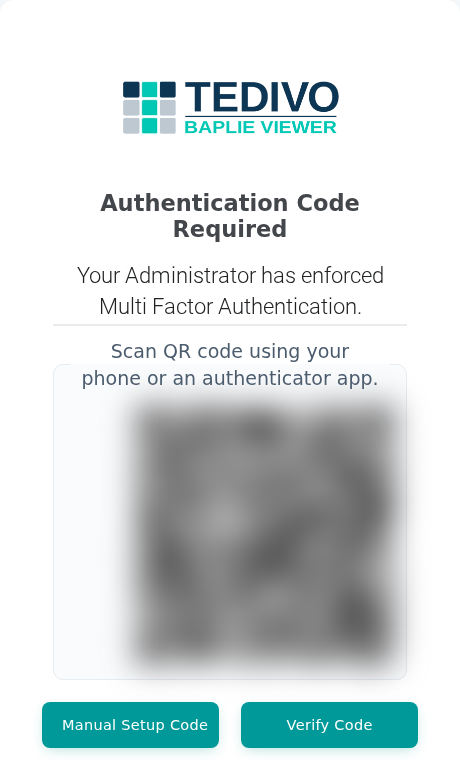
- The next time a user of that type signs in, the page says Your Administrator has enforced Multi Factor Authentication. The user sees a QR code to scan.
-
- If the user cannot scan the QR code, the user clicks Manual Setup Code. The page then shows a code to type into the authenticator app. When the app is ready, the user clicks Verify Code.
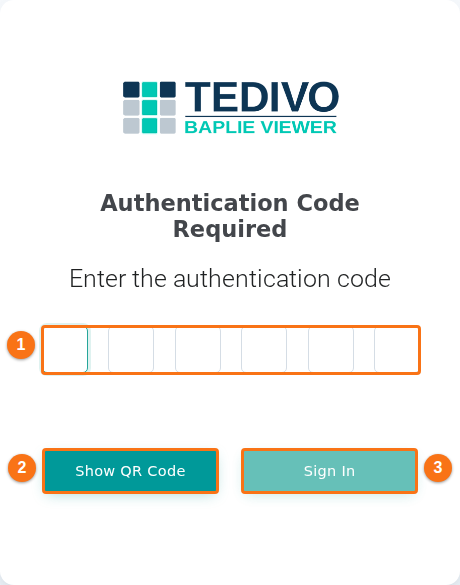
- A page with six boxes opens (1 in the picture). It also has the button Show QR Code (2 in the picture). The user types the code from the app and clicks Sign In (3 in the picture).
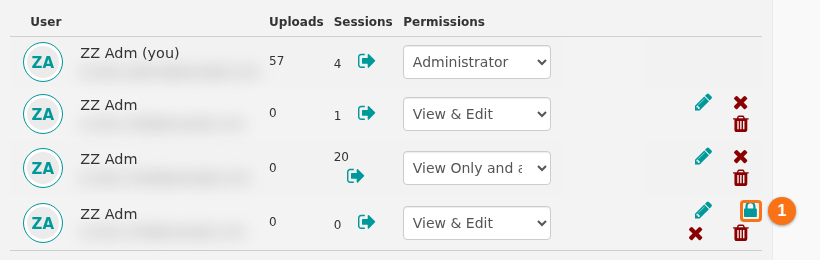
- Facility Administrators can reset the MFA token of a user of the facility. See How to set up multi-factor authentication.
- A user may not be able to give a correct MFA code. Then the Facility Administrator can reset the MFA token of this user. Click Manage Facility, then Team Members. Click the padlock icon (Reset Multi Factor Authentication) at the right of the user (1 in the picture). The padlock shows for users who use MFA.
-
- The next time the user signs in, the user sees the pages above to set up MFA again.