Skip to content
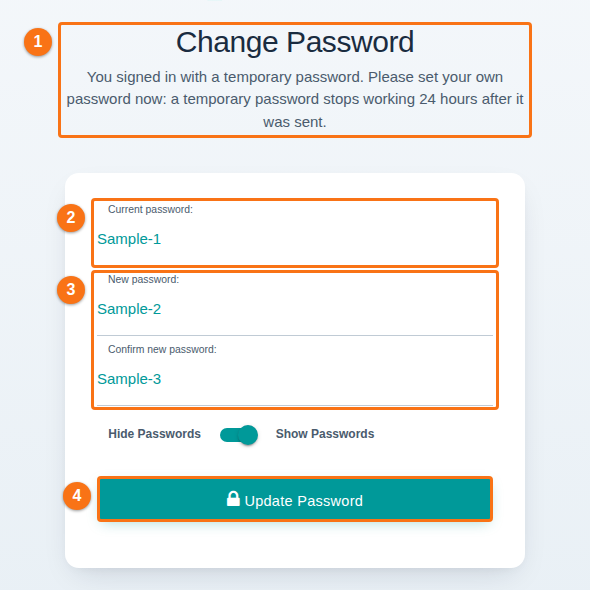
- When you sign in with a temporary password, the Change Password page now opens straight away. The text below the title asks you to set your own password (1 in the picture). Type the temporary password in Current password (2), type your new password twice (3) and click Update Password (4). You then go on to the home page. Before, nothing asked you to set your own password. (How do I change my password?)
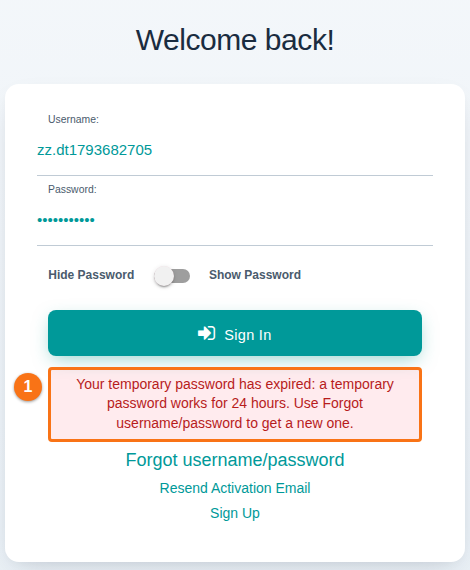
- If you type a temporary password that is more than 24 hours old, the sign-in page now says “Your temporary password has expired” (1 in the picture). Click Forgot username/password to get a new one. Before, the page only said “Please check your login details and try again.”
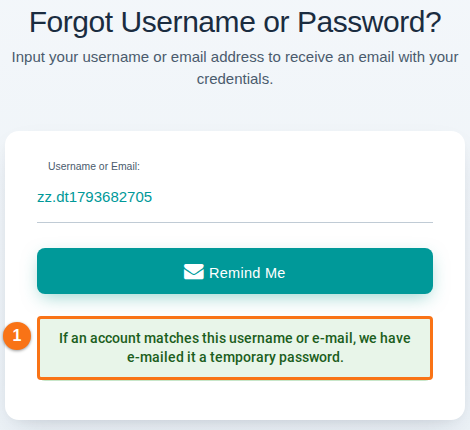
- On the Forgot Username or Password? and Resend Activation pages, the message after Remind Me or Send Activation Email is now the same for every username or e-mail address, so it no longer shows whether an account exists. Forgot Username or Password? answers “If an account matches this username or e-mail, we have e-mailed it a temporary password.” Before, it said “A temporary password has been sent to your email account.”
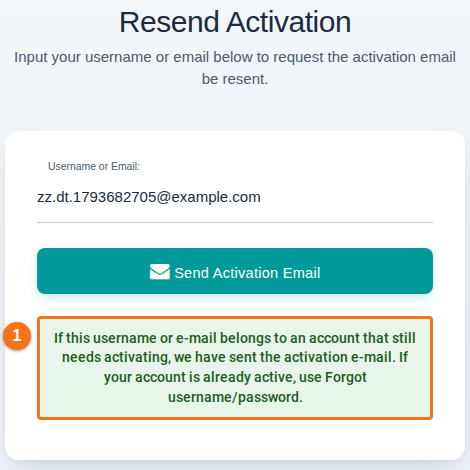
- Resend Activation answers “If this username or e-mail belongs to an account that still needs activating, we have sent the activation e-mail. If your account is already active, use Forgot username/password.” Before, it said “Could not match this email or username with our records.” for an account that was already active or unknown.
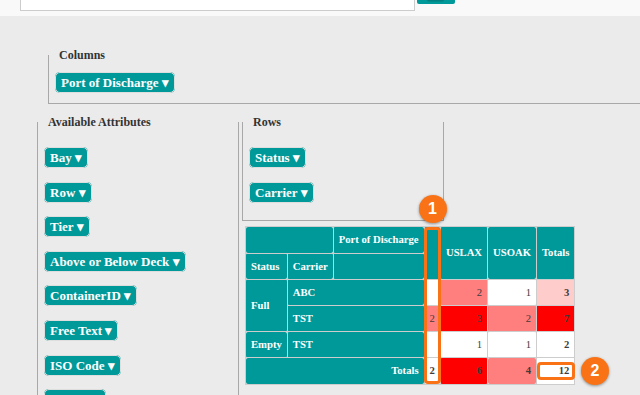
- The Pivot Summary now also opens for files where some containers have only their stowage position. Before, it showed an error for these files. In the picture, the two containers without a port of discharge have their own column (1), and the total counts all 12 containers (2). (How to navigate the Pivot Summary)
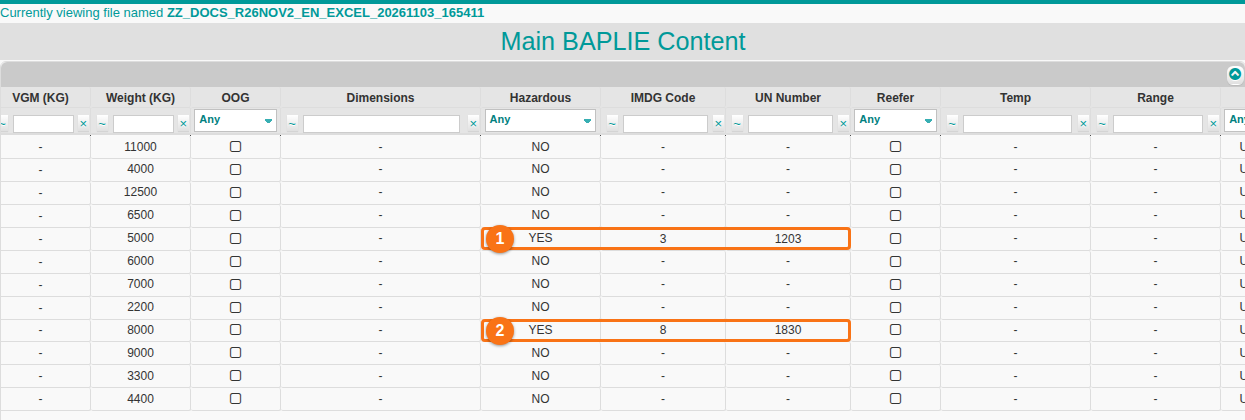
- Import Excel now writes a dangerous goods line only for the rows that have an IMDG class. Before, every container whose IMDG cell was empty got an empty dangerous goods line, so Main Content and the 2D view showed all containers as hazardous. In the picture, only the two containers that have an IMDG class are hazardous (1 and 2). If you created a file this way, import the spreadsheet again. (How to create a BAPLIE file from an Excel spreadsheet)
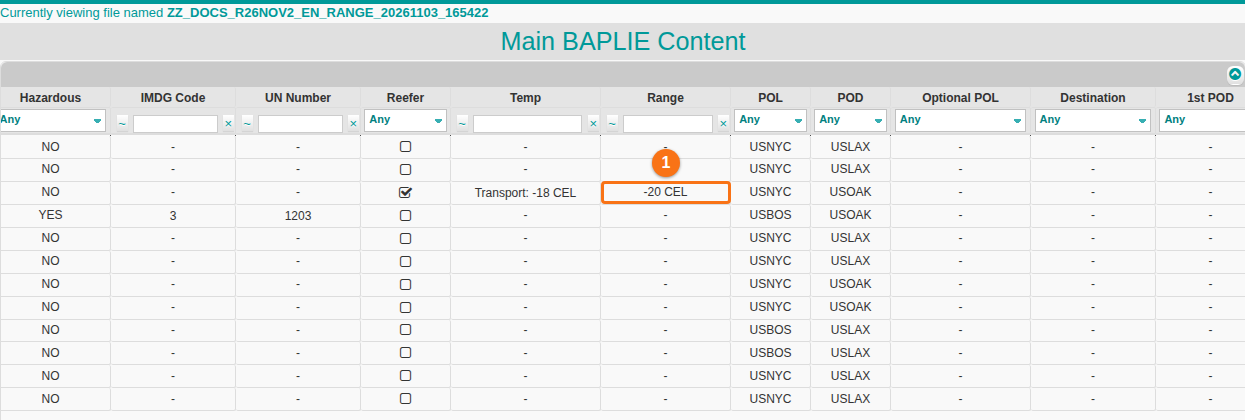
- A reefer temperature range with a minimum and no maximum, for example
RNG+5+CEL:-20, is now shown as “-20 CEL” in the Range column (1 in the picture). Before, it was shown as “-20 to CEL”.
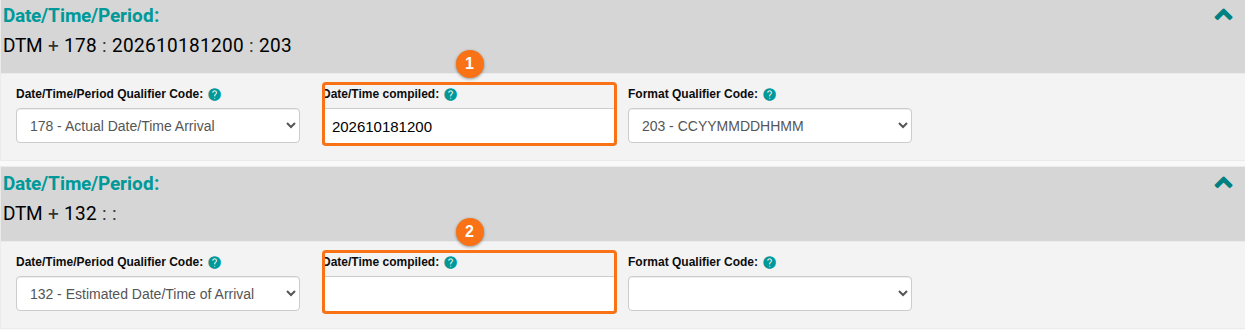
- When a header date (DTM line) has no date, its Date/Time compiled field is now empty. Before, the field showed the date of the header date above it, and saving the header could store that wrong date. In the picture, the field of DTM 178 shows its date (1), and the field of DTM 132, which has no date, is empty (2). If you saved the header of such a file, check its dates.
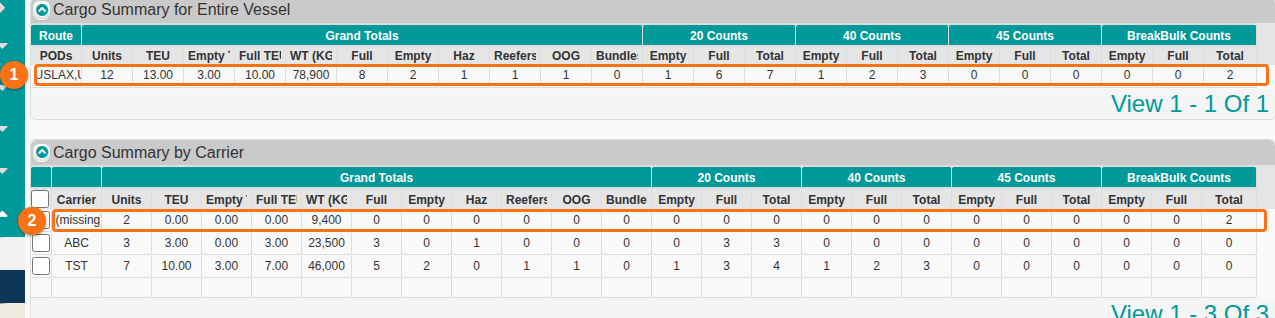
- A stowage position without container details (no EQD line, for example break-bulk cargo) no longer takes the size and the full or empty status of the container listed before it. This changes the Cargo Summary for Entire Vessel, the Cargo Summary by Carrier and the Cargo Summary by Port Of Load: the totals are now right. In the picture, the two positions without container details are counted as Breakbulk, with no 20, 40 or 45 count and no full or empty count (1 in the Entire Vessel table, 2 in the by Carrier table). (How to navigate the Cargo Summary)
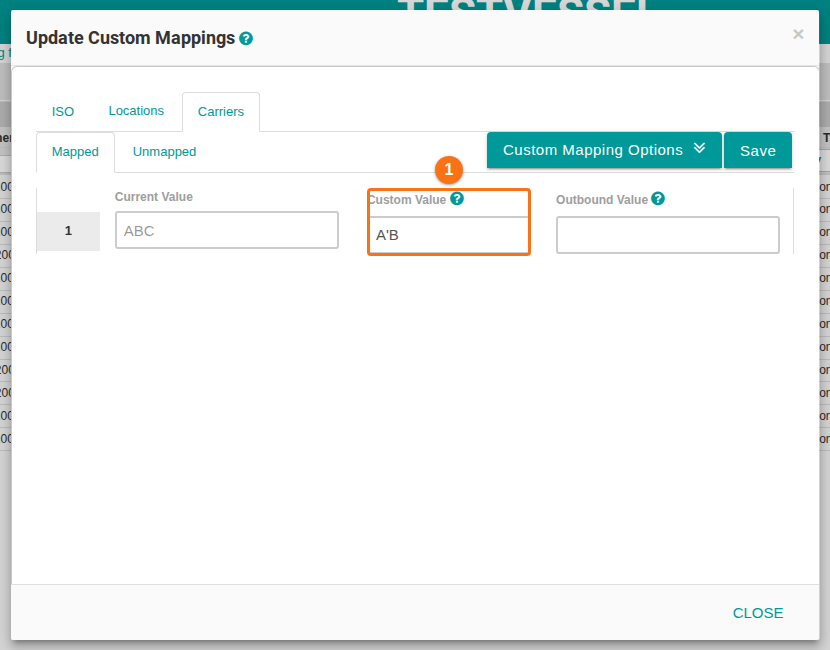
- In the Update Custom Mappings window, a value with an apostrophe or a double quote, for example A’B, is now saved and shown as you typed it (1 in the picture). Before, a value with an apostrophe could not be saved, and the failed save removed all your other mappings on the same tab (ISO, Locations or Carriers). A value with a double quote was shown cut off at the quote. If some of your mappings are missing, add them again. (How to navigate the Update Custom Mappings option)