

How do I save a filter and use it again?
Set the filter in the panel Color & Filter, then click Save current filter under Saved filters. To use it again, choose it in the Saved filters list.
Before you start: open your file in the 2D Bay View. To learn how to set a filter, see How to filter containers in 2D Bay View.
Save a filter
Section titled “Save a filter”- In the panel Color & Filter, choose a field in Colour by, for example Port Of Discharge.
- Click one or more values in the list.
- Optional: choose a field in Sub-filter and click values in the second list.
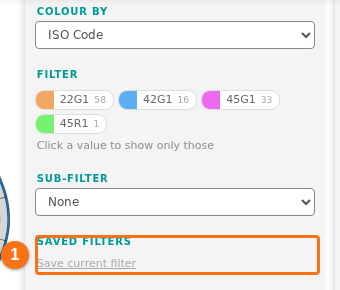
- Under Saved filters, click Save current filter (1 in the picture). The link is grey until you click at least one value.
The filter is saved at once. The application makes a name from your choices.
Use a saved filter
Section titled “Use a saved filter”- In the panel Color & Filter, open the Saved filters list. It shows only when you saved at least one filter.
- Click the filter you want. The panel sets Colour by, the values and the Sub-filter, and the view shows the result.
Good to know
Section titled “Good to know”- Saved filters are in your user profile. You can use them in other files and on other computers.
- To rename or delete a filter, open the Saved filters list and click Manage saved filters….
- The 2D and 3D views use the same saved filters.
For all the steps, see How to save and use filters in 2D Bay View.