

How to change the vessel dimensions
Use this guide to change the vessel size values in 2D Bay View. When you open 2D Bay View, the system reads your container data. It finds the largest bay number, the highest and lowest tier above deck and below deck, and the number of rows. You can change these values after 2D Bay View has opened. You can also link the file to an Open Vessel Definition (OVD), a vessel drawing from TEDIVO Vessel Designer (TVD).
Before you start: load or upload the BAPLIE file you want to work on. Anyone can use the Vessel Dimensions window. To use an OVD, you need a TVD API key. See How to link your facility to TEDIVO Vessel Designer.
-
In the Function Menu on the left, open Visualization and click 2D Bay View.
-
Check that Mode in the top bar is View. The bar View shows below the top bar.
-
In the bar View, open the Dimensions list. Click Change Vessel Dimensions & OVDs. The Vessel Dimensions window opens.
-
Look at the table of dimensions (1 in the picture). Each row is one vessel value:
Row What it is Choices Max Bay The highest bay number 1 to 121, odd numbers only. Not lower than the highest bay in your file. Above Deck, Max tier The highest tier above deck Even numbers, from the highest tier in your file up to 120 Above Deck, Min tier The lowest tier above deck Even numbers, from 68 up to the lowest tier in your file Below Deck, Max tier The highest tier below deck Even numbers, from the highest tier in your file up to 28 Below Deck, Min tier The lowest tier below deck Even numbers, from 0 up to the lowest tier in your file (or 28) Max-Row The highest row number 1 to 40 Centerline Row A switch. It says if the vessel uses row 00 as the centre row. The switch is not active if the file has containers in stack 00. The table has three columns of values:
- By Data shows the value that the system found in your file.
- OVD shows the value from an OVD file. You can choose an OVD file in the list under the table.
- Custom has a list for each row, where you choose your own value. A dash (-) means no custom value.
The Merged Dimensions picture on the right shows the result. The result uses your file data first, then the OVD, then your custom values.
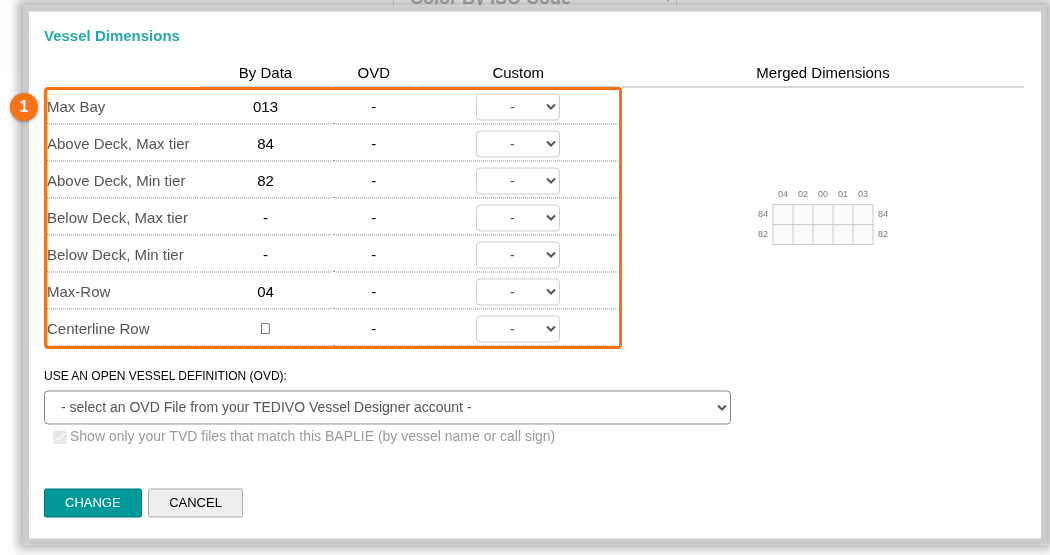
- In the Custom column, choose a new value for each row that you want to change.
- Optional: in the list Use an Open Vessel Definition (OVD), choose a definition. See “Use an Open Vessel Definition” below.
- Click CHANGE to apply the new values.
To cancel: click CANCEL. Nothing is changed.
If the values are not valid, the lists get a red outline and CHANGE does nothing. The rules are: the highest tier above deck is not lower than the lowest tier above deck, the same rule for below deck, and Max-Row is not smaller than the centre row.
Use an Open Vessel Definition
Section titled “Use an Open Vessel Definition”- The list Use an Open Vessel Definition (OVD) shows the OVD files of your TEDIVO Vessel Designer account. Without a TVD API key, the list is not active.
- The box Show only your TVD files that match this BAPLIE (by vessel name or call sign) shows only the files that match your file. It is ticked at the start when the file has no OVD yet.
- If you choose no OVD, the link to the OVD is removed.
Windows that open by themselves
Section titled “Windows that open by themselves”- If the file has no valid positions, the Vessel Dimensions window opens by itself. It says “No valid positions found in the BAPLIE. Please set the dimensions of the ship”.
- If no OVD is linked to the vessel name and you have a TVD API key, a window TEDIVO Vessel Designer Association opens. It says “No Open Vessel Definition (OVD) file has been associated to this Vessel Name.” Click Select a file from your TVD account to choose an OVD. Or click Don’t use OVD file.
Create or update a vessel definition from BAPLIE data
Section titled “Create or update a vessel definition from BAPLIE data”You can send the data of your BAPLIE files to TEDIVO Vessel Designer. This needs a TVD API key.
- In the bar View, open the Dimensions list. Click Create/Update Vessel Definition from BAPLIE data. A window with the same title opens.
- Read the text in the window. It depends on what TEDIVO Vessel Designer has for this vessel name:
- No definition: “This will use all uploaded BAPLIE files for this vessel to create a DRAFT definition in TEDIVO Vessel Designer.” Click Create Definition in TVD.
- A DRAFT definition: “New slots will be added/updated to the current TVD definition.” Click Update Definition in TVD.
- A PUBLISHED definition: a message asks you to delete it in TEDIVO Vessel Designer first, or to change its state to DRAFT. The button is not active.
- Optional: tick Mirror definitions between port and starboard side and Auto fill missing slots between neighboring stacks. Both are ticked at the start.
- A message tells you the result: “OVD created successfully in TEDIVO Vessel Designer.” or “An error occurred while creating the OVD in TEDIVO Vessel Designer.”
Without a TVD API key, the window says “This feature is not available.” and shows the link Click here to learn more about TEDIVO Vessel Designer. For the error message about the API key and for more details, see How to link your facility to TEDIVO Vessel Designer.
Good to know
Section titled “Good to know”- Your custom values and the OVD link are saved for the vessel name, not for one file. They apply to every file with the same vessel name.
- After you choose an OVD, the application checks the stowage errors again with this OVD. Without an OVD, the stowage errors are cleared.