

How do I delete an uploaded BAPLIE file?
Click the three-dot button in the Actions column of the file, then click Delete File. The steps are below.
The data in a BAPLIE file is only useful for a short time: from when the ship leaves port A until it arrives at port B. So the file does not stay on our website for ever. BAPLIE Viewer Online deletes a file after seven (7) days without activity. If someone edits the file, the count starts again. The Lifecycle column on the Upload BAPLIE page shows the days left. If you open a file that was deleted, a message tells you that it reached the retention period. If you still need the file, upload it again.
Your facility administrator can set another number of days. The administrator does this in Facility Settings. See How to manage your facility.
To delete a file sooner, follow these steps:
- In the Function Menu, click Upload BAPLIE, then All Files. The list of your files opens.
- In the row of the file, in the Actions column, click the three-dot button (1 in the picture). A menu opens.
- Click Delete File (2 in the picture).

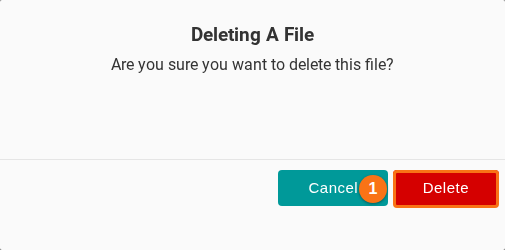
- A window asks “Are you sure you want to delete this file?”. Click Delete (1 in the picture) to delete the file. Click Cancel to keep it.
Who can delete a file
Section titled “Who can delete a file”- A team member with View and Edit permissions cannot delete a file that someone with Administrator privileges uploaded.
- An Administrator can delete anyone’s files, including the files of other Administrators.
Note: you cannot undo this action. Delete a file only when you no longer need it.