2026-11-01
New features
Section titled “New features”Signing in
Section titled “Signing in”- A temporary password from Forgot Username or Password? now works for 24 hours. It also stops working when you sign in with your own password or change your password. Before, a temporary password did not expire.
Uploading files
Section titled “Uploading files”- If a file cannot be received when you upload it, for example because it is larger than the upload limit, the Upload BAPLIE page now shows the file name and the reason. Before, it only said that the file failed the validation checks. (How to upload a BAPLIE file)
Bug fixes
Section titled “Bug fixes”Signing in
Section titled “Signing in”- On the Forgot Username or Password? and Resend Activation pages, the message after Remind Me or Send Activation Email is green again. Before, it was red, like an error.
- Sessions that you do not use for 60 minutes are now ended, and your login is free again. Before, sessions that you left without logging out were not ended: after you signed in on two computers or browsers, the next sign-in was refused with the Too Many Active Sessions window or the message “Your login is in use too many times”, even hours later. (How to log out active sessions)
Opening and uploading files
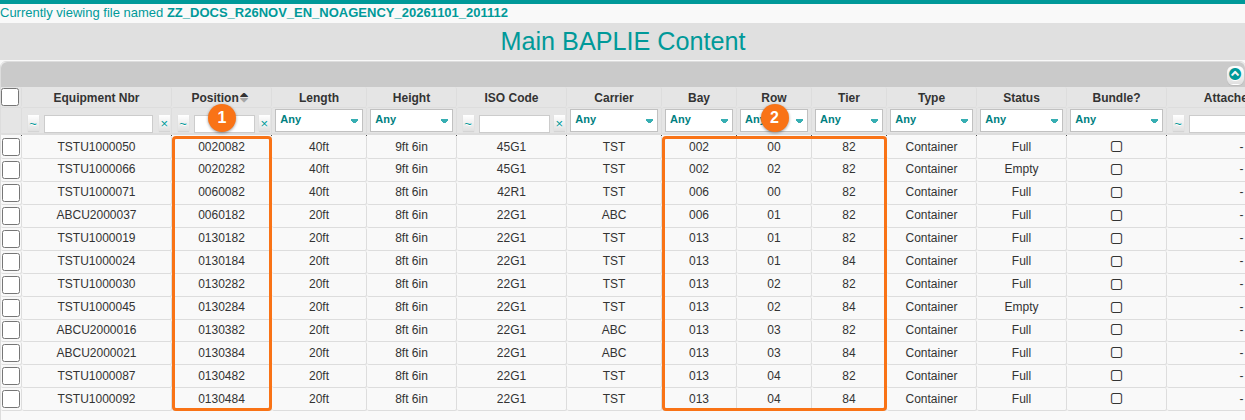
Section titled “Opening and uploading files”- Some files write a stowage position without the code-list agency, for example
LOC+147+0130182instead ofLOC+147+0130182::5. Some MOVINS files are written like this. In other files, a container has only its stowage position: one LOC line, with no port of loading or discharge. These files now open in Main Content with the position (1 in the picture) and the bay, row and tier (2 in the picture) of every container. The summaries and the other views of these files open as well. Before, Main Content showed an error for these files.
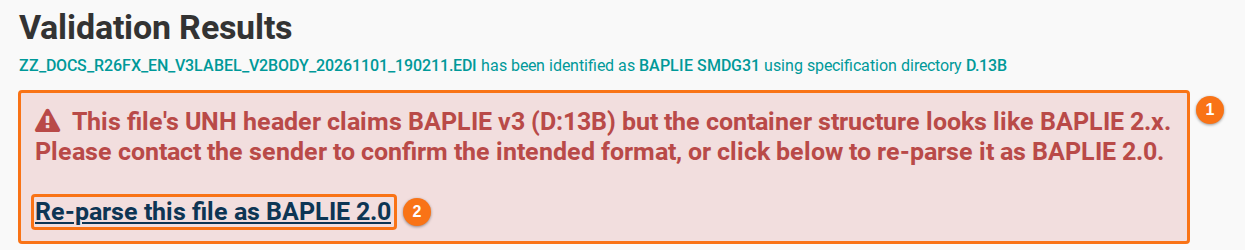
- Some files say BAPLIE 3 in the message header (UNH line) but have BAPLIE 2 content. The Validation Results page offers Re-parse this file as BAPLIE 2.0 for these files. It now does this also when the beginning of the message (BGM line) is the usual BAPLIE 2 one, for example
BGM++1234567+9. Before, such a file was refused with the message “This BAPLIE file does not conform to any recognised SMDG BAPLIE specification”. In the picture, the message says that the header and the content do not match (1). Click Re-parse this file as BAPLIE 2.0 (2) to read the file as BAPLIE 2.0. (How to upload a BAPLIE file)
- If your session ended while the Upload BAPLIE page was open, the file list could show only part of your files. The page now takes you to the sign-in page. Sign in again to see all your files.
Dangerous goods
Section titled “Dangerous goods”-
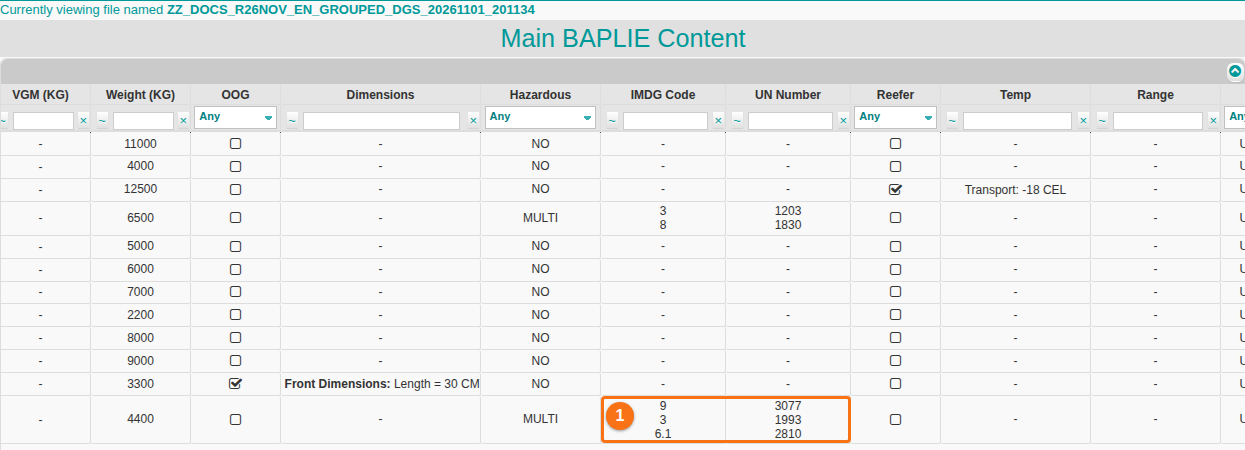
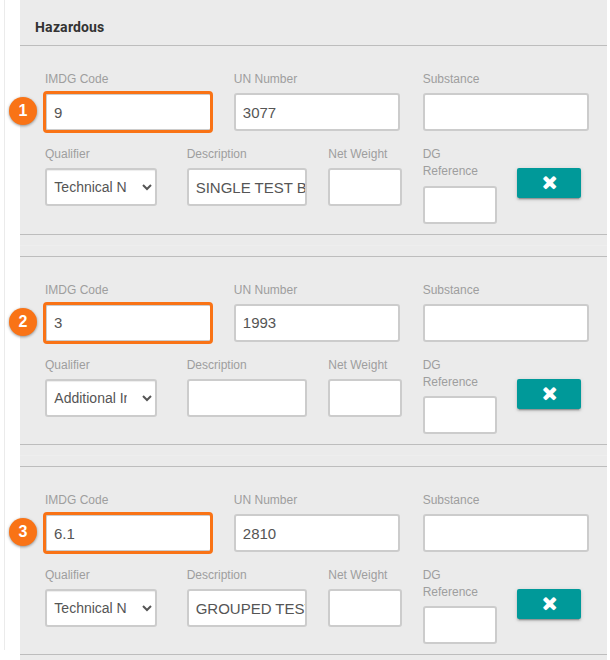
A container can have several dangerous goods lines (DGS) one after the other, followed by one free text line (FTX). BAPLIE Viewer Online now reads every one of them. You see all their classes and UN numbers:
- in the IMDG Code and UN Number columns of Main Content (1 in the first picture)
- in the 2D and 3D views
- in the Pivot Summary, which uses the lowest class
- in the Edit Single Row window (1, 2 and 3 in the second picture) and in the edit window of the 2D view
Before, some of these classes and UN numbers were missing. The IMDG Code field of the Edit Single Row window could show the text
##hazard_value_1##, and saving the window could write that text to the file. If you edited such a container, check its IMDG code. (How to view hazardous and IMDG information in the BAPLIE file)
- After Weight To VGM, POL To Original POL or a change in the Edit Multiple Rows window, these dangerous goods lines now keep their place in the file. Before, they could be written in the wrong place in the file that you downloaded. Weight To VGM and POL To Original POL could also add an empty free text line (FTX).
- In the 2D view, Changes in data as MOVINS now writes the class and UN number of every dangerous goods line of a container. Before, they were missing for the lines that followed one another. (How to download 2D changes as MOVINS and print the Operations List)
Main Content
Section titled “Main Content”- When you point at Weight To VGM in the Function Menu, a tip now says which containers it fills: all Full containers, or all Full and Empty containers. Before, this tip was on a button that is not shown, so you could not see it. Your facility administrator chooses the setting in Facility Settings (see October 2026 Updates).
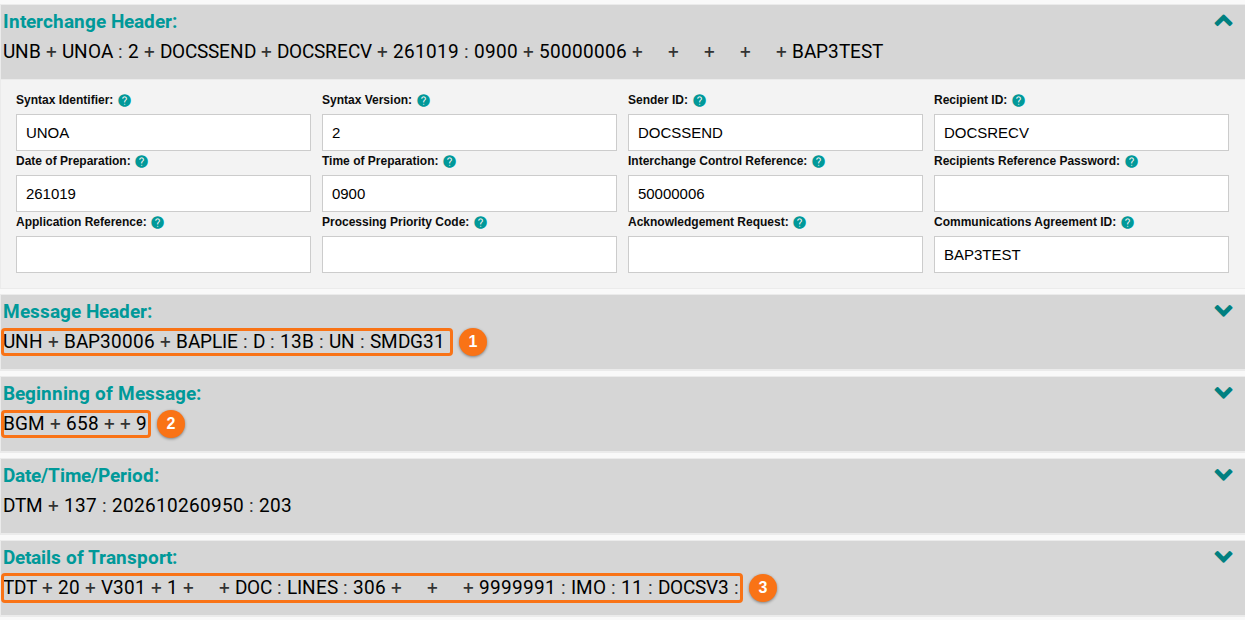
Header Details
Section titled “Header Details”- Header Details no longer says that a correct BAPLIE 3.1 file failed validation. Before, it showed “Header information failed validation checks” and marked correct BAPLIE 3.1 values as INVALID VALUE. For example: 13B and SMDG31 in the message header (1 in the picture), the document code in the beginning of message (2), and LINES, 306 and IMO in the details of transport (3). (How to navigate the Header Details)