

How do I correct restows with a CSV file?
Use the Correct Restows mode in 2D Bay View. It merges a list of restows from a CSV file into a pre-plan BAPLIE. It uses the Inbound BAPLIE to check each line. It does not find restows. The restows must come from your CSV file.
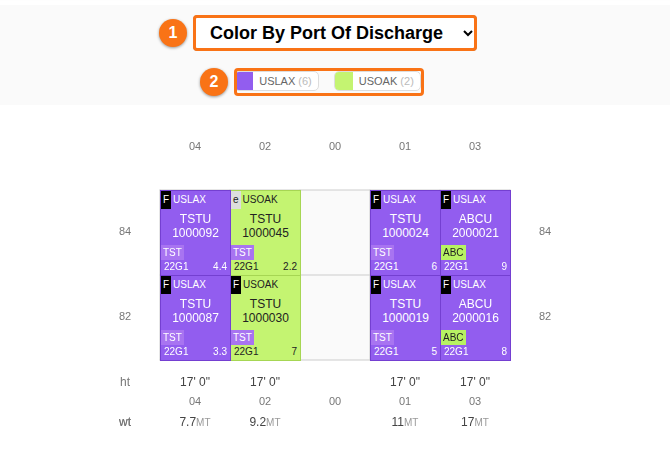
To find restows in the bay plan, color the containers by Port Of Discharge.
Before you start: upload two BAPLIE files for the same vessel name, the Inbound BAPLIE and the pre-plan BAPLIE. Prepare the CSV file with a header row and these columns: Position, ID and PrePosition. Know your port of load code.
Position;ID;PrePosition0010280;AAAA1111111;0030280- Open one of the two files in 2D Bay View. In the Mode list, choose Correct Restows.
- Click Process Restows. The window Correct Restows opens.
- Type the Port of Load. Choose the Inbound BAPLIE, the prePlan BAPLIE and the Restow List CSV file. The two files must be different.
- Click Process Restows at the bottom of the window. The application checks each line. It writes nothing yet.
- In Fix Restow Inconsistencies (optional), click Show Containers for each problem with a number above 0. For each line, choose Add to prePlan or Do Not Add to PrePlan.
- Click → Execute Restows.
- When the page shows File is ready for download., click Download.
The application writes the restows into the pre-plan only when you click → Execute Restows.
For the checks, the two check boxes and the messages, see How to use Correct Restows to merge a restow list into a pre-plan BAPLIE. To find restows, see How to identify restows?.