Can I edit BAPLIE files?
Yes. All membership types can edit the content of uploaded BAPLIE files. There are two places to edit: Main Content for the container records, and Header Details for the header of the file.
Before you start: upload a file, or open one from View BAPLIE in the Function Menu. The file opens with a dashboard. You need the Edit permission for the file.
Edit the container records
Section titled “Edit the container records”- In the Function Menu on the left, open Visualization and click Main Content.
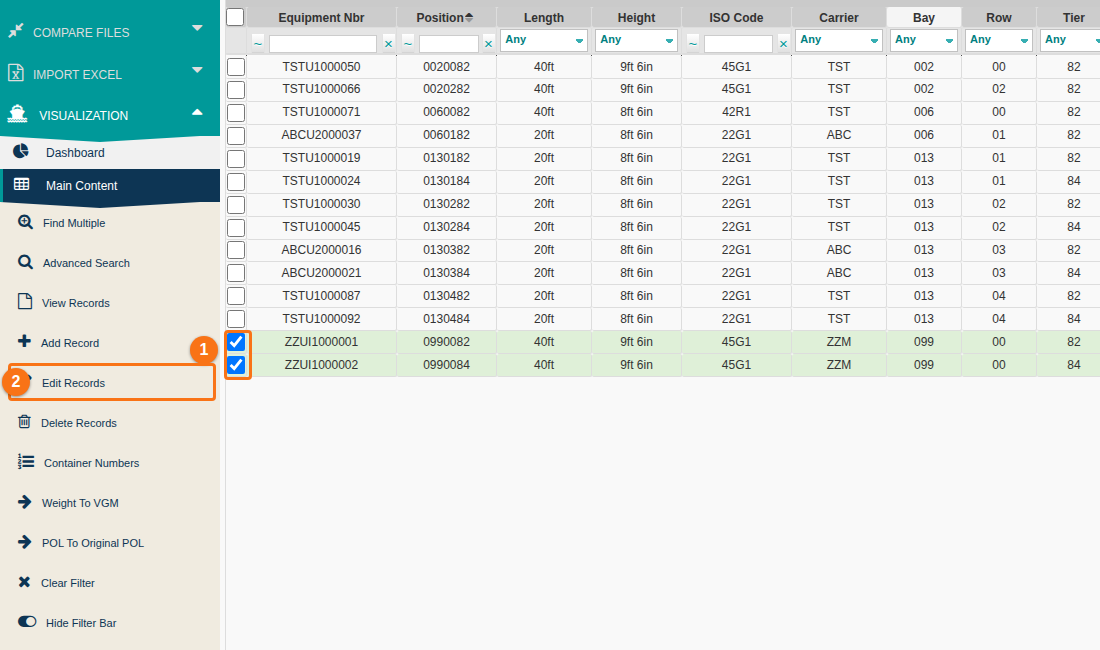
- Tick the check box at the left of each record you want to change (1 in the picture). Then click Edit Records (2 in the picture). One record opens in the Edit Single Row window. Many records open in the Editing Multiple Rows window.
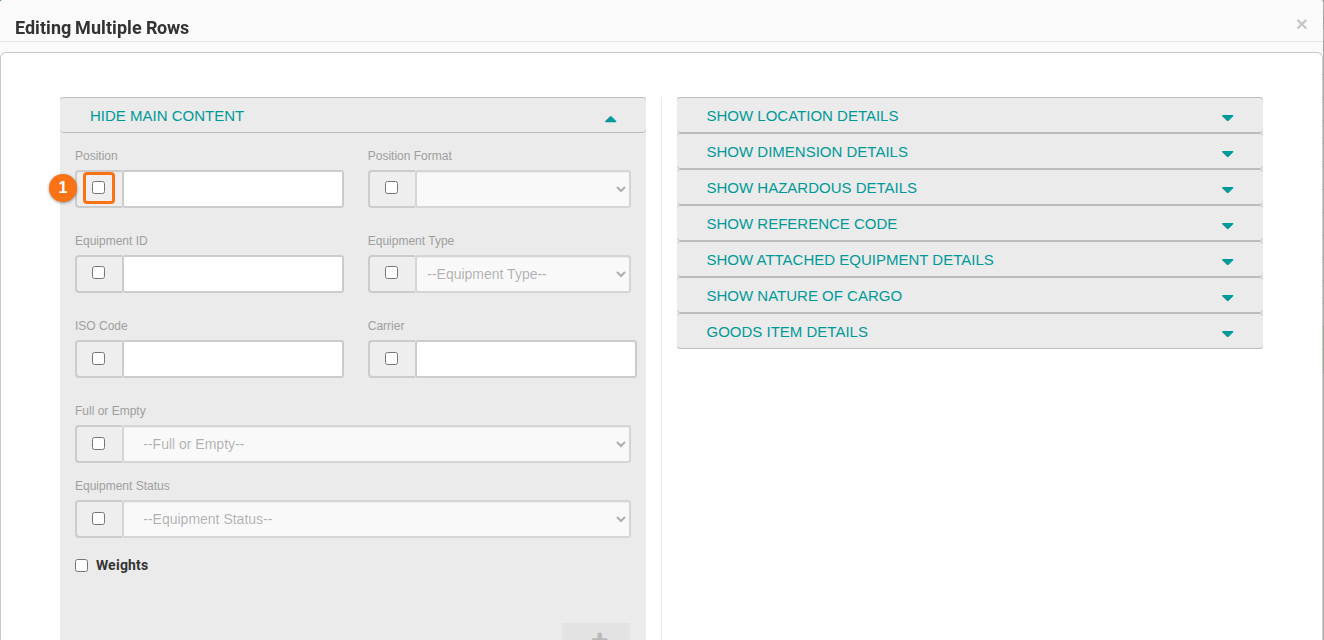
- In the Editing Multiple Rows window, tick the check box next to each field you want to change (1 in the picture). Then change the values. You can add or delete details in the sections on the right.
- Click Edit Multiple Rows at the bottom of the window to apply the changes to all selected records. In the Edit Single Row window, click Edit Single Row instead.
For more details, see How to edit one or more records.
Edit the header of the file
Section titled “Edit the header of the file”- In the Function Menu, open Validation and click Header Details.
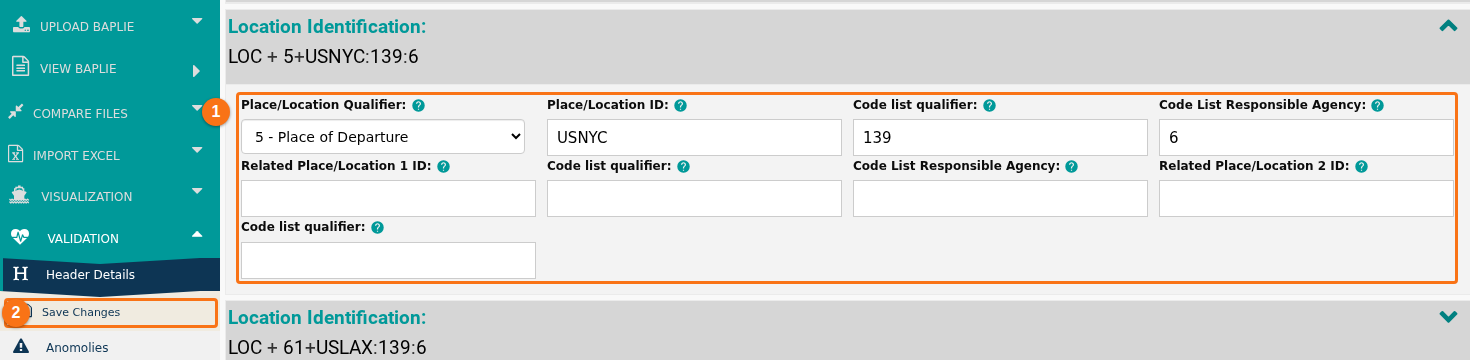
- Click a segment to open it. The picture shows the Location Identification segment. Change the fields you need (1 in the picture).
- In the Function Menu, click Save Changes (2 in the picture).
Download the edited file
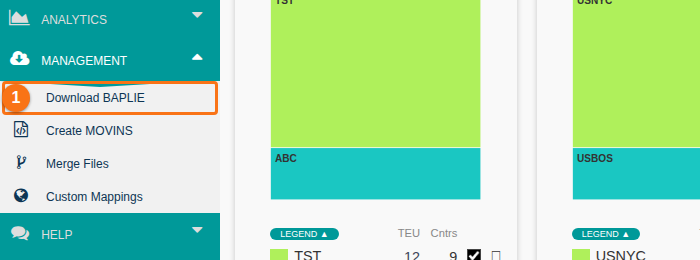
Section titled “Download the edited file”- In the Function Menu, open Management and click Download BAPLIE (1 in the picture).
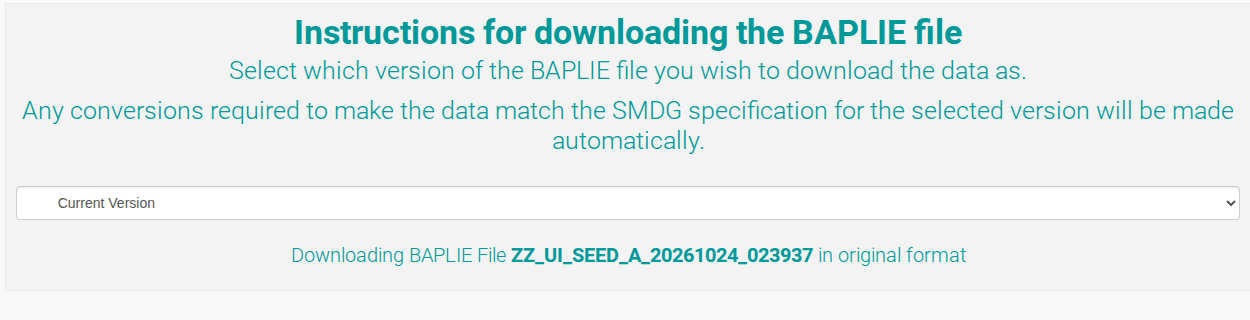
- Choose the BAPLIE version in the list. In most cases, choose Current Version, the first choice. The file downloads to your computer.