

How to use the Side view
Use this guide to see the whole vessel from the side, as a profile. The Side view is a quick overview of the cargo. Click a bay in the profile to see that bay in detail below it.
Before you start: open your file in the 2D Bay View. The Side view needs no extra permission. It is a read-only overview. You cannot select containers in it.
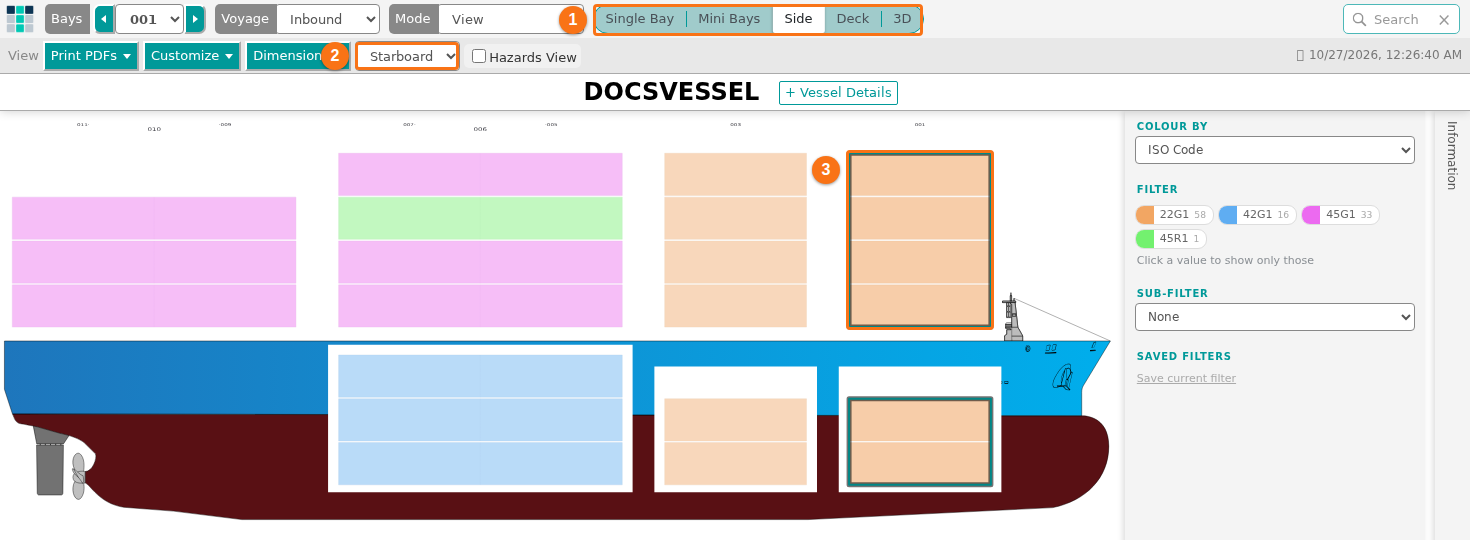
Open the Side view
Section titled “Open the Side view”- In the Function Menu on the left, open Visualization and click 2D Bay View.
- In the view control in the top bar, click Side. The vessel shows in profile. For each tier, the drawing shows the outermost container. Containers that are hidden behind other containers are not drawn.
- In the bar View, open the list without a name. Choose Starboard or Port. Starboard is the first choice. Port mirrors the drawing. The application saves your choice.
Look at one bay
Section titled “Look at one bay”- Click a bay in the profile. The bay gets a green outline.
- The bay shows below the profile as a small bay drawing. Before you click a bay, the text “Select a bay in the side view to show it here” shows in this place.
- Point at a container in the bay drawing. The panel Information shows its details if the panel is open. Click the container to open the container window. For these panels, see How to use Color by, filters and the information panels.
The Bays list in the top bar follows the bay that you click. You can also choose the bay in the Bays list.
A 40 ft container uses two bays. If you choose one bay of a 40 ft pair, the application selects both bays and shows them side by side. In the Starboard view, the aft bay is on the left. In the Port view, the order is the other way round. If the window is too narrow, the two bays wrap and the forward bay is on top.
Color and filter in the Side view
Section titled “Color and filter in the Side view”Colour by works in the Side view. The ship changes color when you choose another field. If a filter matches no container in the view, the whole ship turns grey. For the steps, see How to use Color by, filters and the information panels.
Good to know
Section titled “Good to know”- The Side view works without a vessel definition (OVD). If the file has no OVD, the application makes a definition from the container positions.
- You can use the Side view in other modes too, for example Edit and Move. But you cannot select containers in it. If you drag a rectangle, a message says “The Side and Deck views cannot select containers. Switch to the Single Bay or Mini Bays view to select them.”
- In the Side view, a left click opens the container window in every mode.
- For the view from above, see How to use the Deck view. For all views, see How to navigate the 2D Bay View.