

How do I change my password?
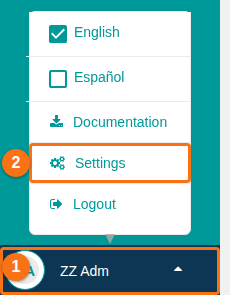
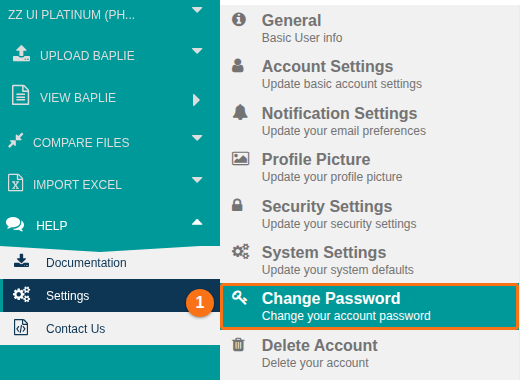
Open your user menu, click Settings, then click Change Password. Use these steps to change your password for any reason. If you signed in with a temporary password from Forgot username/password, see If you signed in with a temporary password.
- Log in to BAPLIE Viewer Online.
- At the bottom left, click the circle with the initial of your user name (1 in the picture). A menu opens. Click Settings (2 in the picture).
- Click Change Password (1 in the picture).
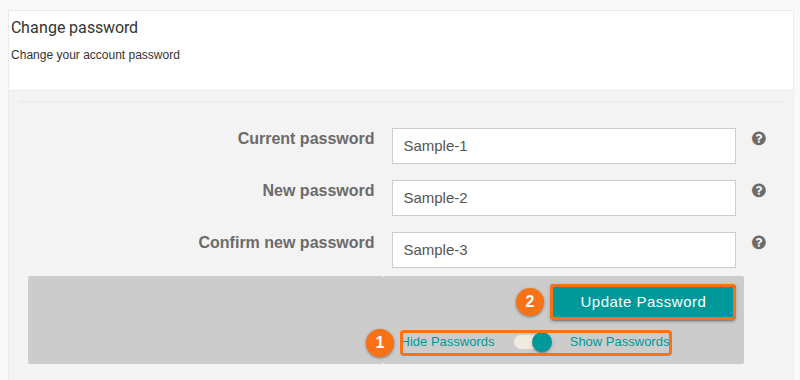
- Enter your Current password, your New password, and the new password again in Confirm new password. To see what you type, turn on the Show Passwords switch (1 in the picture). Use Hide Passwords to hide it again.
- Click Update Password (2 in the picture).
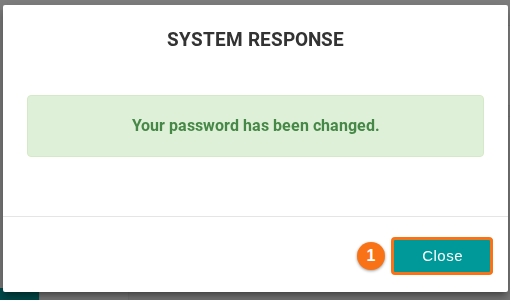
- The System Response window shows “Your password has been changed.” Click Close (1 in the picture).
If you signed in with a temporary password
Section titled “If you signed in with a temporary password”If you used Forgot username/password, the system e-mails you a temporary password. A temporary password works for 24 hours after it was sent.
- Sign in with your username and the temporary password.
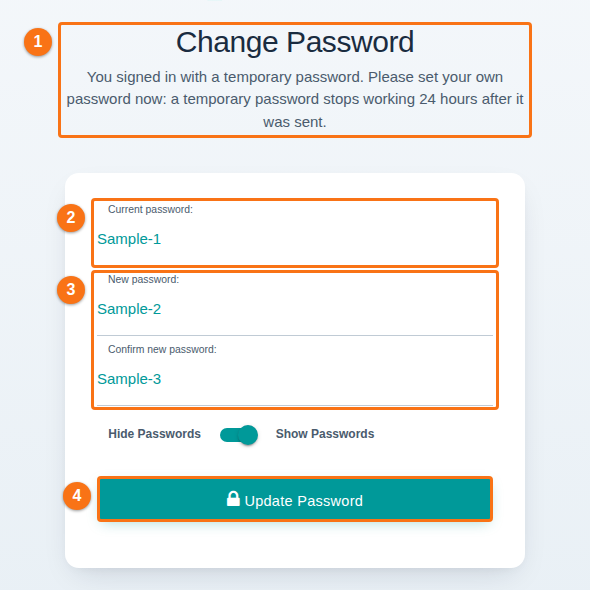
- The Change Password page opens at once. Below its title it says “You signed in with a temporary password. Please set your own password now” (1 in the picture).
- Enter the temporary password as your Current password (2 in the picture).
- Enter your own New password and the same password again in Confirm new password (3 in the picture).
- Click Update Password (4 in the picture). You then go on to the home page.
If the temporary password is more than 24 hours old, the sign-in page shows “Your temporary password has expired: a temporary password works for 24 hours. Use Forgot username/password to get a new one.” Use Forgot username/password to get a new temporary password.
Good to know
Section titled “Good to know”- If you reset your password with Forgot username/password, your current password is the temporary password that the system e-mailed to you. It works for 24 hours. After you sign in with it, you are asked to set your own password.
- A temporary password stops working as soon as you set your own password.
- If you are part of a facility membership, you must follow the password rules that your administrator set. See How to manage security settings for your facility.