

How do I add OOG information?
Use Edit Records in Main Content. Open the Show Dimension Details section and enter the OOG (out-of-gauge, over the normal size) dimensions.
Before you start: upload a BAPLIE file and open it. You need the Edit permission for the file.
- After the dashboard loads, click the container count, or open Visualization in the Function Menu and click Main Content.
- Tick the check box of the container. In the Function Menu, click Edit Records. The Edit Single Row window opens.
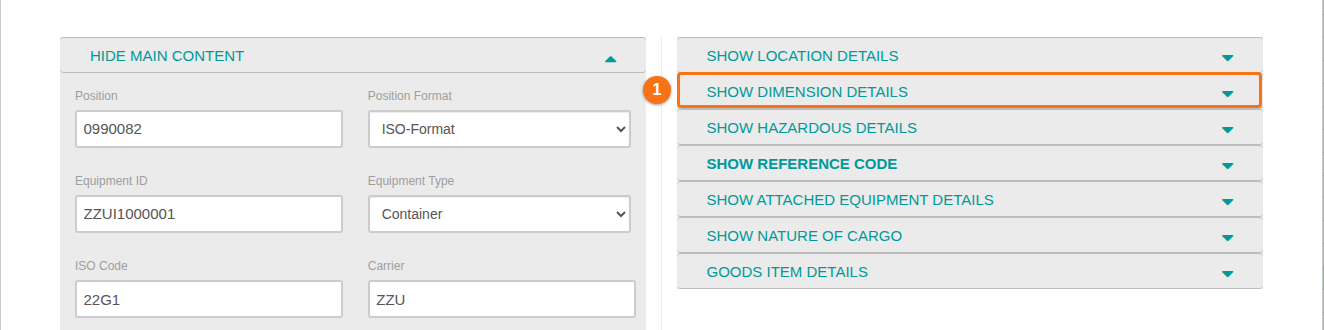
- On the right, click Show Dimension Details (1 in the picture).
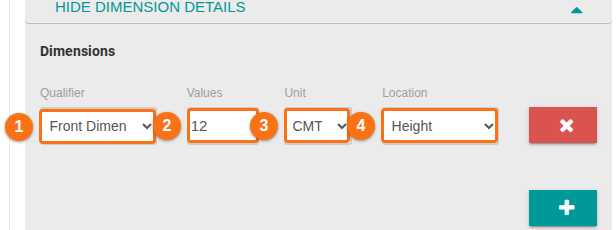
- In the Dimensions section, choose the Qualifier (1 in the picture). The BAPLIE specification has these types of OOG dimension for a container record:
- Gross Dimension
- Front Dimension
- Back Dimension
- Right Dimension
- Left Dimension
- General Dimension
- Enter the Values (2 in the picture). Choose the Unit (3 in the picture): CMT (centimetres) or INH (inches). Choose the Location (4 in the picture): height, width or length.
- Click Edit Single Row at the bottom of the window to save.
If many records have the same OOG information, tick all of them in step 2. The Editing Multiple Rows window opens. Tick the check box next to the fields you want to set, and repeat the steps above. See How to edit one or more records.