

How to purchase a membership using a Credit Card
Use this guide to buy or upgrade a facility membership with a credit card.
A new account has a Free Trial membership for 30 days. To upgrade to Gold or Platinum, follow these steps.
- In the Function Menu, click Manage Facility under the name of your facility (1 in the picture). Then click Membership (2 in the picture). The Facility Membership page opens. It shows the plans Gold and Platinum.
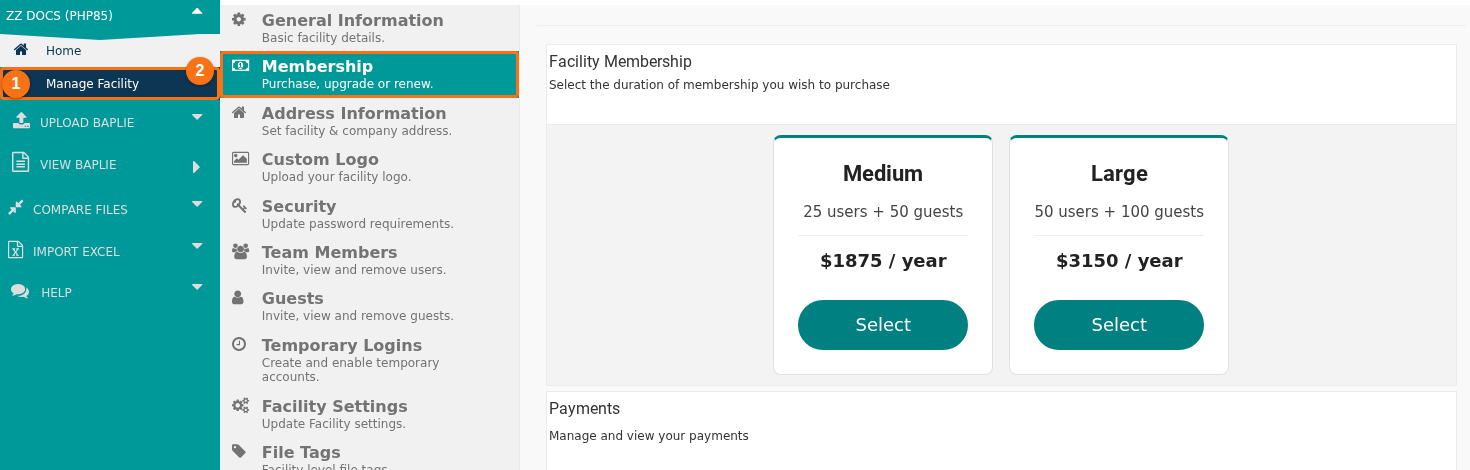
- Choose the plan that fits your organization: click Select Gold or Select Platinum. Then follow the choices on the screen. You choose a tier (the number of users and guests) and a duration (how long the membership runs, for example 1 year).
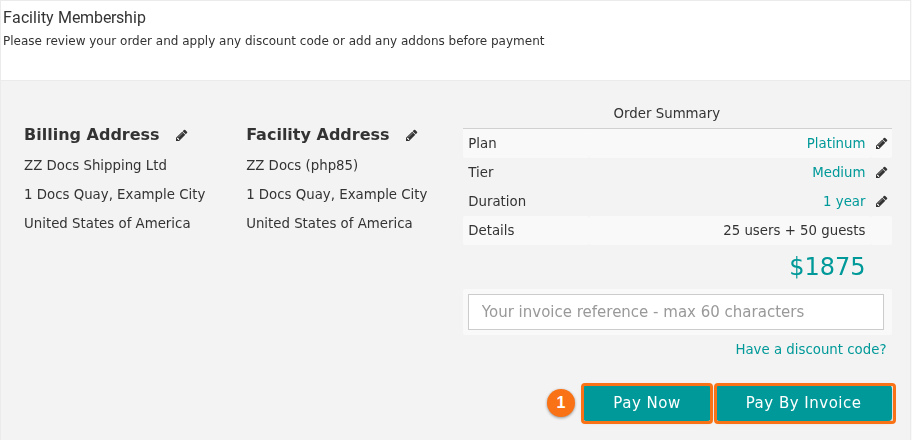
- Check your order on the order summary page. It shows the Plan, Tier, Duration, Details and the price. You can also enter an invoice reference or a discount code here.
- Click Pay Now (1 in the picture). If you want to pay later, click Pay By Invoice instead. The system then creates an invoice.
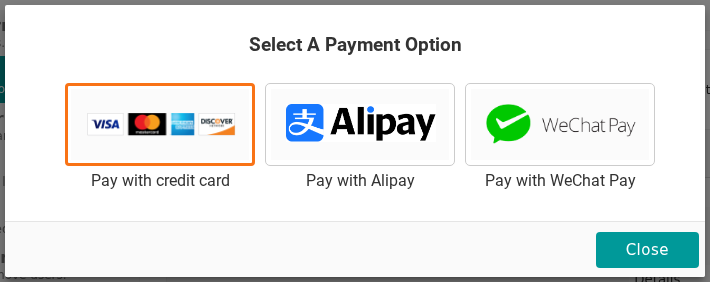
- In the Select A Payment Option window, click Pay with credit card.
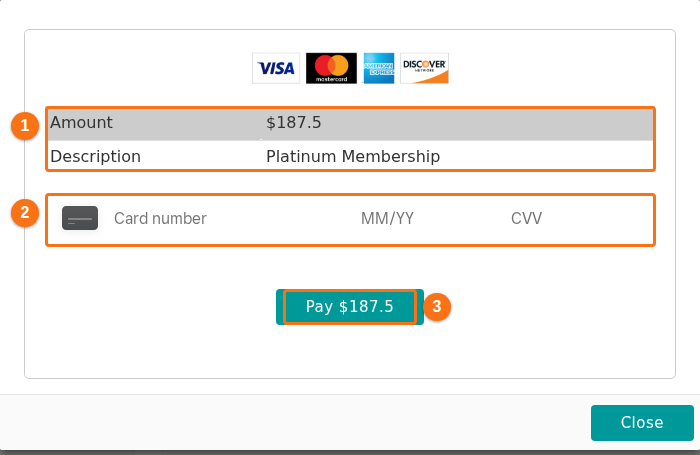
- A card window opens on the same page. It shows the Amount and the Description (1 in the picture). Below them are the fields for the card number, the expiry date (MM/YY) and the security code (CVV) (2 in the picture). Type your card details. Then click the pay button (3 in the picture). It shows the price, for example Pay $150. This completes the purchase.
Good to know
Section titled “Good to know”- Card payments are handled by SquareUp, a payment company. SquareUp is better suited to handle confidential financial data.
- If you have a problem with your purchase, tell our Support Department. We will work with you to solve it.