

How do I switch between Single Bay, Mini Bays, Side, Deck and 3D?
Click the view you want in the view control in the top bar of the 2D Bay View. The five views are one page, so the bay you chose, the Colour by field and your filters stay when you change the view.
Before you start: open your file in the 2D Bay View.
- In the Function Menu on the left, open Visualization and click 2D Bay View.
- In the view control in the top bar (1 in the picture), click Single Bay, Mini Bays, Side, Deck or 3D.
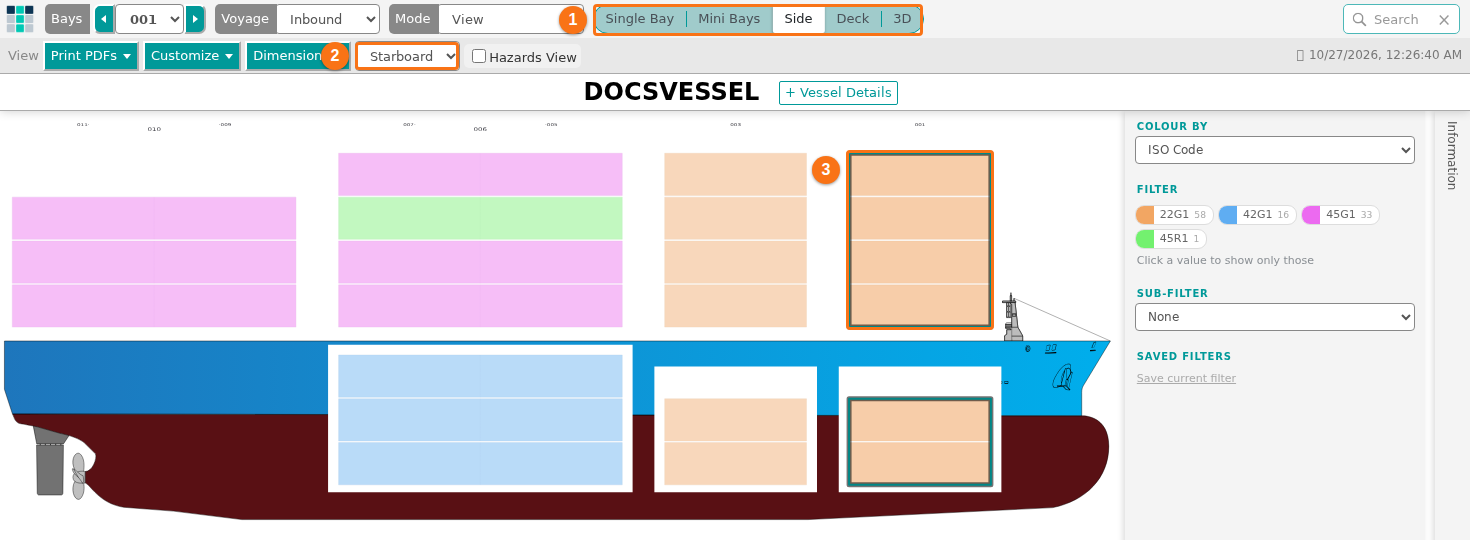
What each view shows
Section titled “What each view shows”| View | What it shows |
|---|---|
| Single Bay | One bay as a drawing, with the main attributes of each container. |
| Mini Bays | All bays as small drawings, in rows. |
| Side | The whole vessel in profile. |
| Deck | The whole vessel from above. |
| 3D | A 3D model of the vessel. |
Good to know
Section titled “Good to know”- Single Bay is the first view. The application remembers the last view you used.
- Side and Deck are read-only overviews. You cannot select containers in them. To select containers, use Single Bay or Mini Bays.
- 3D works only in View mode. In other modes it is grey.
- 3D shows only for Admin or Edit users on a membership that includes Edit mode (Gold and Platinum, not Silver). Without it, the view control has four choices.
For the full list of views, see How to navigate the 2D Bay View. For one view, see How to use the Side view, How to use the Deck view and How to navigate the 3D Vessel View.