

How do I see the containers below deck in the 3D view?
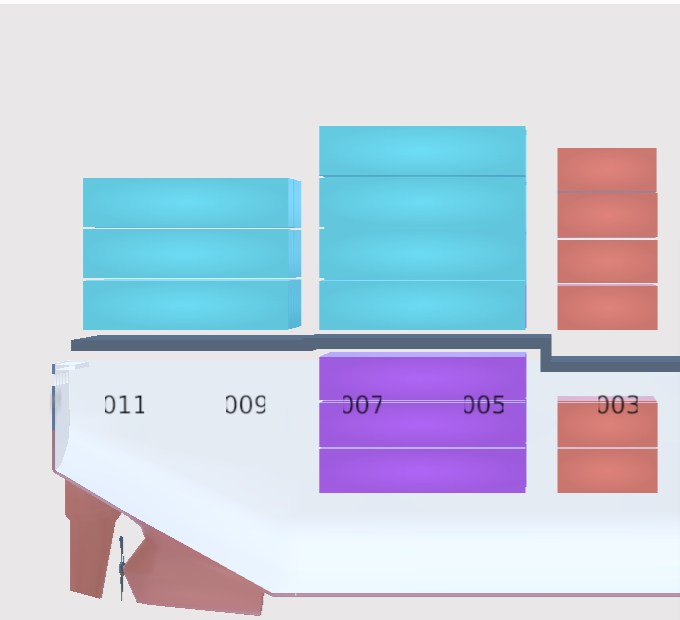
Tick See below in the bar View of the 3D view. The check box makes the hull translucent, so the containers below deck show through. It is ticked at the start.
Before you start: open your file in the 2D Bay View. The 3D view needs Admin or Edit permission on a membership that includes Edit mode (Gold and Platinum, not Silver).
- In the Function Menu on the left, open Visualization and click 2D Bay View.
- Check that Mode in the top bar is View. The 3D view works only in View mode.
- In the view control in the top bar (1 in the picture), click 3D. The model loads.
- In the bar View, choose Ship (not Bay) and keep Vessel ticked, so the hull shows.
- Tick See below (2 in the picture). To hide the hold again, clear the check box.
- Turn the ship with the mouse to look at it from the other side. The effect follows the camera.

With See below ticked, the hull is translucent and the containers in the hold show through it:
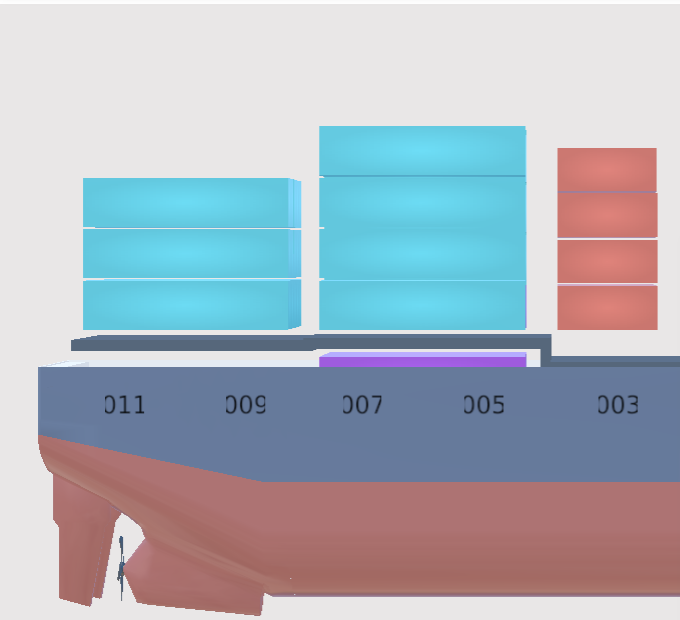
With See below cleared, the hull is solid and hides the hold:
Good to know
Section titled “Good to know”- See below is in the bar View in the 3D view only. It is between Vessel and Hatch Covers.
- The application saves the check box for the next time.
- The hatch covers have their own check box, Hatch Covers.
- If Vessel is not ticked, the hull is hidden and See below has nothing to show.
For all the 3D controls, see How to navigate the 3D Vessel View.