

How to save and use filters in 2D Bay View
Use this guide to save a filter in 2D Bay View and to bring it back later with one click. A saved filter remembers the Colour by field, the values you clicked and the Sub-filter. You can also rename and delete saved filters.
Before you start: open your file in 2D Bay View. Learn how to set a filter in How to filter containers in 2D Bay View. The Saved filters part is in the Color & Filter panel on the right side of the screen.
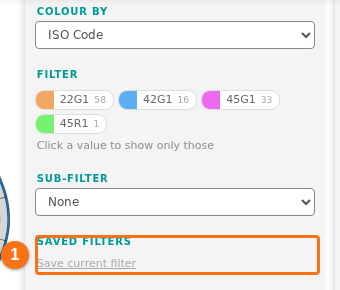
Save a filter
Section titled “Save a filter”- In the Color & Filter panel, choose a field in Colour by, for example Port Of Discharge.
- Click one or more values in the list.
- Optional: choose a field in Sub-filter and click values in the second list.
- Under Saved filters, click Save current filter. The link is grey until you click at least one value. It is also grey when this filter is already saved.
- The filter is saved at once. There is no window to type a name. The application makes a name from your choices, for example Port Of Discharge: USLAX, USOAK · Is Hazardous: Yes.
Use a saved filter
Section titled “Use a saved filter”- In the Color & Filter panel, find Saved filters. The list shows only when you saved at least one filter.
- Open the list and click the filter you want.
- The panel sets Colour by, the values and the Sub-filter, and the view shows the result.
The first choice in the list is Choose…. When your clicks are the same as a saved filter, the list shows the name of that filter. If not, it shows Choose….
Rename a saved filter
Section titled “Rename a saved filter”- Open the Saved filters list and click Manage saved filters…. It is the last choice. The window Manage filters opens.
- In the list at the top of the window, choose the filter.
- In Name this filter, type the new name.
- Click Save Filter. The window closes.
To go back to the automatic name, leave Name this filter empty and click Save Filter.
Delete a saved filter
Section titled “Delete a saved filter”- Open the Saved filters list and click Manage saved filters….
- In the list at the top of the window, choose the filter.
- Click Delete. The filter is removed at once.
To close the window without a change, click CLOSE.
Good to know
Section titled “Good to know”- Saved filters are saved in your user profile. You can use them on other computers and in other files.
- The 2D Bay View and the 3D Vessel View use the same saved filters.
- Filters that you saved with the older 3D Vessel View still work. If the field of an old filter is not the Colour by field, the application uses it as a Sub-filter.
- If you save a filter that is already in the list, the application only selects it.
- In Multi-Lift and Correct Restows mode, the panel is off.