

What is the Deck view, and what does Tiers shading show?
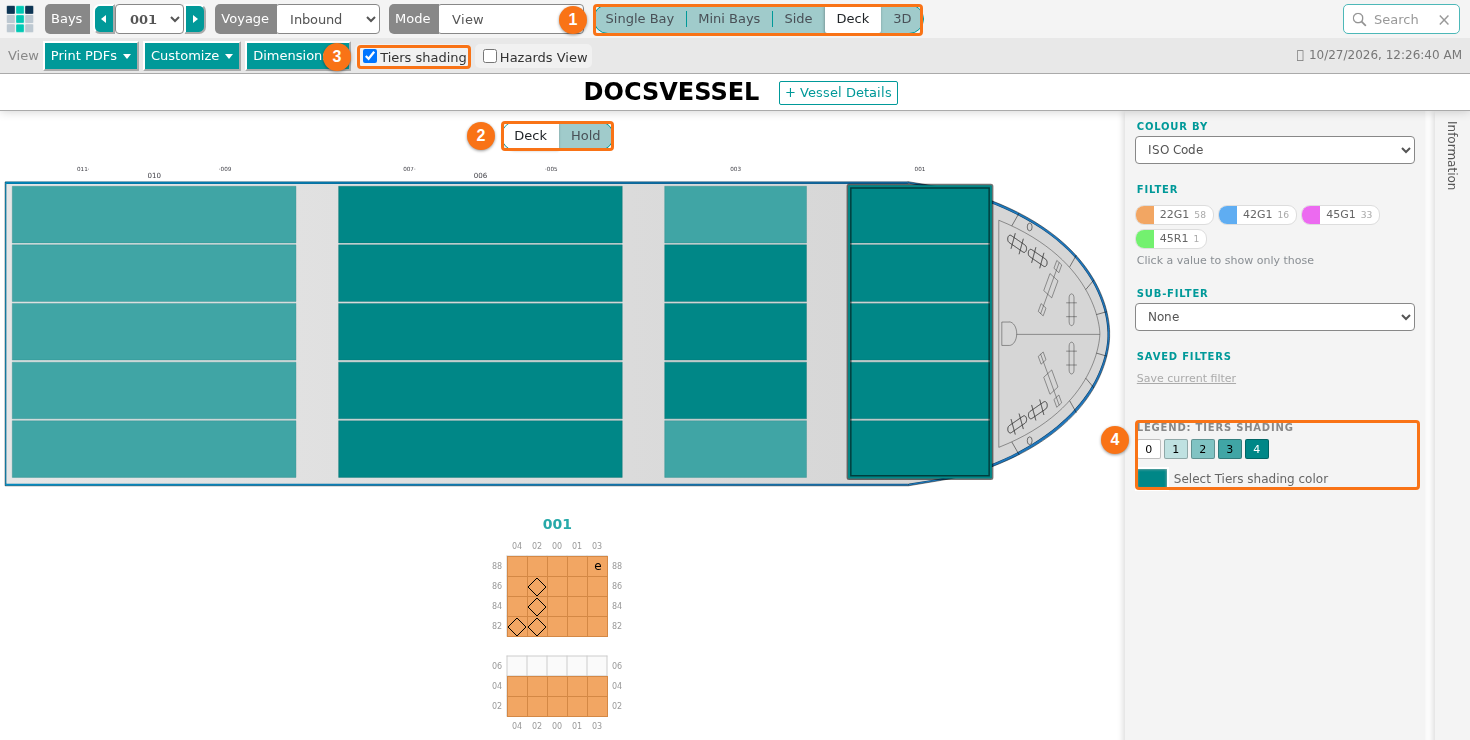
The Deck view shows the whole vessel from above, bay by bay. Tiers shading colors each stack by its tier count (the number of tiers in the stack). An empty stack is white. The tallest stack has the full color.
Before you start: open your file in the 2D Bay View. The Deck view needs no extra permission. It is read-only, so you cannot select containers in it.
- In the Function Menu on the left, open Visualization and click 2D Bay View.
- In the view control in the top bar (1 in the picture), click Deck.
- Above the drawing, choose Deck for the cargo above deck or Hold for the cargo below deck (2 in the picture).
- In the bar View, check that Tiers shading is ticked (3 in the picture). To go back to the colors of Colour by, clear the check box.
- Read the legend in the panel Color & Filter (4 in the picture). The boxes go from 0 to the highest tier count. Point at a box to see “N tiers”.
Good to know
Section titled “Good to know”- To change the color, click Select Tiers shading color in the legend and choose another color.
- Deck counts the stacks above deck. Hold counts the stacks below deck. Both use the same scale.
- If you use a filter or the search, only the containers that match are counted.
- Click a bay to see it in detail below the drawing.
- The choice Hatch Covers is not always there. See Why is the Hatch Covers choice missing in the Deck view?
For all the details, see How to use the Deck view.