2023-08-08
New Features
- The MOVE function in the 2D Bay View now supports Shift-On-Board moves. (How to use the Move Containers feature in 2D Bay View)
- The Operations List PDF now has the Planned Position as well as the Current Position. (How to download 2D changes as MOVINS and print the Operations List)
- Discharge moves: only the current position is filled.
- Load moves: only the planned position is filled.
- Shift-On-Board moves (moves inside the same bay): the current position and the planned position are filled.
- Restow moves (moves from one bay to another): the current position and the planned position are filled.
- Added a button to the Download function to download the changes as MOVINS. At the time of this release it was named Download Changes As MOVINS. Today it is Changes in data as MOVINS. (How to download 2D changes as MOVINS and print the Operations List)
- Every move that you make with the MOVE function is now written to a MOVINS file. You can download this file when you finish planning the moves.
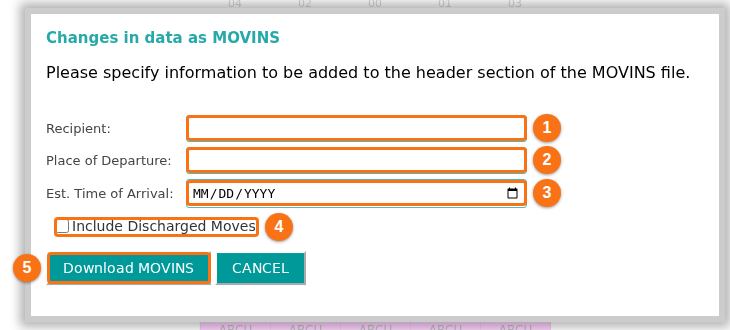
- When you click the button, a window asks for the information for the header of the MOVINS EDI file:
- Recipient (1 in the picture): who receives the MOVINS file.
- Place of Departure (2 in the picture): the port that the vessel leaves from. In the first release this box was named Discharge Port.
- Est. Time of Arrival (3 in the picture): when the vessel arrives at the next port of call.
- Include Discharged Moves (4 in the picture): choose if the MOVINS file includes the discharge moves or not.
- Click Download MOVINS (5 in the picture) to download the file.
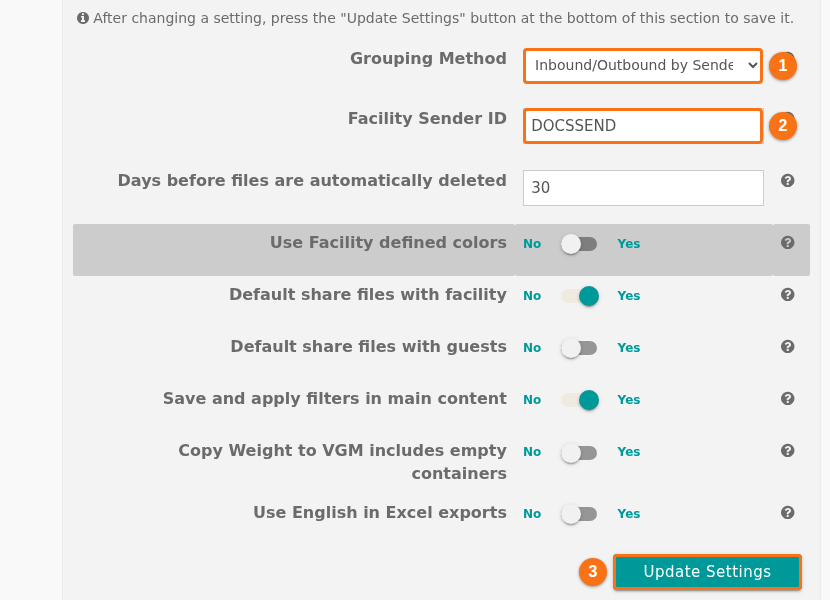
- The header of the MOVINS file also has a Sender ID. The value is the Facility Sender ID of your facility. Your facility administrator can change it in Facility Settings: in the Grouping Method list (1 in the picture), choose Inbound/Outbound by Sender ID. The row Facility Sender ID then shows. Type the code in Facility Sender ID (2 in the picture) and click Update Settings (3 in the picture).