

Can I upload an excel file with containers to load to a BAPLIE?
Yes. If you have an Excel spreadsheet with containers to load (also called a load list or loading plan), first make a BAPLIE file from it. Then add its containers to your BAPLIE in Move mode in 2D Bay View.
Before you start: Move mode needs the Vessel Operations add-on for your facility and Admin or Edit permission.
Step 1: make a load list BAPLIE with Import Excel
Section titled “Step 1: make a load list BAPLIE with Import Excel”- Log in to your BAPLIE Viewer Online account.
- In the Function Menu on the left, open Import Excel.
- Follow the steps on the screen. For the details, see How to create a BAPLIE file from an Excel spreadsheet.
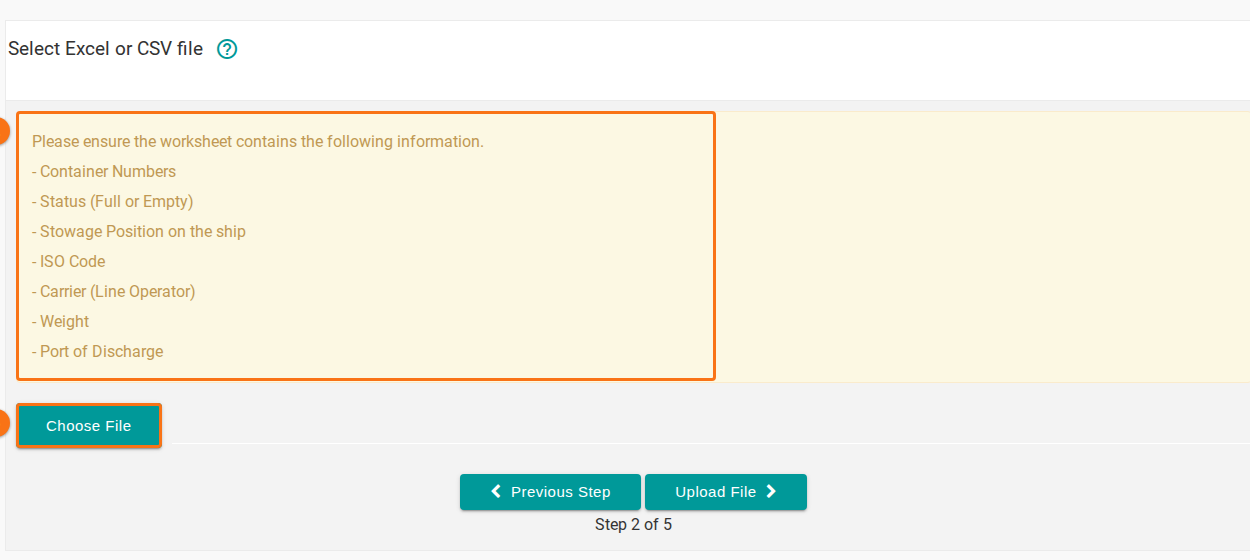
The spreadsheet needs at least these columns: container number, ISO code, carrier, status, POL (port of load), POD (port of discharge) and weight.
If your spreadsheet has no position column, map the position to a blank column. The system warns you that Bay Position should be 7 characters. Click Proceed to ignore these warnings.
Step 2: add the containers in Move mode
Section titled “Step 2: add the containers in Move mode”- In the Function Menu, upload the BAPLIE file you want to change, or open it from the files that you already uploaded.
- Open Visualization and click 2D Bay View. In the Mode list, choose Move. For the details, see How to use the Move Containers feature in 2D Bay View.
- Click Load New. Then click From Previously Uploaded File.
- Choose the load list BAPLIE that you made. Click Add Containers To Stow List.
- All containers of the load list show in the Containers to move list on the right. Click a container in the list, or type an equipment ID in the FILTER BY… box to find one. Then click an empty slot in the bay to put the container there.
- Click FINISH in the top menu to update your BAPLIE file.