

Can I create a pool of generic empty containers?
Yes. Use Move mode in 2D Bay View to make generic empties (empty containers with general details). You then put them in empty slots on the ship, print a bay plan PDF, and download a BAPLIE that has the empty containers.
Before you start: open your file. Move mode needs the Vessel Operations add-on and Admin or Edit permission. For all details of Move mode, see How to use the Move Containers feature in 2D Bay View.
- In 2D Bay View, choose Move in the Mode list. Click Load Generic Empties. The Create Generic Empties window opens.
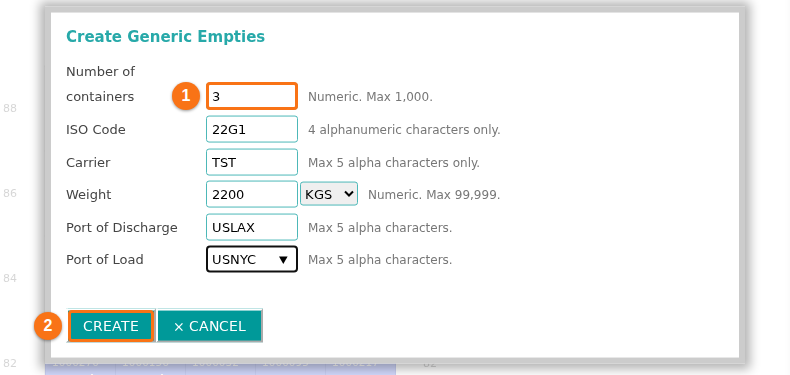
- Enter the Number of containers you need (1 in the picture). Fill in the other fields. Click in a field to see values that the system takes from your BAPLIE file. Then click CREATE (2 in the picture).
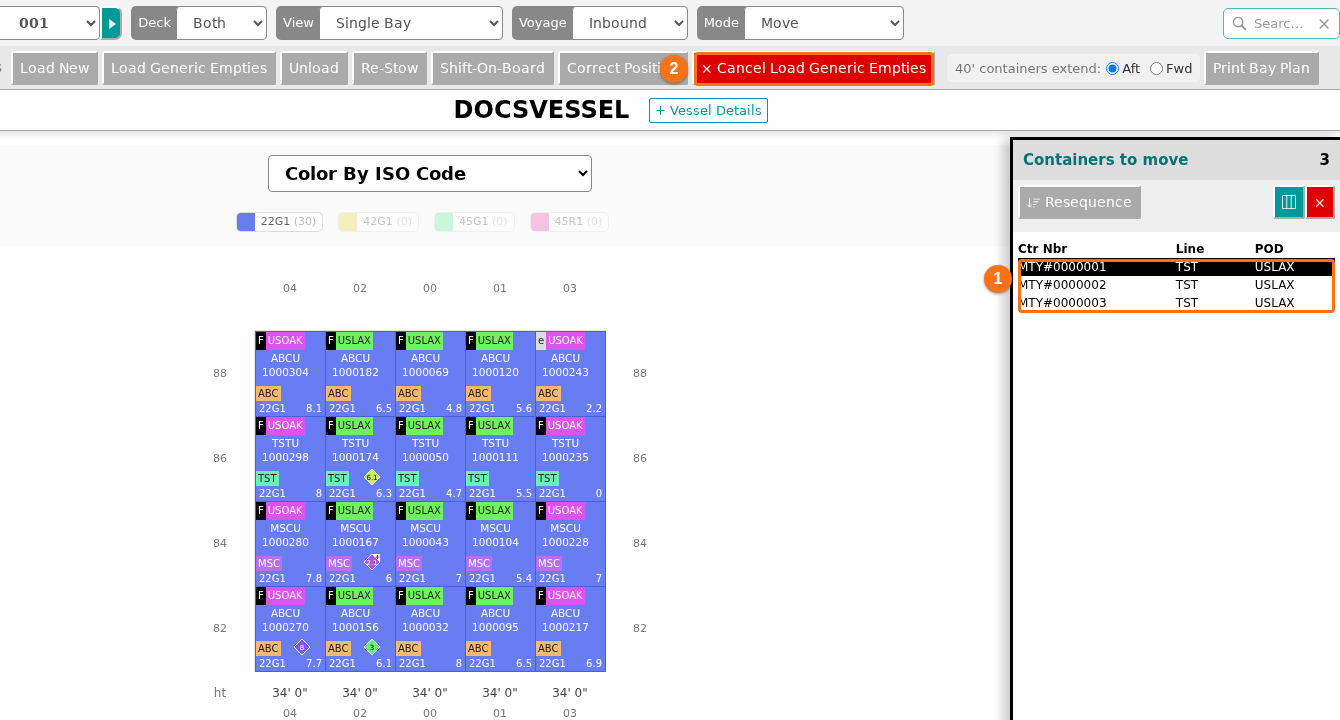
- The empties show in the Containers to move list (1 in the picture). Click a container in the list. Then click an empty slot in the bay to put the container there. Do this for each container in the list.
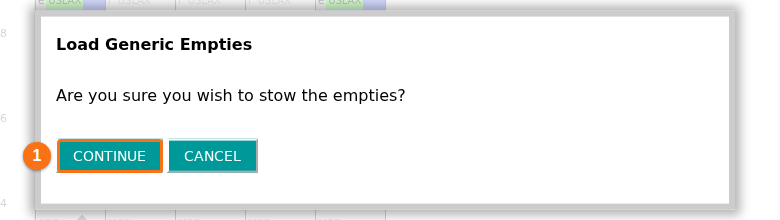
- When all containers from the list are in empty slots, a window asks “Are you sure you wish to stow the empties?”. Click CONTINUE (1 in the picture).
To cancel: click Cancel Load Generic Empties (2 in the second picture) before you finish.
After you stow the empties
Section titled “After you stow the empties”- To print a bay plan, see How to print a sequence bay plan from 2D View.
- To download the BAPLIE with the empty containers, see How to navigate the Download BAPLIE option.