

How to use the Damaged Containers add-on
Use this guide to check if your facility has the Damaged Containers add-on and to open the Damaged Containers app. The app is a separate application. In it you draw damage on a 3D picture of one container, add decals (graphics) and save views.
Before you start: the add-on is an extra for your facility. It is not part of every membership. Your facility must have it. You also need Admin or Edit permission. Step 1 shows how to check the add-on.
- Check that your facility has the add-on.
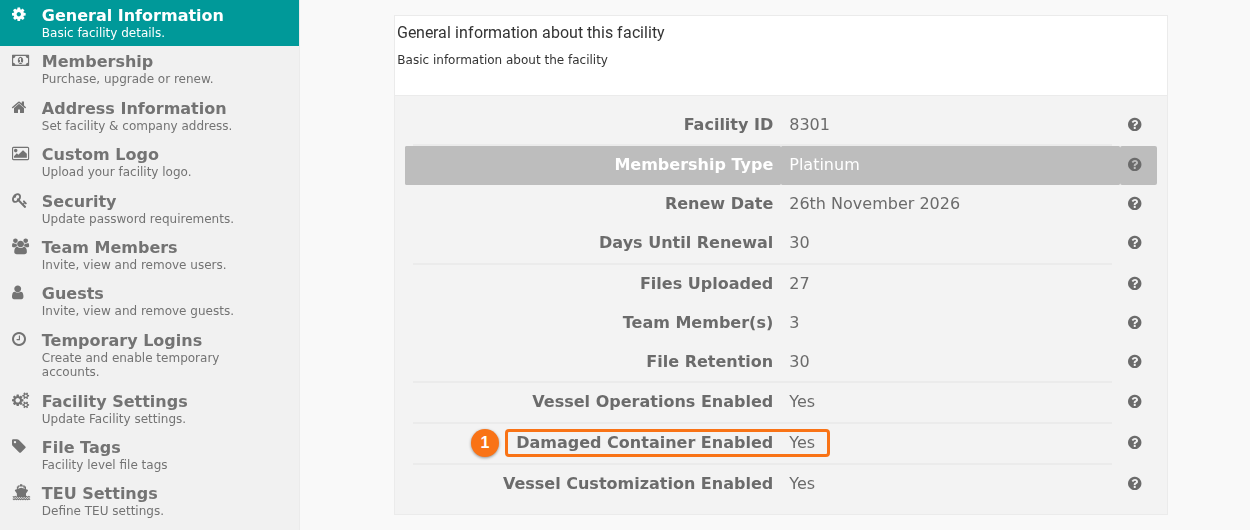
- In the Function Menu on the left, click Manage Facility. Then click General Information.
- Find Damaged Container Enabled (1 in the picture). Yes means that your facility has the add-on. No means that it does not.
- Open your file in the 2D Bay View. In the Function Menu, open Visualization and click 2D Bay View.
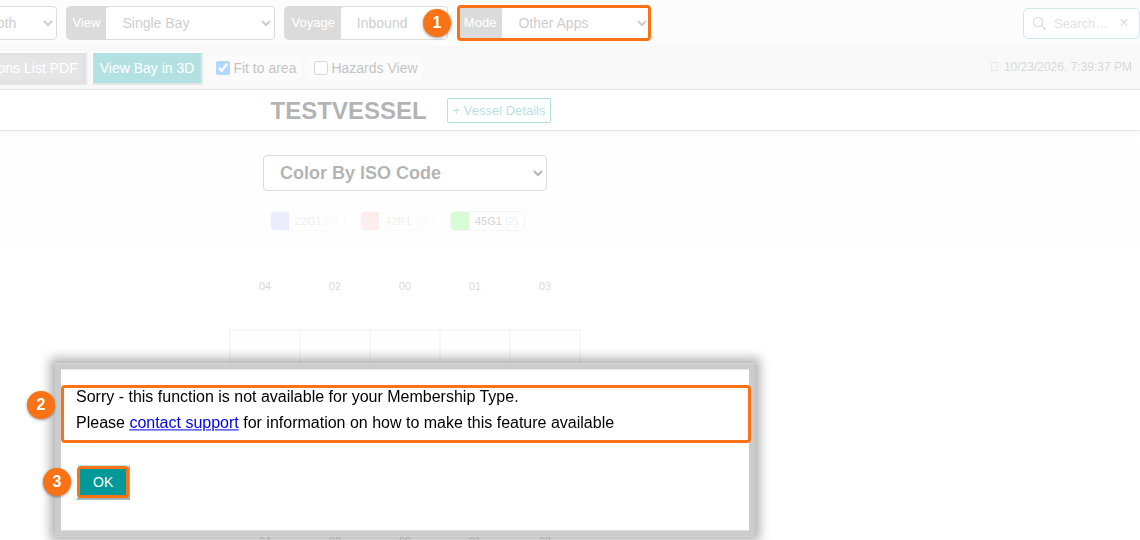
- Open the Mode list in the top bar (1 in the next picture). Choose Other Apps. If the view control shows 3D, the page goes back to the 2D view you used before, because 3D works only in View mode.
- If your facility has the add-on, the bar Other Apps shows the button Launch Damaged Containers App. Click it. The Damaged Containers app opens in a new tab of your browser. If nothing opens, your browser may block new windows. Allow pop-ups for this site and click the button again.
- If your facility does not have the add-on, a window opens (2 in the picture). It says: “Sorry - this function is not available for your Membership Type.” Click OK (3 in the picture) to close it.
How to get the add-on
Section titled “How to get the add-on”The window has a link, contact support. Click it, or write to Support, to ask how to make the feature available for your facility. See How to contact Support and create a support ticket. In the Subject list, choose Membership Question.
Good to know
Section titled “Good to know”- The add-on is set for the whole facility, not for single users.
- Other Apps is one entry of the Mode list. For the list of modes, see How to navigate the 2D Bay View.
- For the other fields of General Information, see How to manage general facility information.