

Does BAPLIE Viewer Online support Commodity information?
Yes. BAPLIE Viewer Online shows commodity information in the Main Content screen. Open Visualization in the Function Menu on the left, then click Main Content.
The orange box in the picture marks the four commodity columns: Nature of Cargo, Number of Packages, Type of Package and Free Text. A dash (-) means that the container has no value.
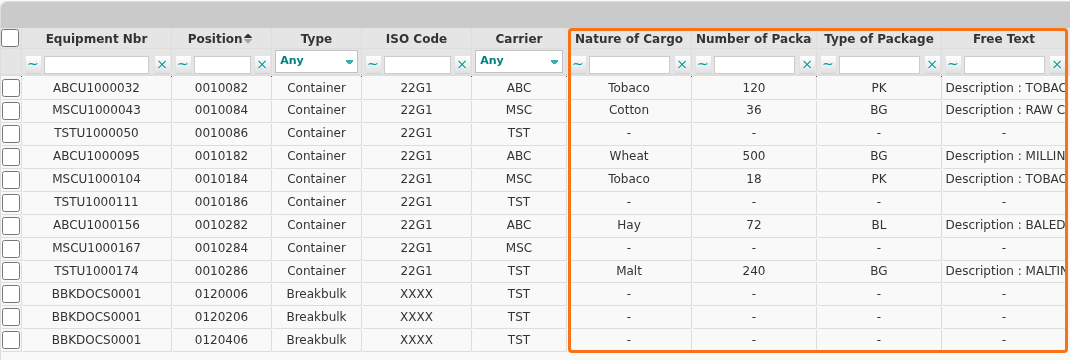
BAPLIE files do not always have the commodity of the cargo. The BAPLIE specification calls this information “Nature of Cargo”.
Show the Nature of Cargo column
Section titled “Show the Nature of Cargo column”- On the Main Content screen, click Show/Hide Columns in the Function Menu.
- In the Select columns window, click the + icon next to Nature of Cargo (1 in the picture). Click Ok.
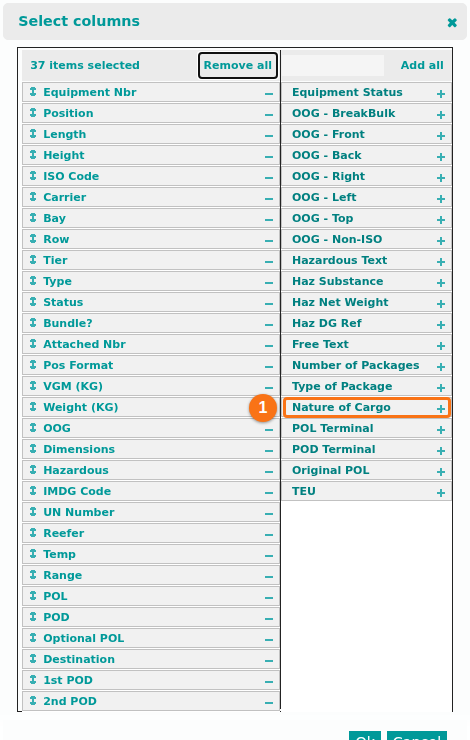
You do this once. The system saves your choice in your user profile and uses it for future files. For more details, see How to add and remove columns from the table view.
Where the commodity is in the file
Section titled “Where the commodity is in the file”If the BAPLIE has a commodity, it is in one of two segments:
- The FTX segment, as a description of the goods.
- The GDS segment, which gives the Nature of Cargo. The BAPLIE standard uses a code for it, for example:
| Code | Commodity |
|---|---|
| 01 | Live animal |
| 06 | Live plant |
| 09 | Coffee |
| 10 | Wheat |
| 12 | Hay |
| 22 | Malt |
| 24 | Tobacco |
| 41 | Hide |
| 44 | Timber pack |
| 48 | Waste paper |
| 49 | News print |
| 52 | Cotton |
| 68 | Stone |
| 72 | Iron scrap |
The FTX segment gives more details.
Import commodity from Excel
Section titled “Import commodity from Excel”You can also import the Nature of Cargo when you use Import Excel in the Function Menu. See this article to learn more.