

2026-10-31
Security
Section titled “Security”The recently disclosed PHP vulnerabilities (known as PHP2Shell) are patched. We also reviewed the security of the whole application and made it stronger. You do not need to do anything: your files, settings, users and logins are the same as before.
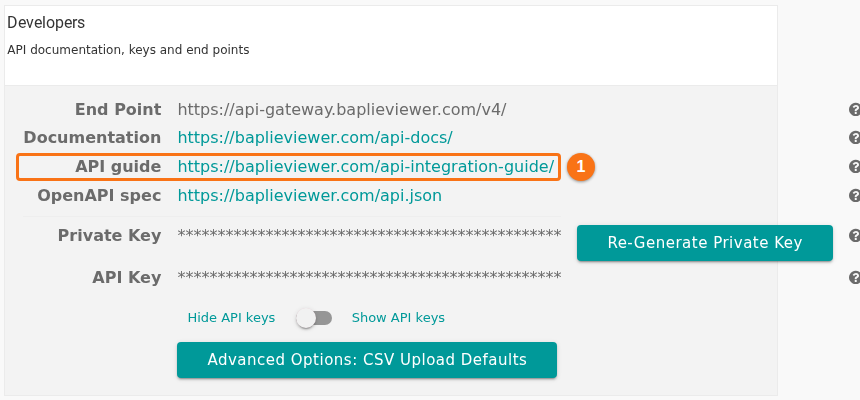
- Viewers that you open through the API now carry a signed token, not only the public key of your facility. If you open the viewers from your own system, read the API guide: its link is on the Developers tab of Manage Facility (1 in the picture). (How to use the Developers tab)
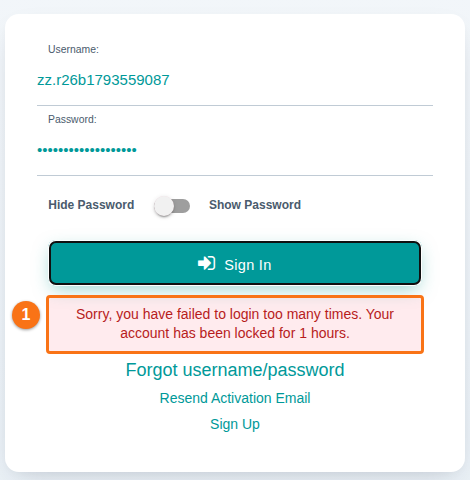
- The lock-out after repeated failed sign-ins now works. After too many wrong passwords, the sign-in page says that the account is locked for 1 hour (1 in the picture).
New features
Section titled “New features”New 2D and 3D viewer
Section titled “New 2D and 3D viewer”The 2D Bay View and the 3D Vessel View are now one viewer in one window. (How to navigate the 2D Bay View)
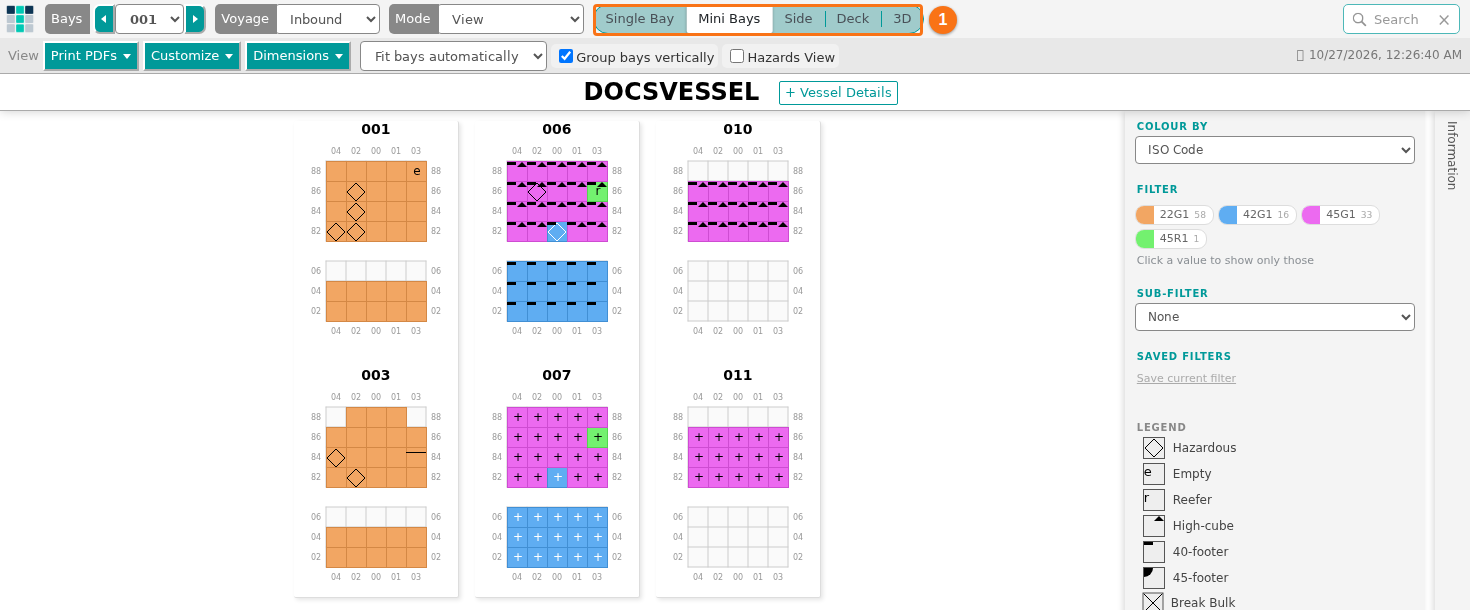
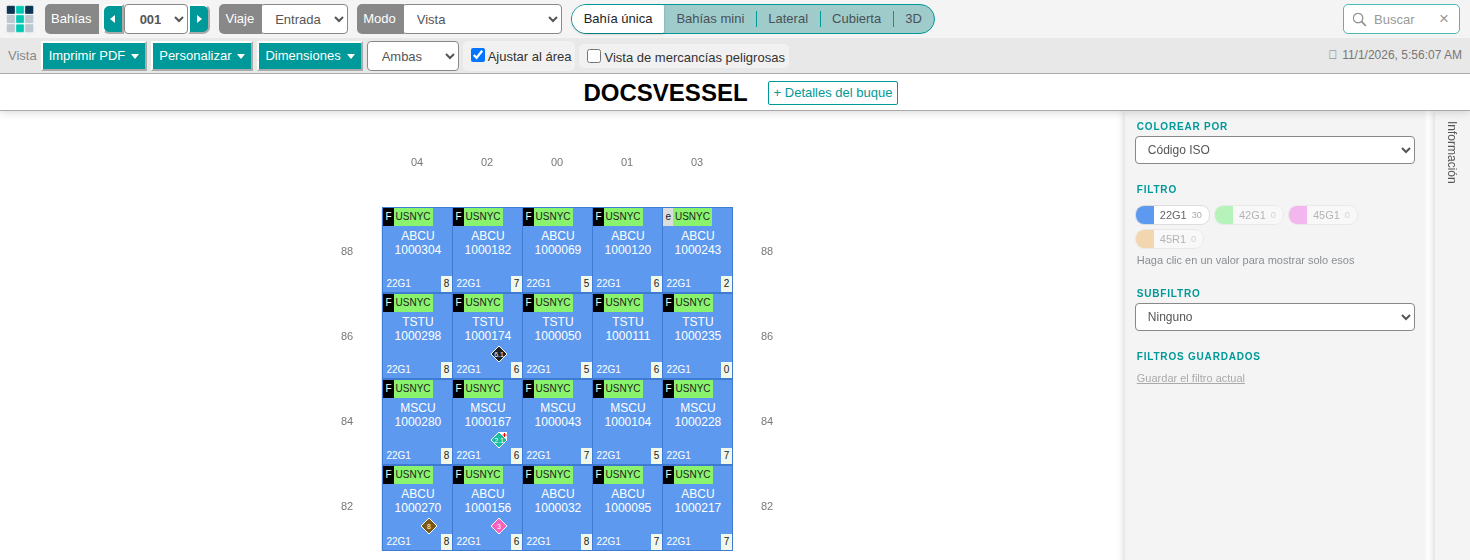
- One view control at the top (1 in the picture): Single Bay, Mini Bays, Side, Deck and 3D. (How do I switch between Single Bay, Mini Bays, Side, Deck and 3D?)
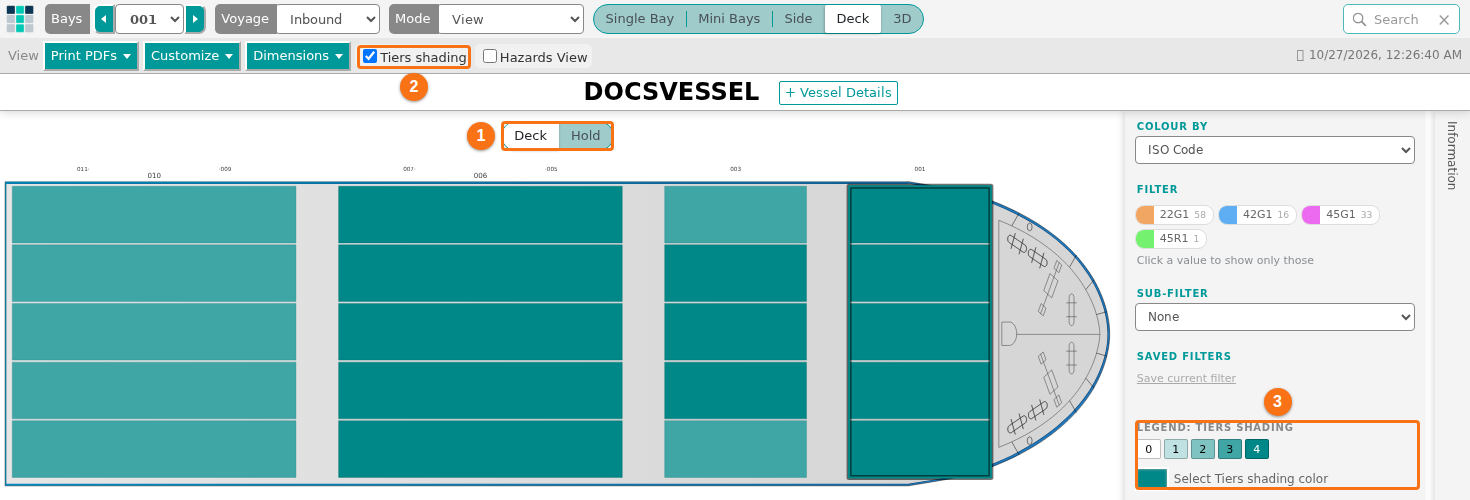
- Deck view: the whole vessel from above, on deck or in the hold (1 in the picture). Tick Tiers shading (2) to see the stack heights at a glance; the legend shows the shade of each number of tiers (3). With a linked vessel definition, the view also shows the hatch covers. (How to use the Deck view)
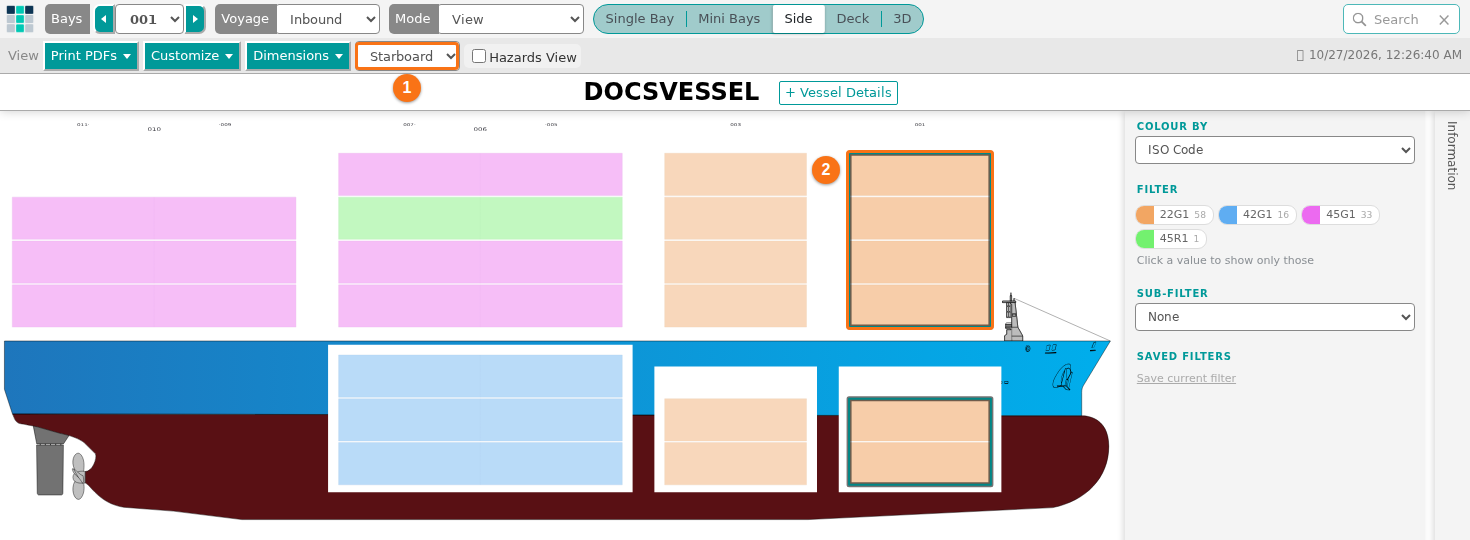
- Side view: the vessel in profile, seen from starboard or port (1 in the picture). Click a bay in the profile to outline it (2) and to see that bay below the profile. (How to use the Side view)
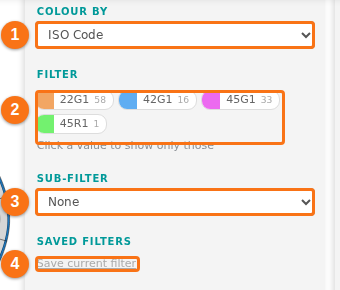
- Colour & Filter panel on the right: Colour by (1 in the picture), filter by value (2), Sub-filter (3) and saved filters (4). (How to use Color by, filters and the information panels, How to save and use filters)
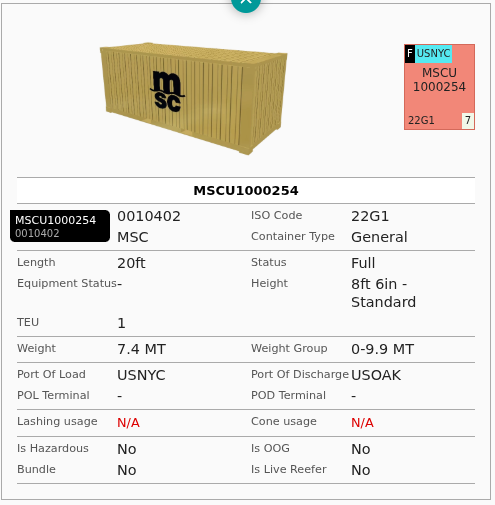
- Information panel: point at a container to see all its details.
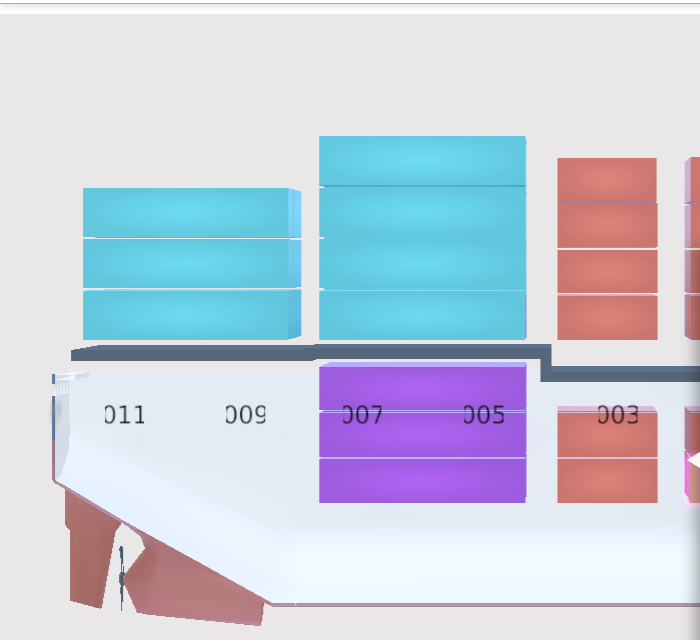
- 3D view: the Skin list (Colored, Line Operator, Cont. Owner) replaces Realistic View (1 in the picture). See below (2) shows the containers in the hold through the hull. (How to use the Skin dropdown)

- Customize (1 in the picture) and Dimensions (2) are now lists in the View bar instead of entries in the Mode list. The 3D ship customization (bridge, funnels, cranes), decals and damages are no longer part of the viewer. (Where did the Settings and Dimensions modes go?)

- Your language: the viewer opens in the language you chose in BAPLIE Viewer Online, English or Spanish. (Is BAPLIE Viewer Online available in Spanish?)
Equipment status
Section titled “Equipment status”Every container in a BAPLIE file can carry an equipment status (in the EQD line), such as Continental, Export, Import, Remain on board or Transshipment. BAPLIE Viewer Online now shows it, lets you filter and edit it, and keeps it when you download or convert a file. (How to view, filter and edit Equipment Status)
See it
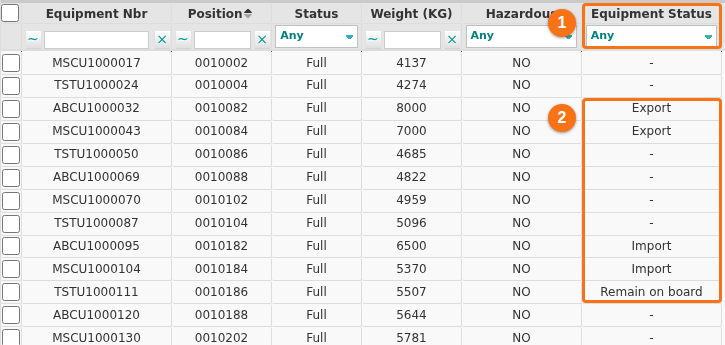
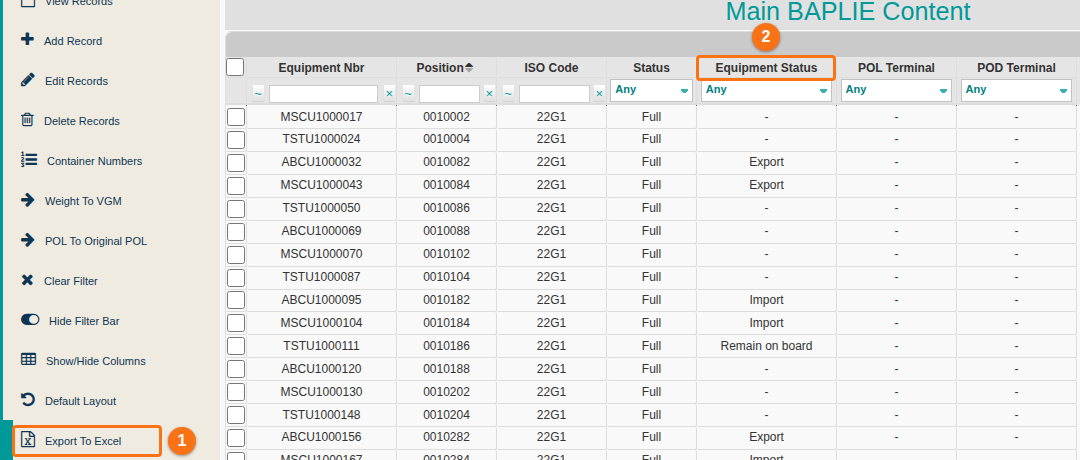
- Main Content has a new Equipment Status column (1 in the picture). It shows the status name, or “-” when a container has none (2). If a file contains a value that is not on the standard list, you see it exactly as it was sent.
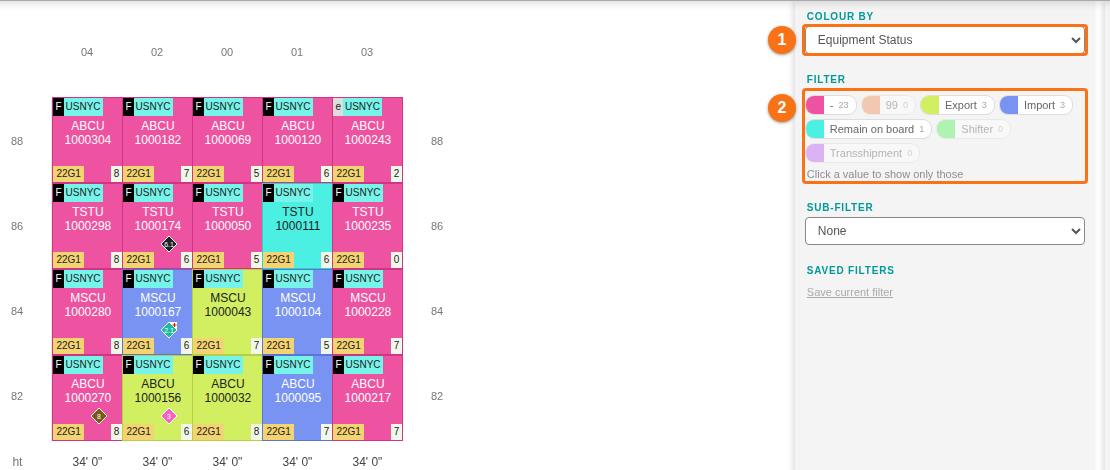
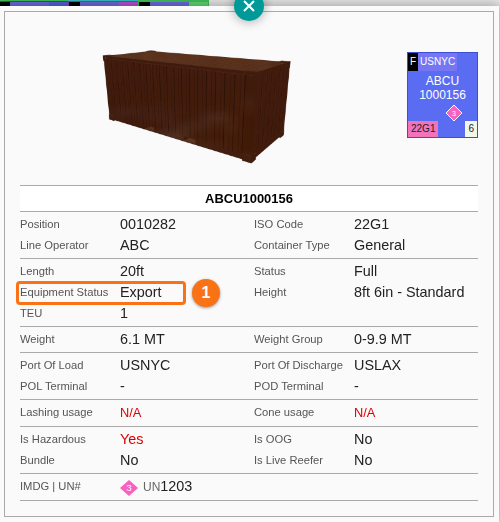
- The 2D view shows the equipment status in the container details, and you can colour the bay by it. In the first picture, Colour by is set to Equipment Status (1) and the filter lists the statuses with their counts (2). In the second picture, the container details show the Equipment Status line (1).
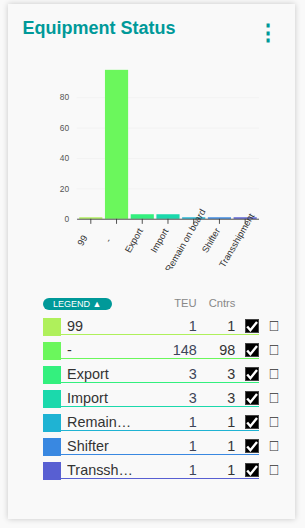
- The Dashboard has a new Equipment Status chart. Use the chart’s legend to filter the other charts by a status. The status is also a column of the container list that opens from a chart’s info button (1 in the second picture). (How to see the containers behind a Dashboard chart and select table fields)

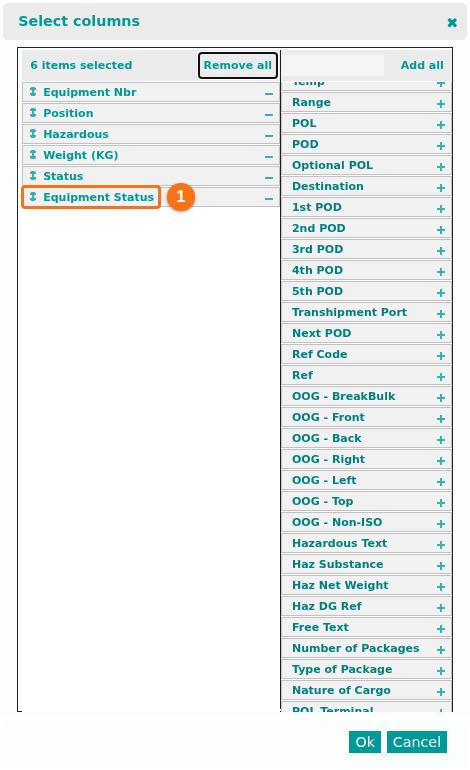
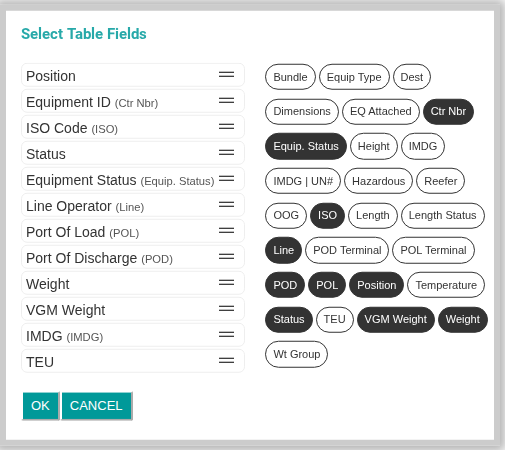
- If you saved your own column layout in Main Content, switch the new column on in the column chooser (1 in the picture). If you changed the fields of the Dashboard container list, add the status with Select Table Fields. The field chooser allows up to 10 fields: if 10 are already chosen, remove one first. (How to view, filter and edit Equipment Status)
Change it
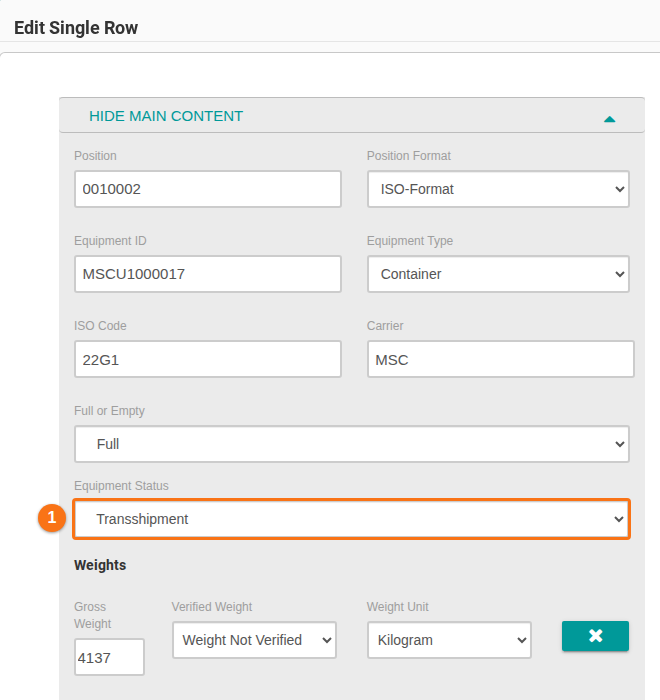
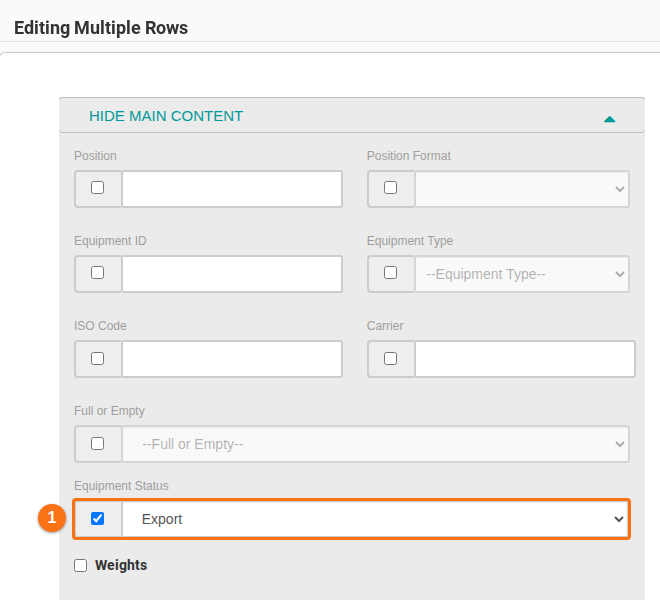
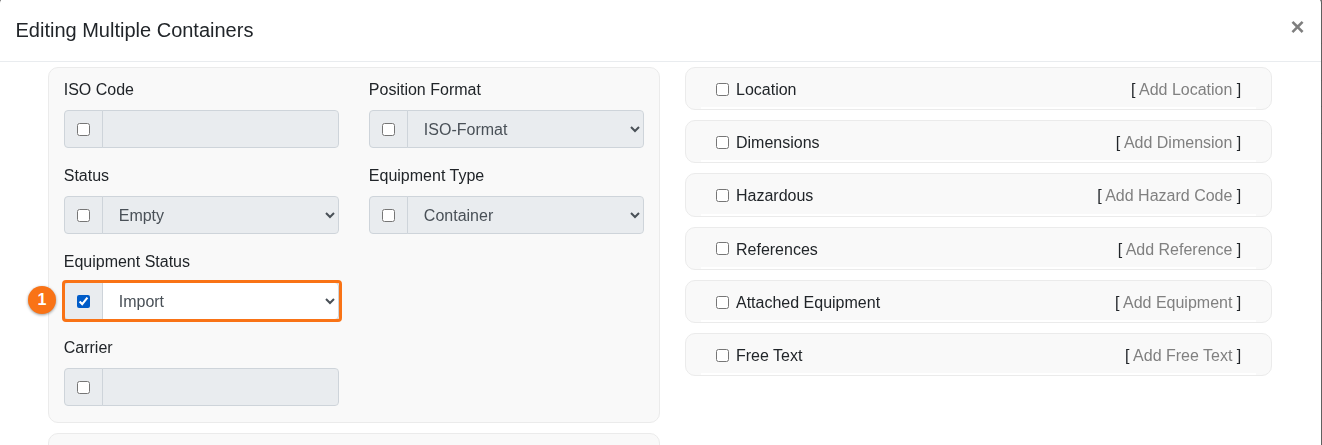
- The edit windows have an Equipment Status list: in Main Content, for one container (Edit Single Row) or for several (Editing Multiple Rows), and in the 2D view, to edit one container, to edit several and to add a container. In each picture, the list is marked 1. (How to view, filter and edit Equipment Status) (How to edit one or more containers in 2D View)
Check it
- The Anomalies page has a new Equipment Status category (1 in the first picture). It lists the status values that the standard does not know, grouped as “Unknown code …” (2). BAPLIE 3 files do not use this field, so a status in a BAPLIE 3 file is flagged as “Not used in BAPLIE 3 (SMDG 3.1.1)” (1 in the second picture). (How to view, filter and edit Equipment Status)


Keep it
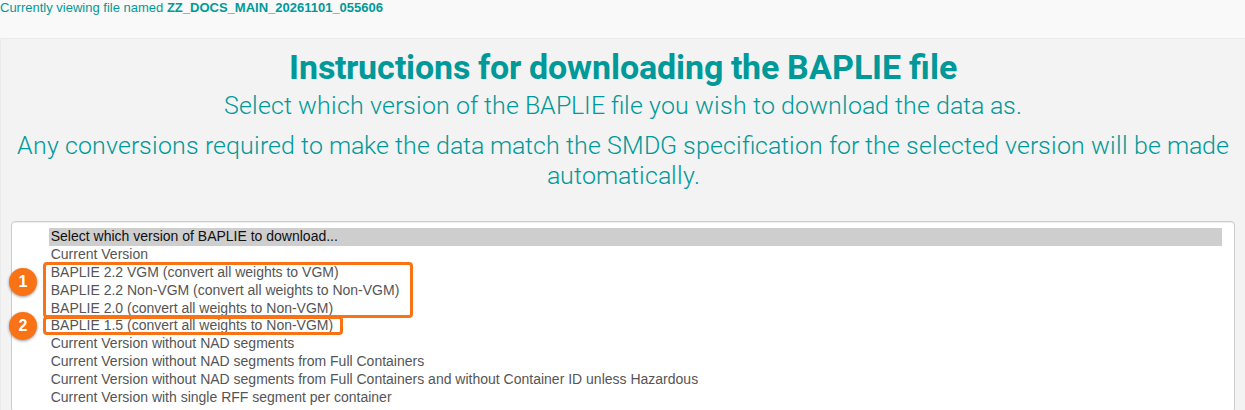
- Downloads converted to BAPLIE 2.0 or 2.2 keep every status (1 in the picture).
- Downloads converted to BAPLIE 1.5 leave the status blank, because that version has no equipment status (2). If your containers have a status, the Download page asks you to confirm first. (How to view, filter and edit Equipment Status)
- Current Version downloads are unchanged.
Excel
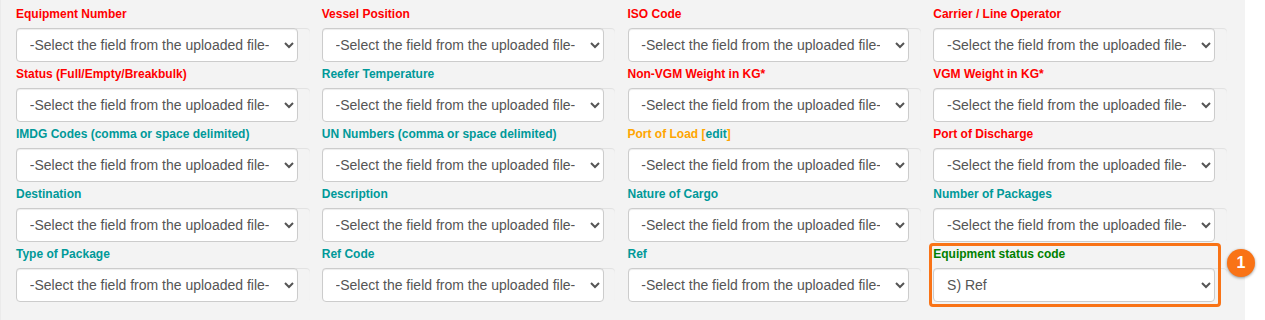
- Import Excel has an optional Equipment status code column (1 in the picture). Use the code number or the name, in any letter case. A value that is not known is reported and left blank. Saved column mappings remember the column. (How to import optional fields from Excel)
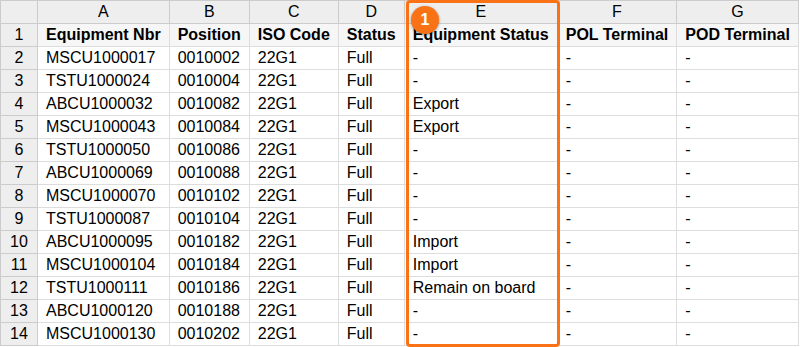
- Export To Excel in the Function Menu (1 in the first picture) writes the status name, or “-”, when the Equipment Status column is in your layout (2). In the exported spreadsheet, the status is in its own column (1 in the second picture).
Weight to VGM: new option for empty containers
Section titled “Weight to VGM: new option for empty containers”Facility administrators can now choose whether Weight To VGM also fills in the VGM of empty containers.
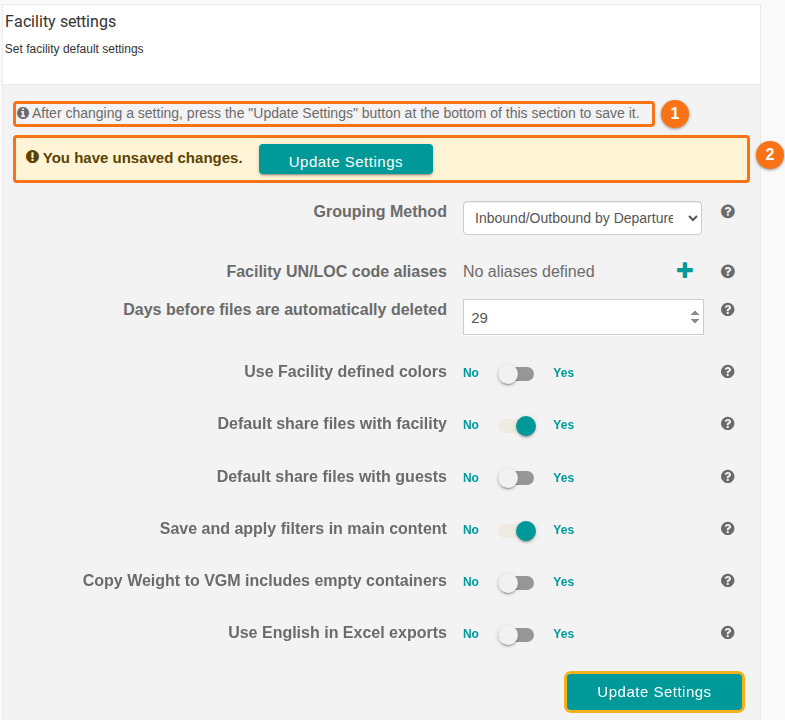
- Where: Manage Facility → Facility Settings → Copy Weight to VGM includes empty containers (1 in the picture). Click Update Settings (2) to save. (How to change the facility settings for filters, VGM and Excel exports)
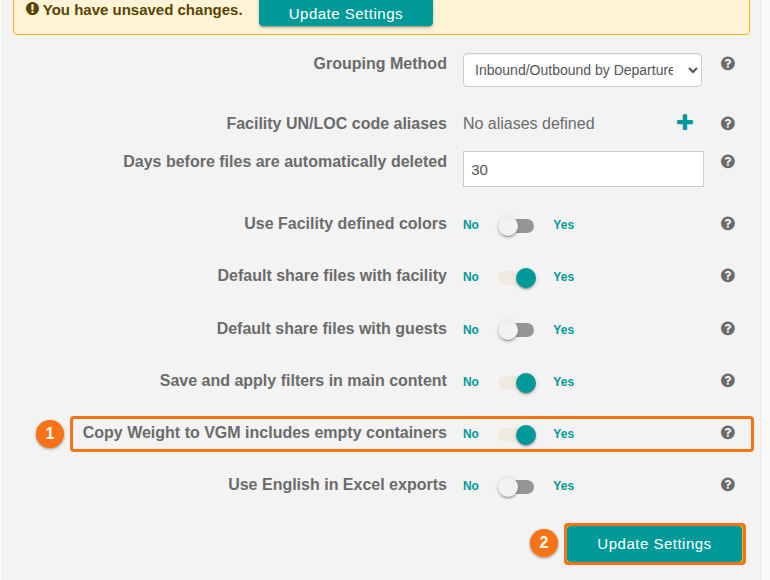
- The default is No, which works exactly as before: only full containers are filled in.
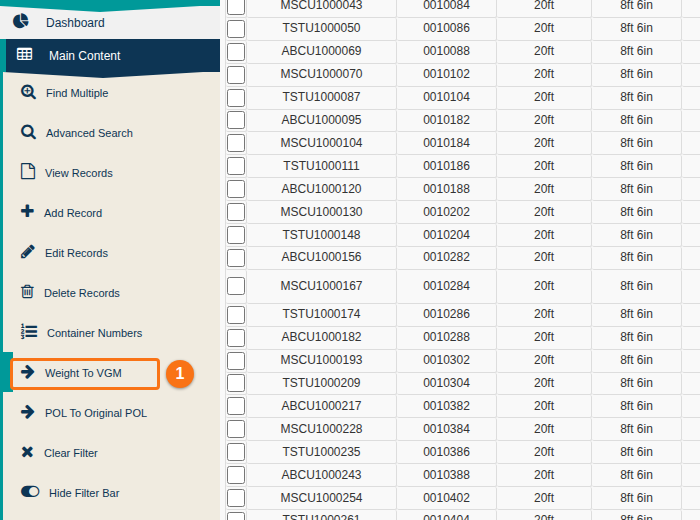
- Set it to Yes and empty containers are filled in too. The setting applies to everyone in the facility. Weight To VGM in the Function Menu of Main Content (1 in the picture) runs the copy for the whole file. To see which setting is on, point at Weight To VGM (see November 2026 Updates).
Easier settings pages
Section titled “Easier settings pages”- Saving is clearer. Facility Settings now tells you to press Update Settings after a change (1 in the picture). Until you save, a highlighted bar says “You have unsaved changes” and has its own Update Settings button (2). (How to change the facility settings for filters, VGM and Excel exports)
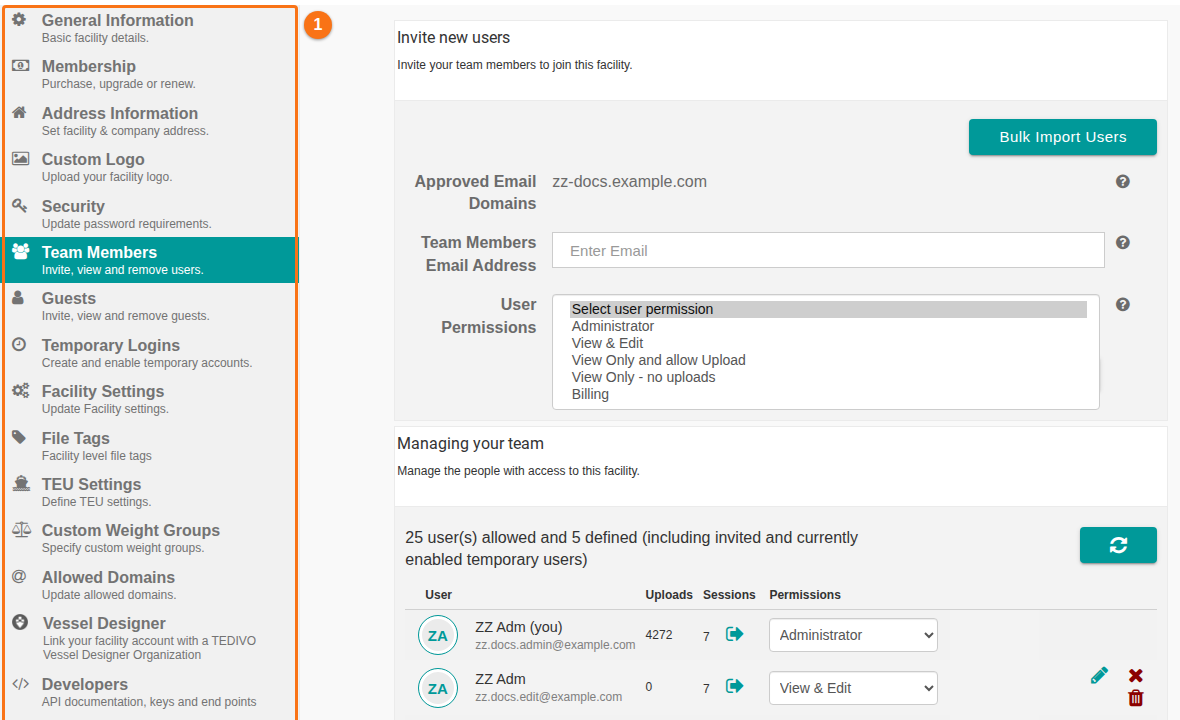
- Tidier layout on Manage Facility, Facility info, Manage Organization and your Profile: labels wrap less, switches sit closer to the right, blank gaps are gone, buttons are easier to find, and the tab list is more compact, so all tabs fit without scrolling (1 in the picture).
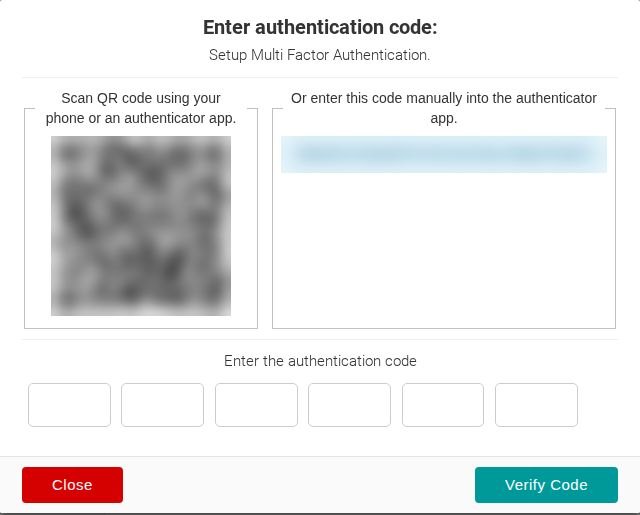
- The multi-factor authentication setup window is smaller. The QR code and the manual code sit side by side, so the six code boxes and the buttons fit on a normal screen without scrolling. (How to set up multi-factor authentication)
Other new features
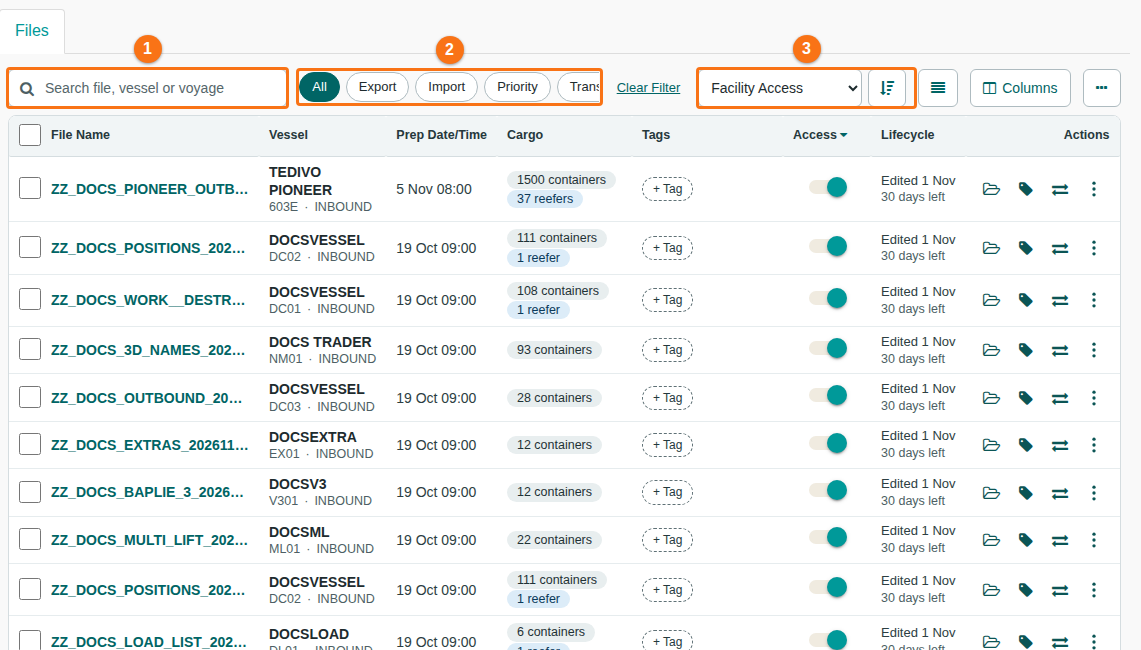
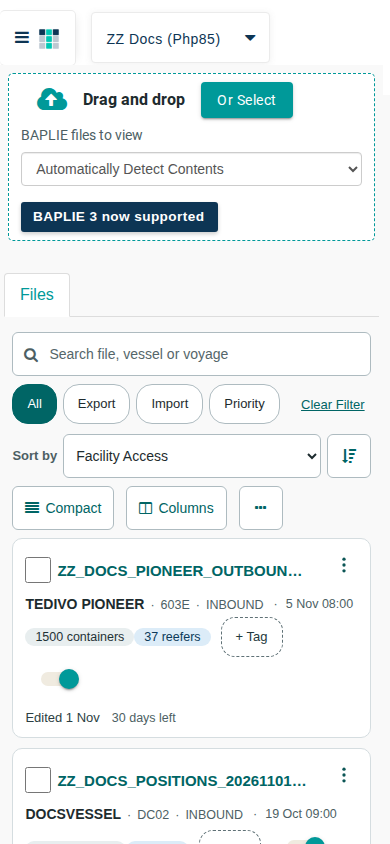
Section titled “Other new features”- New file table on the Upload BAPLIE page. Search for a file, vessel or voyage (1 in the picture), filter the files by tag (2) and sort them (3). You can also select several files for one action, page through long lists, and see the files as cards on a small screen. (How to upload a BAPLIE file)
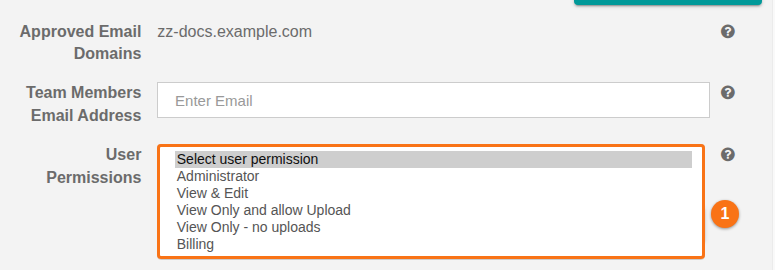
- New facility permission View Only - no uploads. Users with this permission can open files, but they cannot upload files or use Import Excel. The old View Only permission is now called View Only and allow Upload: those users can still upload (1 in the picture). (How to add users to a facility account)
- Shorter addresses for the account pages: /login, /register, /forgot, /activate and /reactivate. The old addresses still work.
Bug fixes
Section titled “Bug fixes”Equipment status
Section titled “Equipment status”- Editing a container in Main Content or in the 2D view now keeps its equipment status. Before, editing a container removed its status from the stored file, and so from every file you downloaded after the edit.
Settings pages
Section titled “Settings pages”- Organization administrators: the “(invited)” label next to administrators now works.
Other fixes
Section titled “Other fixes”- Many small fixes found during testing, for example in invoice and receipt PDFs, Excel import at the file limit, file tags, avatar and logo uploads, and the facility user lists.