

How to edit one or more records
Use this guide to change the details of one or more container records (rows) in a BAPLIE file that you have uploaded. You can change one record, or change the same fields in many records at once.
Before you start: open your file. You need the Edit permission for the file.
Prefer to watch a video? See our YouTube channel: https://youtu.be/twQAZthLotY
Edit one record
Section titled “Edit one record”- In the Function Menu on the left, open Visualization and click Main Content (1 in the picture). The table of containers opens.
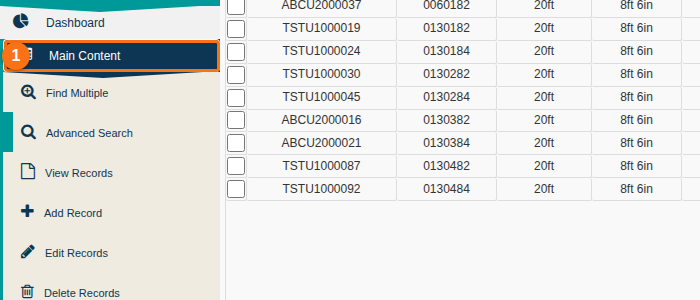
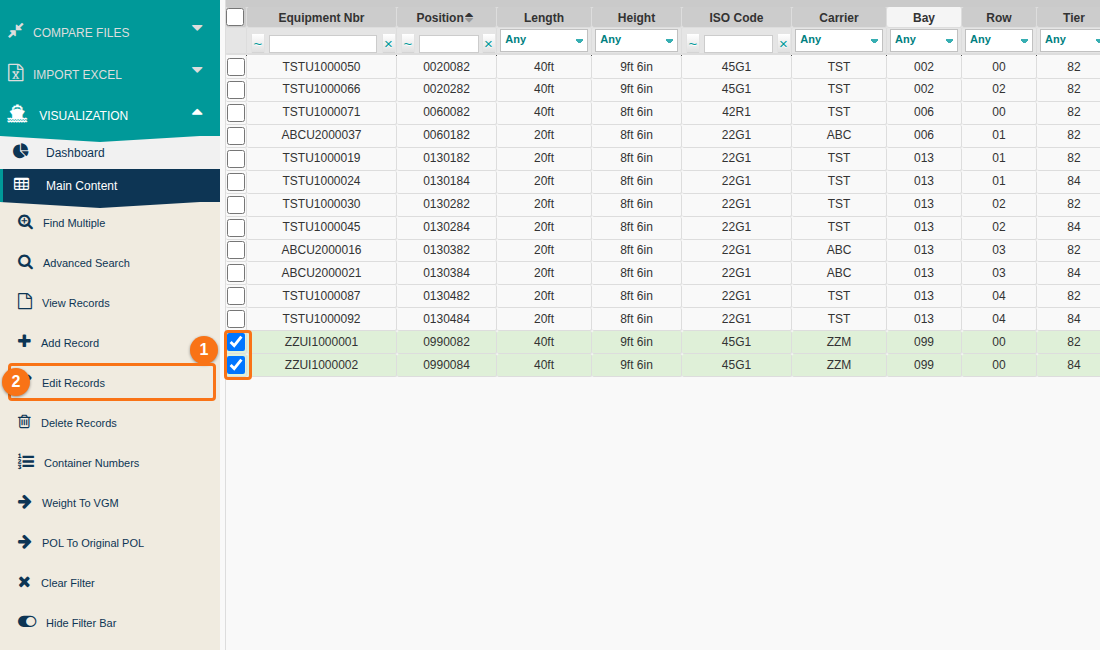
- Find the record. Use a query or a filter above the table if you need to. Tick the checkbox at the left of the record.
- In the Function Menu, click Edit Records (1 in the picture). The Edit Single Row window opens with the details of the record.
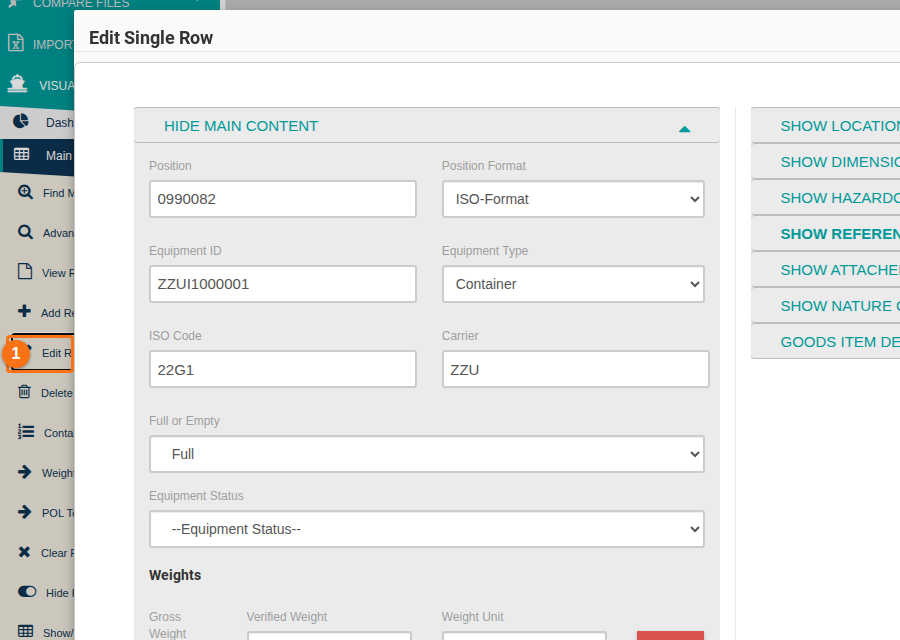
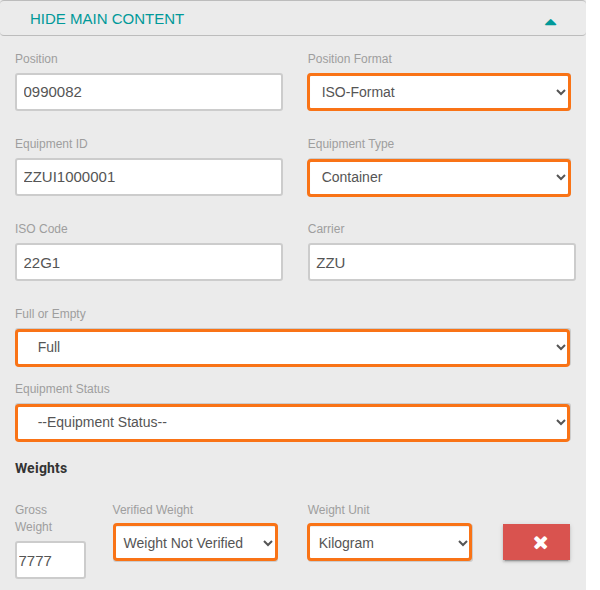
- Change the fields you need. A field that has only fixed values is a list (drop-down). In the picture, the orange boxes show these lists: Position Format, Equipment Type, Full or Empty, Equipment Status, Verified Weight and Weight Unit.
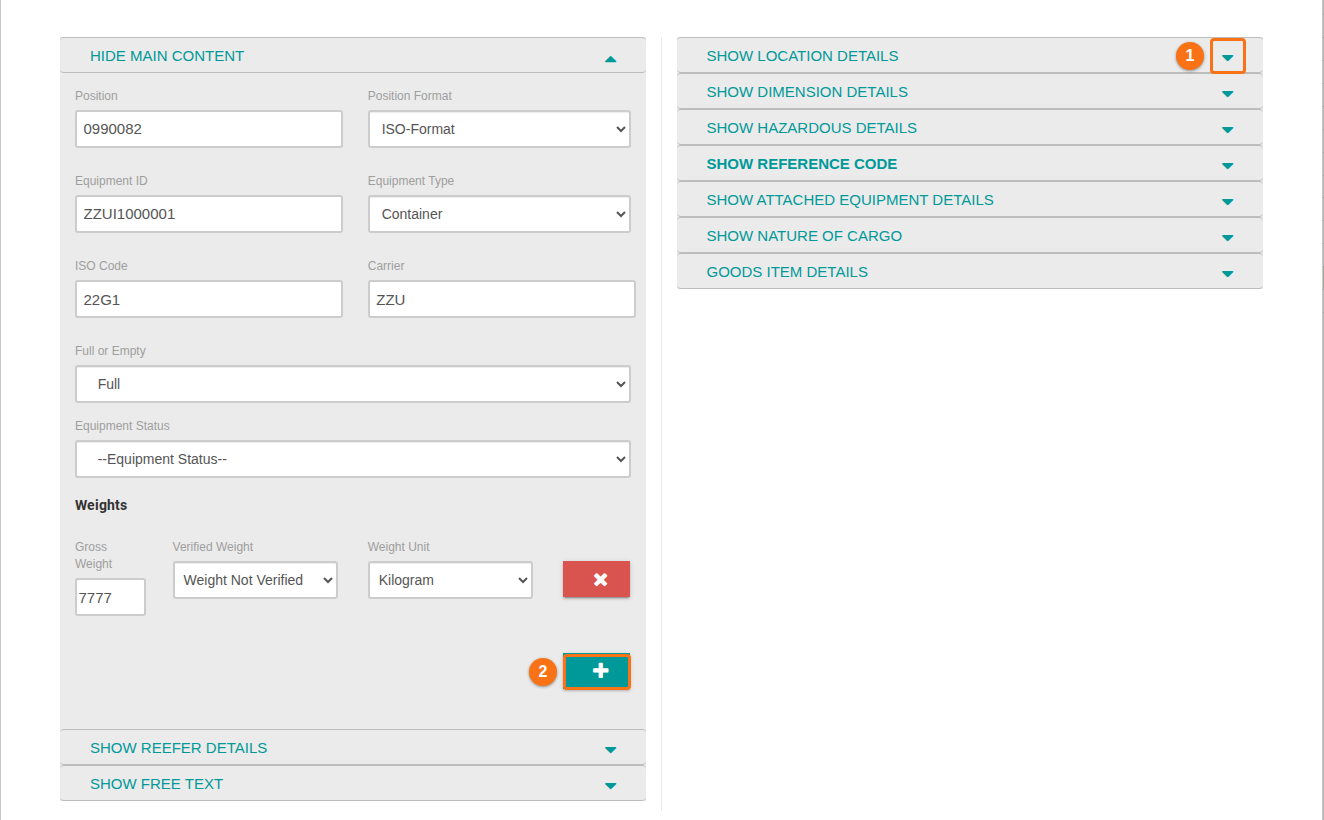
- To change a field in another section, click the header of the section or the arrow on its right (1 in the picture). The section opens. Click the header again to close it.
- If a section has no data, click the + button in that section to add details. In the picture, 2 is the + button that adds a weight.
- Click Edit Single Row at the bottom of the window (1 in the picture) to save the changes.
To cancel: click Close (2 in the picture). Your changes are not saved.

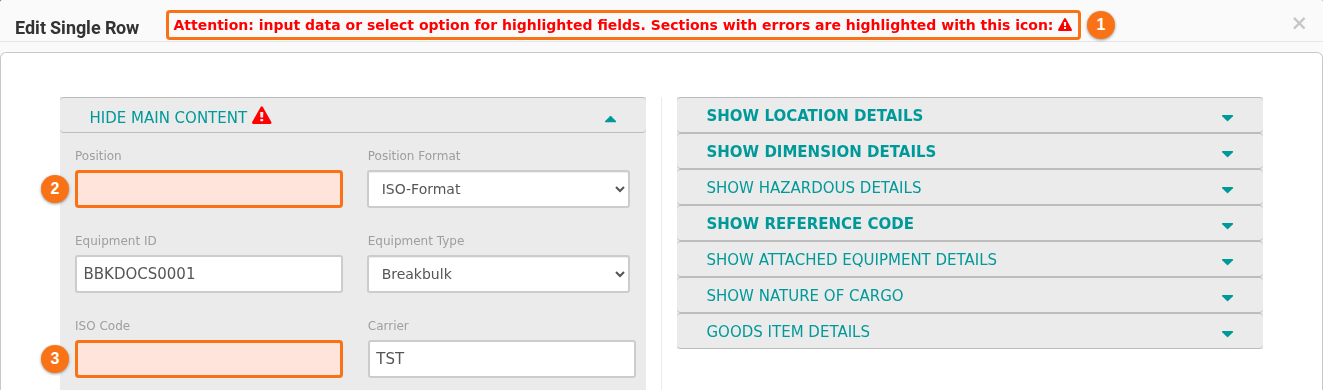
If a required field is empty or wrong, the window shows an error. The changes are not saved until you correct the error.
- A red message at the top of the window says Attention: input data or select option for highlighted fields. (1 in the picture).
- The field with the error is pink. In the picture, Position (2) and ISO Code (3) are empty.
- A section that has an error shows a red warning sign next to its name.
Edit many records at the same time
Section titled “Edit many records at the same time”You can change a group of records at once. The changes are saved for all of them together.
- On the Main Content screen, tick the checkbox at the left of each record you want to change (1 in the picture).
- In the Function Menu, click Edit Records (2 in the picture).
- Tick the checkbox at the left of each field you want to change. The field becomes editable.
- Change the values you need.
- Click Edit Multiple Rows at the bottom of the window.
Change locations for many records
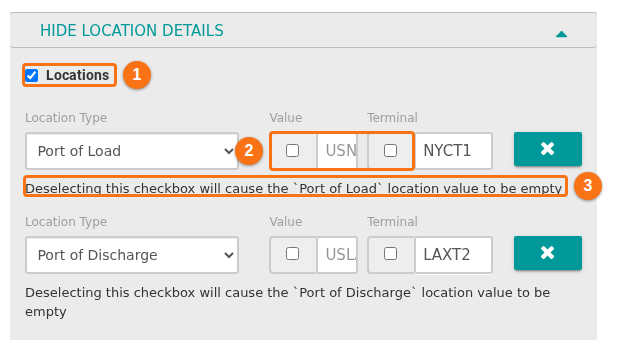
Section titled “Change locations for many records”- In the right column, click Show Location Details. The section opens.
- Tick the Locations box (1 in the picture). Each location line shows a Location Type list (for example Port of Load or Port of Discharge), a Value box and a Terminal box (2 in the picture).
- Below each line, a hint tells you what happens to the value (3 in the picture). For example: Deselecting this checkbox will cause the
Port of Loadlocation value to be empty. Read the hint before you click Edit Multiple Rows.
Note: only the fields with a ticked checkbox change, and they change for all selected records. All other fields keep their values.