

Can I export data to Excel or a PDF?
Yes. You can export the Main Content table and the summary tables to Excel. You can export the Pivot Summary to a PDF.
Before you start: upload a file, or open one that you uploaded before.
Export Main Content to Excel
Section titled “Export Main Content to Excel”- In the Function Menu on the left, open Visualization and click Main Content.
- Click Export To Excel (1 in the picture). You can do this at any time. The data on your screen is exported to an Excel file.
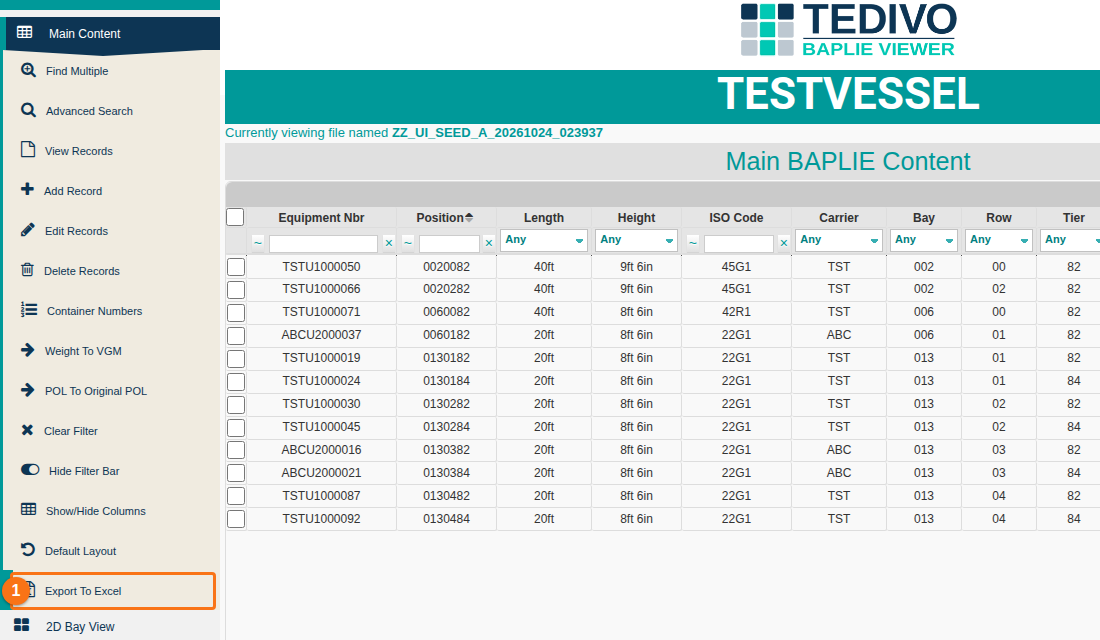
If a filter is on, only the filtered data is exported. If you changed which columns are visible, only the visible columns are exported.
Export a summary table to Excel
Section titled “Export a summary table to Excel”The summaries in the Analytics section have options to export their tables to Excel. These are Cargo Summary, Route Summary, Bay Summary, Height Summary and Allocation Summary (1 in the picture).
- Open one of the summaries.
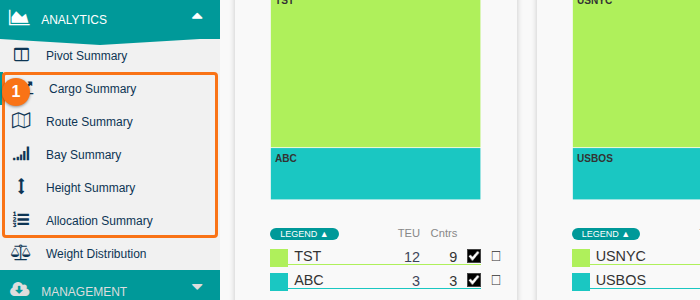
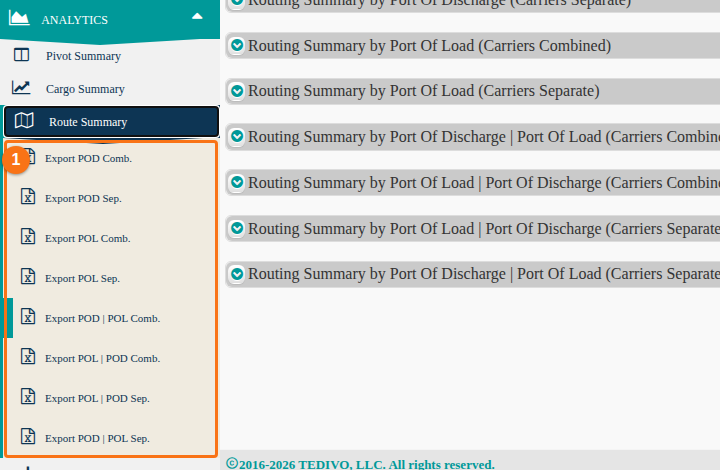
- In the Function Menu, click an Export option (1 in the picture). The summary table downloads as an Excel (.xls) file. If a summary has more than one table, for example Route Summary, the Function Menu has one Export option for each table.
Export the Pivot Summary to PDF
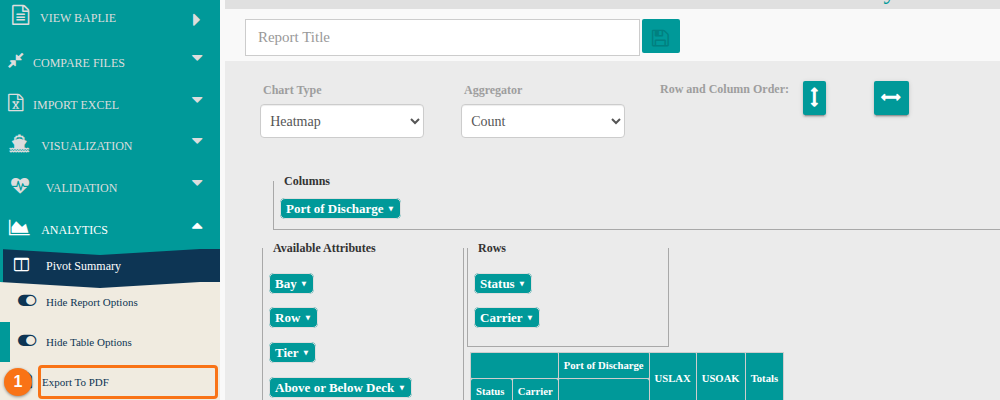
Section titled “Export the Pivot Summary to PDF”- In the Function Menu, open Analytics and click Pivot Summary. Three buttons show below it: Hide Report Options (1 in the picture), Show Table Options (2) and Export To PDF (3).
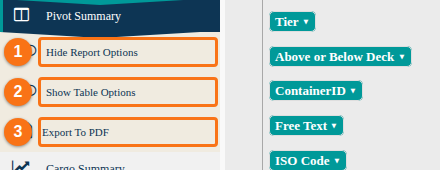
- Change the pivot table as you need.
- Click Export To PDF (1 in the picture). The pivot table downloads as a PDF.
Other file types
Section titled “Other file types”To download your BAPLIE data as a .txt file, or to convert it to another BAPLIE version, click here.